Connect Eos and Kratos via OSC
Kratos can send messages using the OSC (Open Sound Control) protocol, allowing you to send target positioning values or trigger lighting effects on your console. You can therefore trigger faders or other OSC-controllable objects from Kratos.
Hardware Connection
The Kratos station (Kore server) must be connected to the same subnet as the Eos console.
- The Kratos station must have an IP Address in the same range as the Eos console, for example:
- 192.168.1.10/24 (Kratos)
- 192.168.1.11/24 (Eos)
Control Eos using Kratos
Setup Kratos to Send OSC
You must have a KratOSC module active in your Kratos show to send OSC messages to Eos. Check the KratOSC and Modules pages for more information on how to activate KratOSC in Kratos.
Setup Eos to Receive OSC
To communicate with the OSC protocol, you must enable it in the Eos settings.
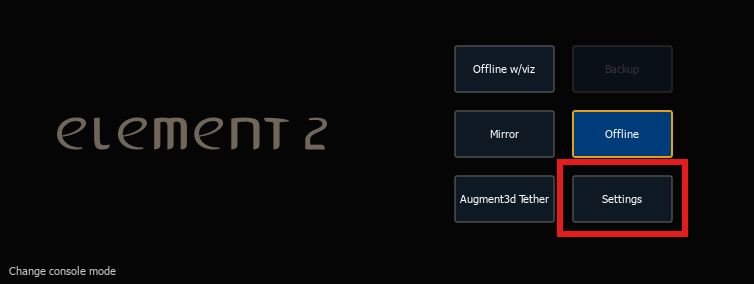
To access the settings, you have two options. The first is through the boot menu at startup:
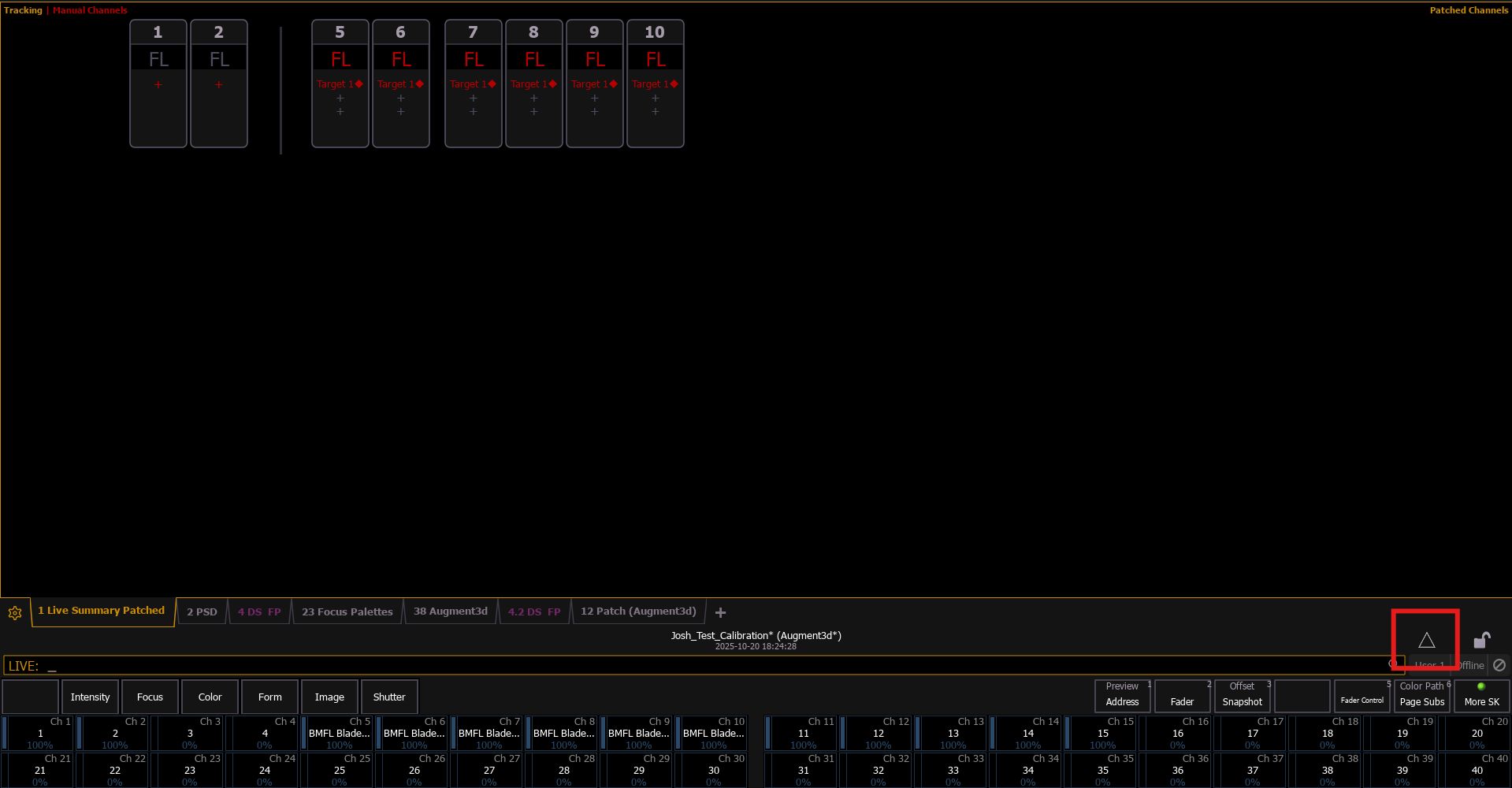
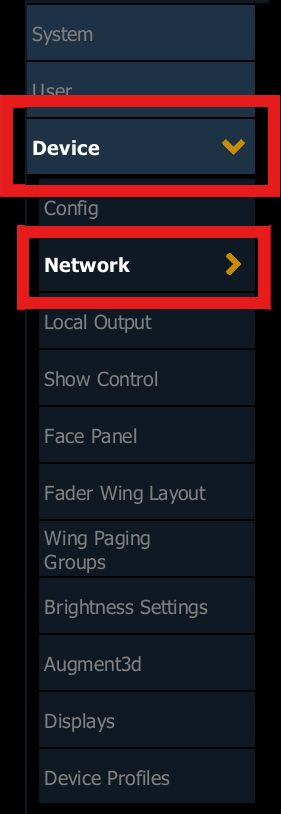
The second option is through the console's main menu in the user interface:
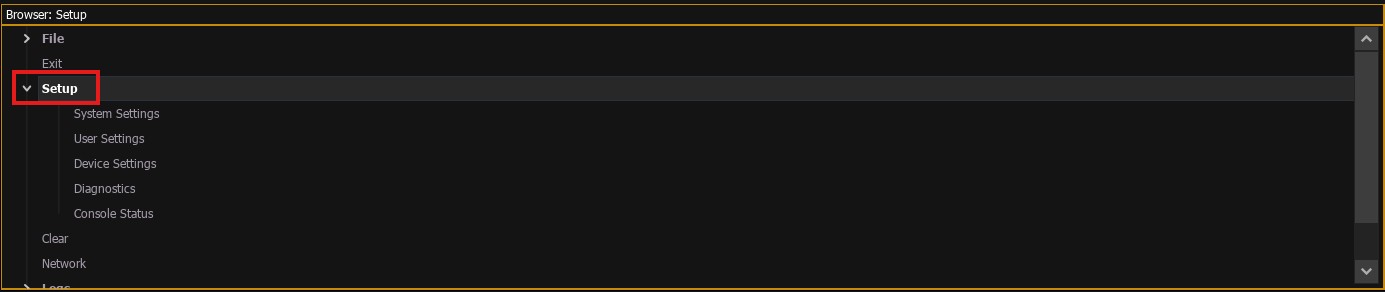
Then navigate to Device Settings and then Network. This is where you will configure the network adapter settings recognized by the console.
From this view, you must configure the settings for the network adapter to which the Kratos station is connected. This may be any adapter, depending on which interface you have chosen based on the RJ45 cables plugged into the back of the console, or on a PC.
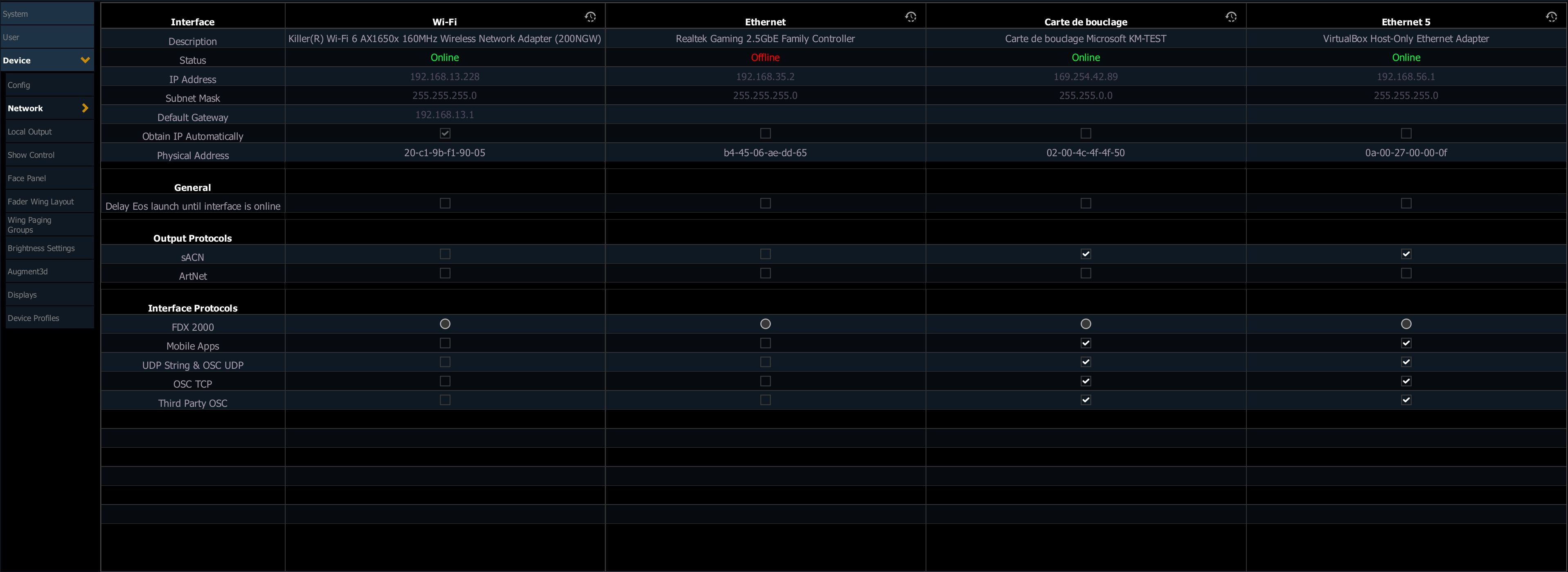
You must enable the OSC TCP settings for the chosen network adapter, as shown in the image below.

Configure OSC Protocol
You must now configure the OSC protocol in the console's Show Control menu.
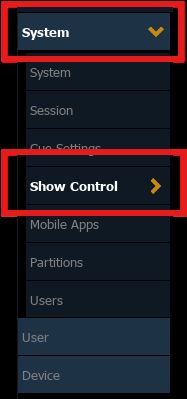
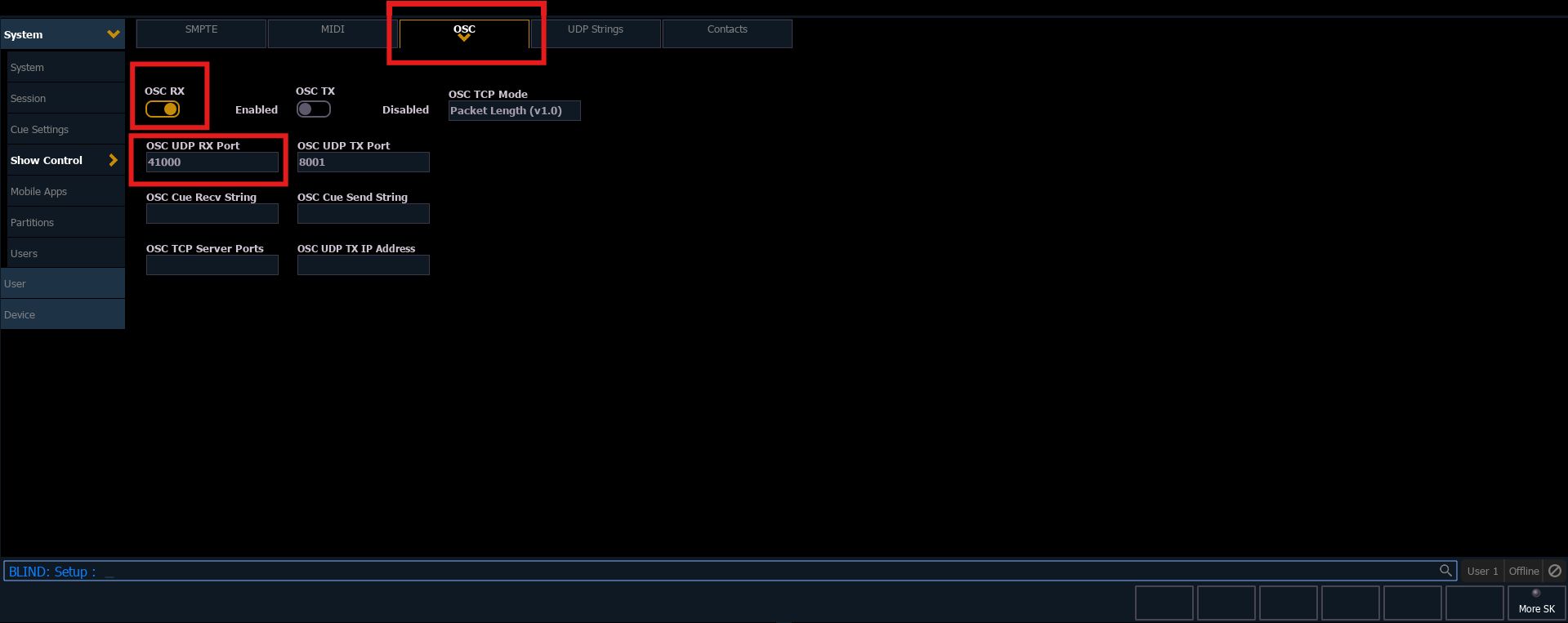
After the Show Control menu, on the right, enter the OSC submenu and enable the protocol.
You may change the network port to one of your choice, or you may keep the default one. You must note the port number if you change it, as you will need it for the configuration in the Kratos station.
Verify Connection
You should verify that the connection is properly established by looking at the console's Diagnostic view, where you can see incoming OSC messages sent from Kratos.
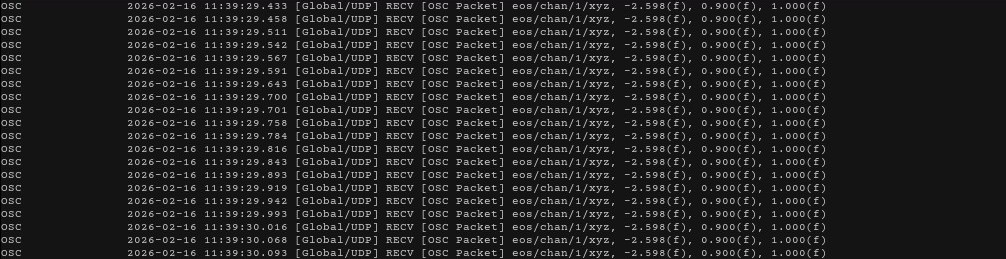
Control Kratos using Eos
You may also control Kratos from the Eos console by sending OSC messages to the Kratos station.
Setup Kratos to Receive OSC
You must have a KratOSC module active in your Kratos show. Check the KratOSC and Modules pages for more information on how to activate KratOSC in Kratos.
Setup Eos to Send OSC
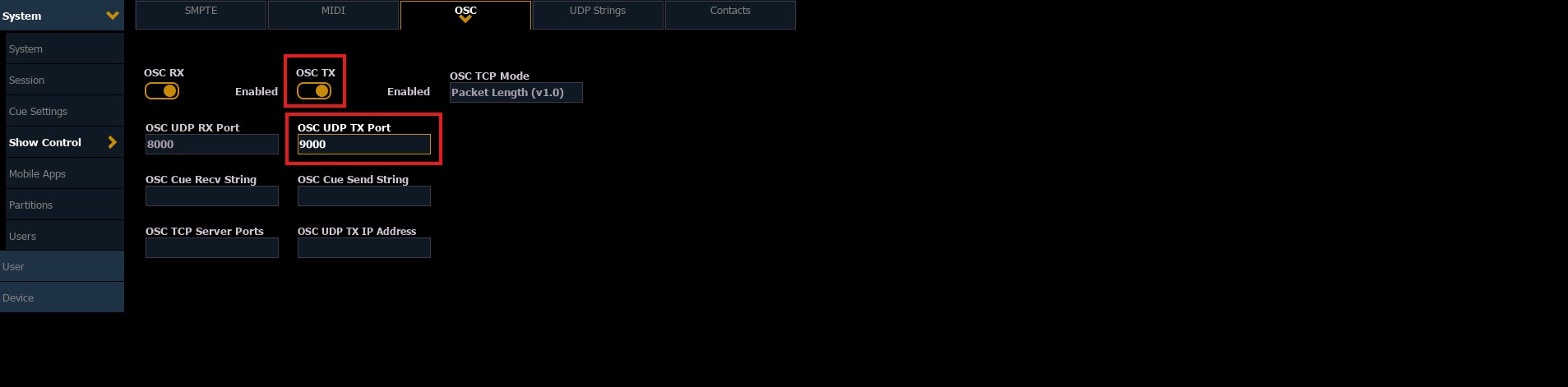
You must enable OSC message output in the Show Control menu.
Enable OSC TX, and set a port number of your choice, or according to the port configured in the KratOSC module.
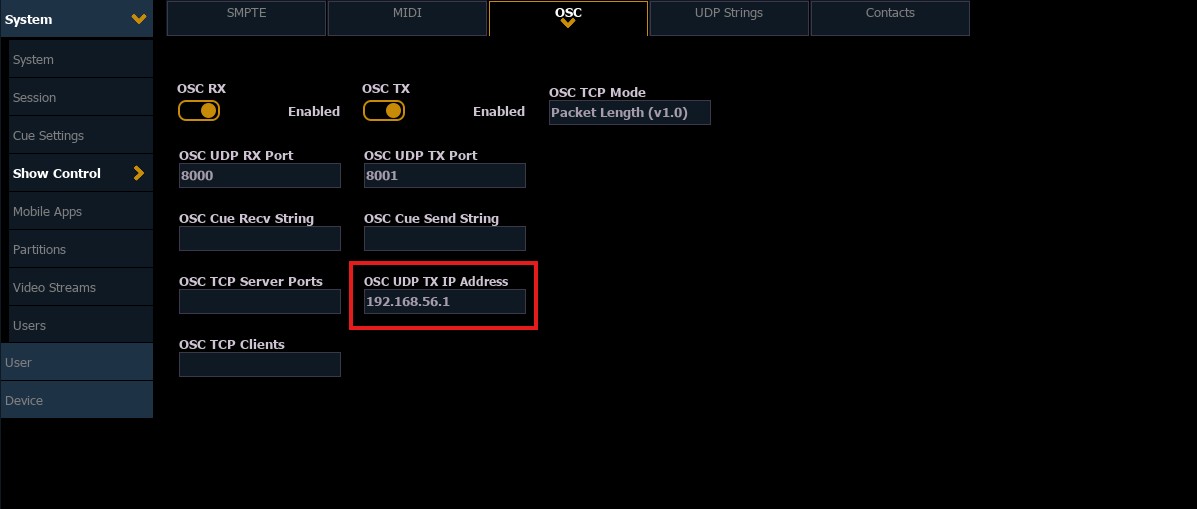
Add a destination IP address to send OSC messages.
Create a macro command
You may try sending a test message to verify that communication is properly established. To do this, you may create a macro to add the message to send.
To create a macro, open the macro view by tapping the button in the upper-left corner of the screen:

and select the macro view to open the macro editor.
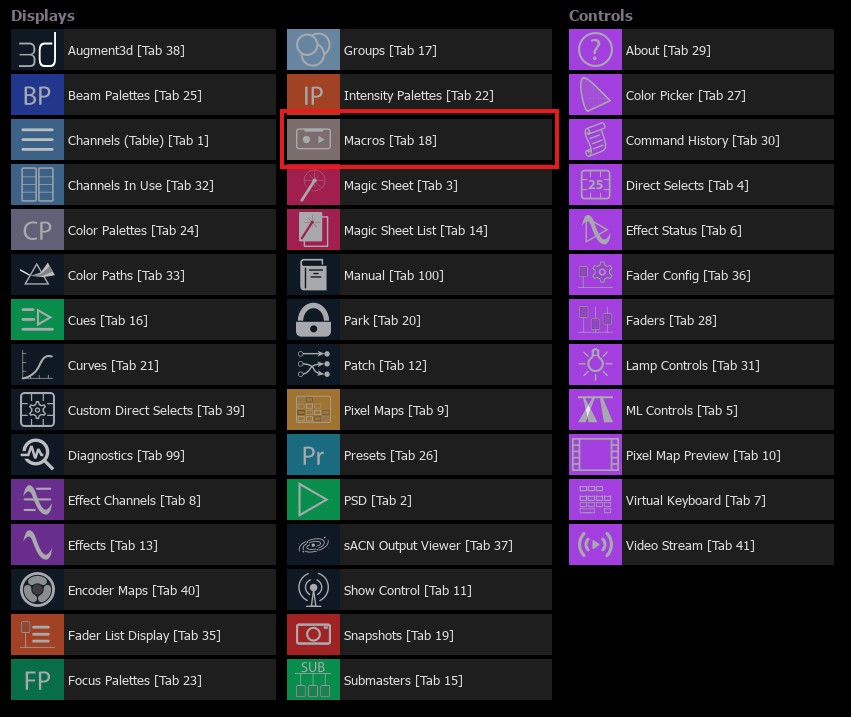
Then create a new macro and enter the command below.
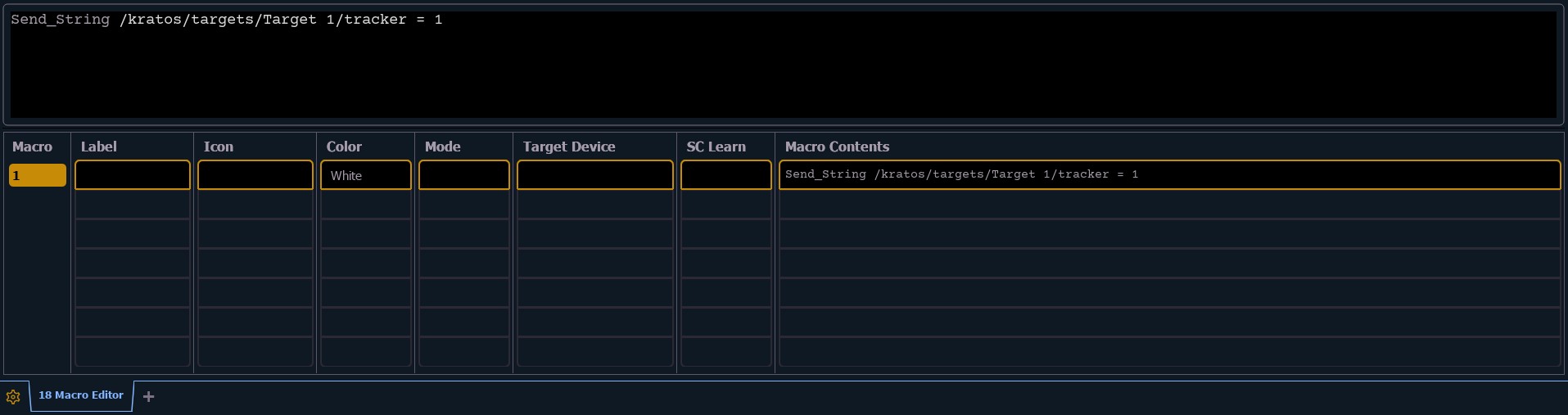
To test the connection, we will send a message to Kratos to select tracker 1 on Target 1.
For example:
Send_String /kratos/targets/Target 1/tracker = 1
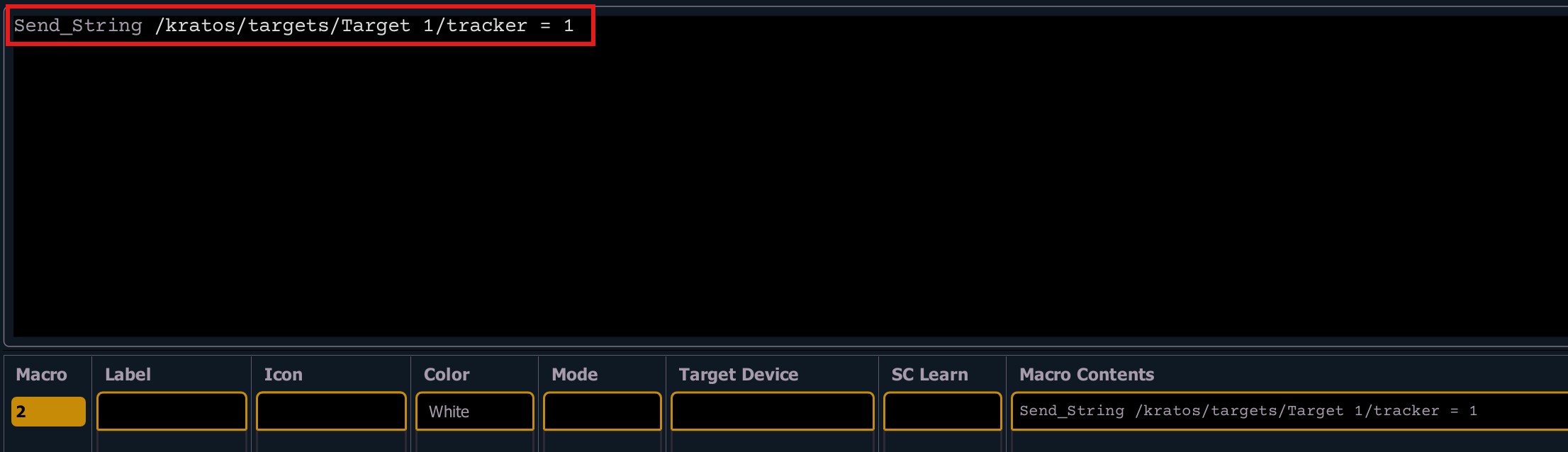
More information about SendOSC is available in the Eos documentation
Verify Connection
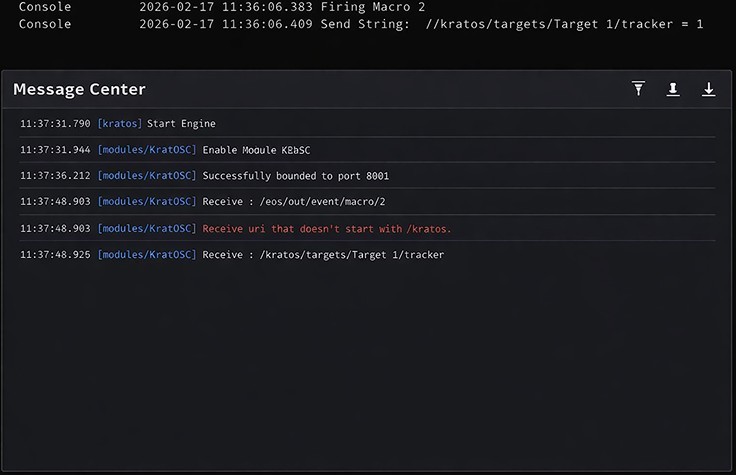
We can see the messages sent from the Eos console arrive in Kratos.