Scripting API
Actions are driven by Scripts written in JavaScript. This page is the reference of the objects and functions available to a Script: write your Scripts in the Editor view, then run them as Actions from the Actions view. Before writing your own, check the Scripts library for an existing Script or an example to start from.
Additions made in Kratos v1.11 are marked with (v1.11).
Script header
The first comment lines of a Script define how it appears in Kratos:
// Name : Target in area to OSC
// Category : OSC
// Description : Send an OSC message when a target enters an area
| field | description |
|---|---|
Name |
Name of the Script |
Category |
Category of the Script, used to group Scripts (see Categories) |
Description |
Short description of what the Script does |
Types
| type | description |
|---|---|
| Boolean | true / false |
| Integer | Whole number |
| Double | Decimal number |
| String | Text |
| Color | A color. It can be set with a hex string such as "#FF0000" |
| Vector3D | Object with x, y, z properties (numbers). It can be set with { x: 1, y: 2, z: 3 } or [1, 2, 3] |
| Vector2D | Object with x, y properties (numbers). It can be set with { x: 1, y: 2 } or [1, 2] |
Vector3D and Vector2D can also be created with their constructors:
const v3 = new Vector3D(1, 2, 3)
const v2 = new Vector2D(1, 2)
Positions are in meters and speeds in meters per second, in Kratos world coordinates (see Coordinate systems).
Console
Use the console object to print messages in the Script console:
console.log("Hello", 42)       // Information message
console.warn("Careful")        // Warning message
console.error("Oops")          // Error message
console.debug("Details")       // Debug message
console.assert(x > 0, "x must be positive") // Error message if the condition is false
console.time("t")              // Start a timer...
console.timeEnd("t")           // ...and print the elapsed time
console.count("calls")         // Print how many times this counter was called
console.countReset("calls")    // Reset the counter
console.clear()                // Clear the console
The action object
The action object is the instance of the Action running the Script. You use it to add parameters and to react to the Action's events.
Parameters
Parameters are displayed in the Action and let users configure it without editing the Script. Available parameter types are:
- Boolean, Integer, Double, String, Enum, Color, Vector3D, Vector2D, Trigger
- Kratos objects: Target, ActionArea, Module
Parameters can only be added at the top level of the Script, when it is loaded, not inside events or callbacks. Each parameter name must be unique inside an Action.
Each add... function takes either a name or a configuration object, and returns the parameter:
const speed = action.addDouble("Speed")

const gain = action.addDouble({
  name: "Gain",
  description: "Output gain",
  value: 1.0,      // Default value
  from: 0,
  to: 2,
  stepSize: 0.1,
  enabled: true,
  visible: true,
})
| configuration key | description |
|---|---|
name |
Name of the parameter (required) |
description |
Description of the parameter |
value |
Default value |
enabled |
Whether the parameter is enabled (default true) |
visible |
Whether the parameter is visible (default true) |
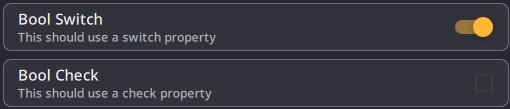
useSwitch |
Boolean only: use a switch instead of a checkbox |
from, to |
Integer and Double only: minimum and maximum values |
stepSize |
Integer and Double only: step value |
enumValues |
Enum only: list of the possible values |
All parameters have the following properties:
| property | type | description | access |
|---|---|---|---|
name |
string | Name of the parameter | r |
humanName |
string | Label displayed in the interface (the name is used when empty) | r/w |
description |
string | Description of the parameter | r/w |
value |
varies | Value of the parameter (not available on Trigger) | r/w |
enabled |
boolean | Whether the parameter is enabled | r/w |
visible |
boolean | Whether the parameter is visible | r/w |
category |
string | Section the parameter is displayed in, see Categories (v1.11) | r/w |
All parameters (except Trigger) also have an onChange event:
param.onChange((newValue) => {
  // Called when the value of the parameter changes
})
Categories
(v1.11) Give parameters a category to display them in titled sections, which helps with Actions that have many parameters. Set it with the category property or the setCategory() function:
const ip = action.addString("IP")
ip.category = "Network"

const port = action.addInt("Port")
port.setCategory("Network")

const gain = action.addDouble("Gain")
gain.setCategory("Output")
- Parameters without a category are displayed first, without a section title.
- Sections are ordered by the first appearance of their category in the Script, and parameters keep their declaration order inside each section.
- A section whose parameters are all hidden is not displayed.
addBool
| property | type | description | access |
|---|---|---|---|
useSwitch |
boolean | Use a switch (true) or a checkbox (false) |
r/w |
const enabledParam = action.addBool("Send position")
enabledParam.value = true
enabledParam.useSwitch = true
enabledParam.description = "Send the target position"
addInt

| property | type | description | access |
|---|---|---|---|
from |
int | Minimum value | r/w |
to |
int | Maximum value | r/w |
step |
int | Step value | r/w |
const channel = action.addInt("Channel")
channel.from = 1
channel.to = 512
channel.step = 1
channel.value = 10
In the configuration object the step key is stepSize, while the property of the parameter is step.
addDouble

| property | type | description | access |
|---|---|---|---|
from |
double | Minimum value | r/w |
to |
double | Maximum value | r/w |
step |
double | Step value | r/w |
const gain = action.addDouble("Gain")
gain.from = 0
gain.to = 10
gain.step = 0.1
gain.value = 5.5
addString

const address = action.addString("OSC address")
address.value = "/source/1/xyz"
address.description = "Address of the message" // Displayed as placeholder
addEnum
A drop-down list of values. The possible values are given with enumValues in the configuration object.
| property | type | description | access |
|---|---|---|---|
value |
string | Selected value | r/w |
index |
int | Index of the selected value | r/w |
const mode = action.addEnum({
  name: "Mode",
  enumValues: ["Absolute", "Relative"],
  value: "Absolute",
})

mode.onChange(() => console.log(`Mode is now ${mode.value} (index ${mode.index})`))
addColor

const colorParam = action.addColor("Color")
colorParam.value = "#00FF00"
addVector3D

const offset = action.addVector3D("Offset")
offset.value = { x: 1, y: 2, z: 3 }
console.log(offset.value.x)
addVector2D

const size = action.addVector2D("Size")
size.value = { x: 1, y: 2 }
addTrigger
A button that runs a function when clicked. It has no value.

const reset = action.addTrigger("Reset")
reset.description = "Reset all targets"
reset.onTrigger(() => {
  // Called when the button is clicked
})
addTarget

const targetParam = action.addTarget("Target")
const target = targetParam.value
The value of this parameter is a Target object.
addActionArea

const areaParam = action.addActionArea("Area")
const area = areaParam.value
The value of this parameter is an ActionArea object.
addModule

const moduleParam = action.addModule("Module")
const module = moduleParam.value
The value of this parameter is a Module object.
Events
action.onEnable(() => {
  // Called when the Action is enabled
})

action.onUpdate((dt) => {
  // Called every frame while the Action is enabled
  // dt: time elapsed since the last frame, in milliseconds
})

action.onDisable(() => {
  // Called when the Action is disabled
})
If a Script throws an error, the Action is stopped and the error is displayed in the console.
The show object
The show object is the Show currently loaded in Kratos.
| property | type | description | access |
|---|---|---|---|
name |
string | Name of the Show | r/w |
trackers |
Tracker[] | List of Trackers in the Show | r |
targets |
Target[] | List of Targets in the Show | r |
show.getTracker(trackerUid) // Returns the Tracker with this uid, or null
show.getTarget(targetUid)   // Returns the Target with this uid, or null
Objects
Kratos objects are obtained from parameters or from the show object. They all share these properties and functions:
| property | type | description | access |
|---|---|---|---|
uid |
int | Unique identifier of the object | r |
isValid |
boolean | false when no object is selected or the object no longer exists |
r |
object.equals(other) // Returns true if other is the same object
Target
A Target as defined in the Target Patcher.
const target = action.addTarget("Target").value
| property | type | description | access |
|---|---|---|---|
name |
string | Name of the Target | r/w |
color |
Color | Color of the Target | r/w |
trackerUid |
int | Uid of the Tracker assigned to the Target (0 when none) |
r/w |
manual |
boolean | Whether the Target is in manual mode | r/w |
mode2D |
boolean | Whether the Target is in 2D mode | r/w |
prediction |
int | Prediction time (ms) | r/w |
smoothingTime |
int | Smoothing time (ms) | r/w |
manualZ |
double | Height (m) of the Target in manual mode | r/w |
validity |
double | Validity of the Target (0 to 1) | r |
position |
Vector3D | Position of the Target (m). Setting it moves the Target manually | r/w |
predictedPosition |
Vector3D | Predicted position of the Target (m) | r |
speed |
Vector3D | Speed of the Target (m/s) | r/w |
homePosition |
Vector3D | Home Position of the Target (m) | r/w |
const target = action.addTarget("Target").value

action.onUpdate((dt) => {
  if(target.validity > 0.5) {
    const p = target.position
    console.log(`${target.name} is at ${p.x}, ${p.y}, ${p.z}`)
  }
})
To change a position, assign a whole new value (target.position = { x: 1, y: 2, z: 0 }). Changing a single component (target.position.x = 1) has no effect on the Target.
ActionArea
An area as defined in the Action Area section of Kratos.
const area = action.addActionArea("Area").value
| property | type | description | access |
|---|---|---|---|
name |
string | Name of the area | r/w |
enabled |
boolean | Whether the area is enabled | r/w |
visible |
boolean | Whether the area is visible | r/w |
type |
string | Type of the area: "ActionArea", "SpawningArea", "TrackingArea", "KillingArea" |
r |
position |
Vector3D | Position of the area's origin corner (m) | r/w |
scale |
Vector3D | Size of the area (m) | r/w |
rotation |
Vector3D | Rotation of the area (degrees) | r/w |
Functions:
area.isInside(position)     // true if the position (Vector3D or Target) is inside the area. Always false when the area is disabled
area.worldToLocal(position) // Converts a world position to area coordinates (0 to 1 on each axis inside the area)
area.localToWorld(position) // Converts area coordinates back to a world position
Events:
area.onTargetBeginOverlap((target) => {
  // Called when a Target enters the area
})

area.onTargetEndOverlap((target) => {
  // Called when a Target leaves the area
})
Example:
const area = action.addActionArea("Area").value
const target = action.addTarget("Target").value

action.onUpdate((dt) => {
  if(area.isInside(target)) {
    const local = area.worldToLocal(target.position)
    console.log(`${target.name} is at ${Math.round(local.x * 100)}% of ${area.name}`)
  }
})
Module
A Module as defined in the Modules view.
const module = action.addModule("Module").value
All Modules have these properties:
| property | type | description | access |
|---|---|---|---|
name |
string | Name of the Module | r/w |
enabled |
boolean | Whether the Module is enabled | r/w |
logIncoming |
boolean | Whether the Module logs incoming messages | r/w |
logOutgoing |
boolean | Whether the Module logs outgoing messages | r/w |
connectionState |
string | Connection state of the Module | r |
Module parameters
(v1.11) Every parameter of a Module can be read and written directly as a property of the Module, using the parameter names listed below for each Module type:
const osc = action.addModule("OSC Module").value

action.onEnable(() => {
  osc.outputAddress = "192.168.1.20"
  osc.outputPort = 9000
  console.log(`Sending to ${osc.outputAddress}:${osc.outputPort}`)
})
Parameters that are disabled in the interface can still be changed from a Script.
PSN Module
See PSN Module.
| parameter | type | description |
|---|---|---|
output_enabled |
boolean | Whether the PSN output is enabled |
output_name |
string | Name of the PSN output |
output_ip |
string | IP address of the PSN output |
output_port |
int | Port of the PSN output |
output_ttl |
int | TTL of the PSN output |
output_frequency |
string | Output frequency |
output_id_offset |
string | ID offset of the PSN output |
output_send_only_valid |
boolean | Whether only valid Targets are sent |
input_enabled |
boolean | Whether the PSN input is enabled |
input_ip |
string | IP address of the PSN input |
input_port |
int | Port of the PSN input |
x_remap |
string | X remap (X, Y, Z, -X, -Y, -Z) |
y_remap |
string | Y remap (X, Y, Z, -X, -Y, -Z) |
z_remap |
string | Z remap (X, Y, Z, -X, -Y, -Z) |
offset |
Vector3D | Offset applied to all Targets (m) |
OSC Module
See OSC Module.
| parameter | type | description |
|---|---|---|
outputEnabled |
boolean | Whether the OSC output is enabled |
outputAddress |
string | IP address of the OSC output |
outputPort |
int | Port of the OSC output |
inputEnabled |
boolean | Whether the OSC input is enabled |
inputAddress |
string | IP address of the OSC input |
inputPort |
int | Port of the OSC input |
Sending messages:
module.send({
  address: "/source/1/xyz",
  args: [
    { type: "i", value: 123 },     // int
    { type: "f", value: 1.23 },    // float
    { type: "s", value: "hello" }, // string
  ]
})
Supported argument types are i (int), f (float), s (string), b (blob), and the value-less T (true), F (false), N (nil) and I (impulse).
Receiving messages:
module.onReceive((message) => {
  // message.address: OSC address
  // message.args: list of { type, value }
  console.log(`Received ${message.address}`)
})
Messages are only sent when the output is enabled, and only received when the input is enabled.
GrandMA2 Telnet Module
See GrandMA2 Module.
| parameter | type | description |
|---|---|---|
ip |
string | IP address of the GrandMA2 station |
port |
int | Telnet port of the GrandMA2 station |
userName |
string | User name used to log in |
userPassword |
string | Password used to log in |
Sending commands:
module.send("Go Executor 1.1")
KratOSC Module
See KratOSC Module.
| parameter | type | description |
|---|---|---|
inputEnabled |
boolean | Whether the OSC input is enabled |
inputAddress |
string | IP address of the OSC input |
inputPort |
int | Port of the OSC input |
outputEnabled |
boolean | Whether the OSC output is enabled |
outputAddress |
string | IP address of the OSC output |
outputPort |
int | Port of the OSC output |
feedbackPeriodMs |
int | Feedback period (ms) |
This Module cannot send messages from Scripts: it automatically sends feedback about Kratos to its listeners (see KratOSC).
HTTP Module
See HTTP Module.
| parameter | type | description |
|---|---|---|
baseAddress |
string | Base URL of all requests |
timeout |
int | Request timeout in milliseconds (0 = no timeout) |
authType |
string | Authentication type: "None", "Basic", "Bearer" |
authUsername |
string | User name for Basic authentication |
authPassword |
string | Password for Basic authentication |
authToken |
string | Token for Bearer authentication |
Sending requests:
// Generic request
module.request(method, address, body, resultType)
// method: "GET", "POST", "PUT", "PATCH" or "DELETE"
// address: path appended to the base address
// body: request body (optional, for POST / PUT / PATCH)
// resultType: "default", "raw", "json" or "xml" (optional)

// Shortcuts
module.get(address, resultType)
module.post(address, body, resultType)
module.put(address, body, resultType)
module.patch(address, body, resultType)
module['delete'](address, resultType) // 'delete' is a reserved word in JavaScript
Handling responses:
module.onResponse((statusCode, response, resultType) => {
  // statusCode: HTTP status code (200, 404...)
  // response: response body as a string
})

module.onError((errorCode, errorString) => {
  // errorString: readable error message
})
Example:
const http = action.addModule("HTTP Module").value

http.onResponse((statusCode, response, resultType) => {
  if(resultType === "json") {
    const data = JSON.parse(response)
    console.log(`Got ${data.name}`)
  }
})

http.onError((errorCode, errorString) => console.error(`HTTP error: ${errorString}`))

const fetchUser = action.addTrigger("Fetch user")
fetchUser.onTrigger(() => http.get("/api/users/1", "json"))
SpaceMouse Module
(v1.11) See SpaceMouse Module.
| parameter | type | description |
|---|---|---|
device |
string | Selected SpaceMouse device |
target |
Target | Target controlled by the SpaceMouse |
actionArea |
ActionArea | Area the Target movement is limited to |
pan2dMode |
boolean | Pan a 2D camera view instead of moving a Target |
focusedView |
int | Camera view controlled in 2D mode (0 = none) |
inputMovement |
string | "Translation", "Rotation" or "Combined" |
autoReleaseTarget |
boolean | Switch the Target to manual mode when the SpaceMouse is moved |
useAsCursor |
boolean | Use the SpaceMouse as a cursor in 2D mode (for Quick Assign) |
enableX, enableY, enableZ |
boolean | Enable each axis |
invertX, invertY, invertZ |
boolean | Invert each axis |
swapXY |
boolean | Swap the X and Y axes |
zAsZoom |
boolean | Use the Z axis to zoom the focused camera view instead of moving the Target |
button1Action, button2Action |
string | "None", "Reset to Home", "Release Target" or "Quick Assign" |
sensitivity3d |
double | Sensitivity when moving a Target |
sensitivity2d |
double | Sensitivity in 2D mode |
pan2dSpeedFollowsZoom |
boolean | Adapt the 2D pan speed to the zoom level |
inputCurve |
string | "Linear", "Quadratic", "Cubic" or "S-Curve" |
deadzoneX, deadzoneY, deadzoneZ |
double | Dead zone of each axis |
Functions:
module.resetPosition()        // Send the controlled Target to its Home Position
module.refreshDevices()       // Search again for connected SpaceMouse devices
module.quickassign()          // Quick Assign the controlled Target in the focused camera view
module.quickassign("Singer")  // Quick Assign the Target named "Singer"
Events:
module.onButton1(() => { /* Button 1 pressed */ })
module.onButton2(() => { /* Button 2 pressed */ })
module.onConnected(() => { /* Device connected */ })
module.onDisconnected(() => { /* Device disconnected */ })
Tracker
A Tracker created by the Kore AI (K SYSTEM Sense only). Trackers are obtained from the show object:
const tracker = show.getTracker(target.trackerUid) // Tracker assigned to a Target, or null
const firstTracker = show.trackers[0]
| property | type | description | access |
|---|---|---|---|
position |
Vector3D | Position of the Tracker (m) | r/w |
speed |
Vector3D | Speed of the Tracker (m/s) | r/w |
validity |
double | Validity of the Tracker (0 to 1) | r/w |
color |
Color | Color of the Tracker | r |
age |
int | Time since the Tracker was first detected (ms) (v1.11) | r |
poseKeypoints |
Vector3D[] | Body keypoints of the Tracker, in local coordinates (m) | r |
worldPoseKeypoints |
Vector3D[] | Body keypoints of the Tracker, in world coordinates (m) | r |
poseKeypointsNames |
string[] | Names of the keypoints, in the same order as the keypoint lists | r |
Keypoint names are: nose, left_eye, right_eye, left_ear, right_ear, left_shoulder, right_shoulder, left_elbow, right_elbow, left_wrist, right_wrist, left_hip, right_hip, left_knee, right_knee, left_ankle, right_ankle. Keypoint lists are undefined when no body pose is available.
const target = action.addTarget("Target").value

action.onUpdate((dt) => {
  const tracker = show.getTracker(target.trackerUid)
  if(tracker) {
    const wrist = tracker.poseKeypointsNames.indexOf("left_wrist")
    const keypoints = tracker.worldPoseKeypoints
    if(keypoints)
      console.log(`Left wrist height: ${keypoints[wrist].z}`)
    console.log(`Tracker age: ${tracker.age} ms`)
  }
})