v1.11
Version 1.11 of K SYSTEM brings a major step forward for camera management, 3D visualization and manual control. It introduces Free Calibration, an online Calibration Database, automatic device discovery, a completely reworked 3D Stage, SpaceMouse support, a virtual pan/tilt for camera views and the new Target Quick Assign workflow.
Several of these features ship behind the new Feature Preview system, so you can opt in (or out) per show.
Explore the new features below!
Feature Preview
A new Feature Preview mechanism lets you opt into pre-release features on a per-show basis. It is used to roll out larger changes gradually so you can adopt them at your own pace.
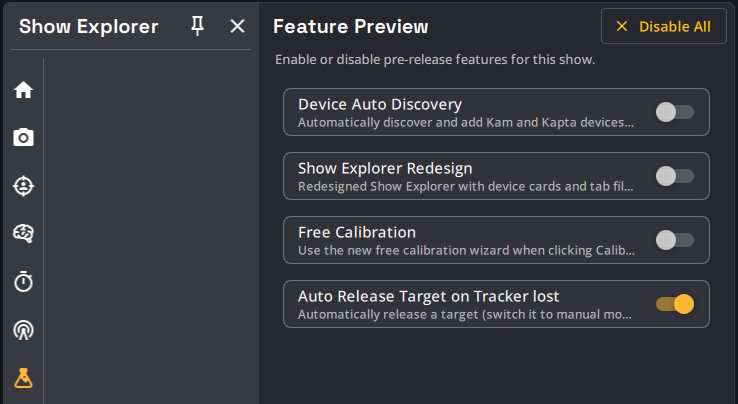
- Open the Feature Preview tab (flask icon) in the Show Explorer.
- Each preview feature is a switch with a short description. Toggling it takes effect immediately and the state is saved in the show file.
- A Disable All button turns every preview off at once — useful as a quick "back to known-good behavior" switch before a show.
The preview features available in v1.11 are:
| Feature | Default | Description |
|---|---|---|
| Free Calibration | Off | Use the new point-based calibration when clicking Calibrate. When off, the legacy calibration dialog opens. |
| Auto Release Target on Tracker lost | On | Automatically release a Target (switch it to manual mode) when its assigned Tracker is lost for more than 1 second. |
| Device Auto Discovery | Off | Discover Kam and Kapta devices on the network and add them from a dialog. Kaptas are no longer added automatically. |
| Show Explorer Redesign | Off | Redesigned Show Explorer with device cards and tab filtering. |
Camera Calibration & Devices
Free Calibration
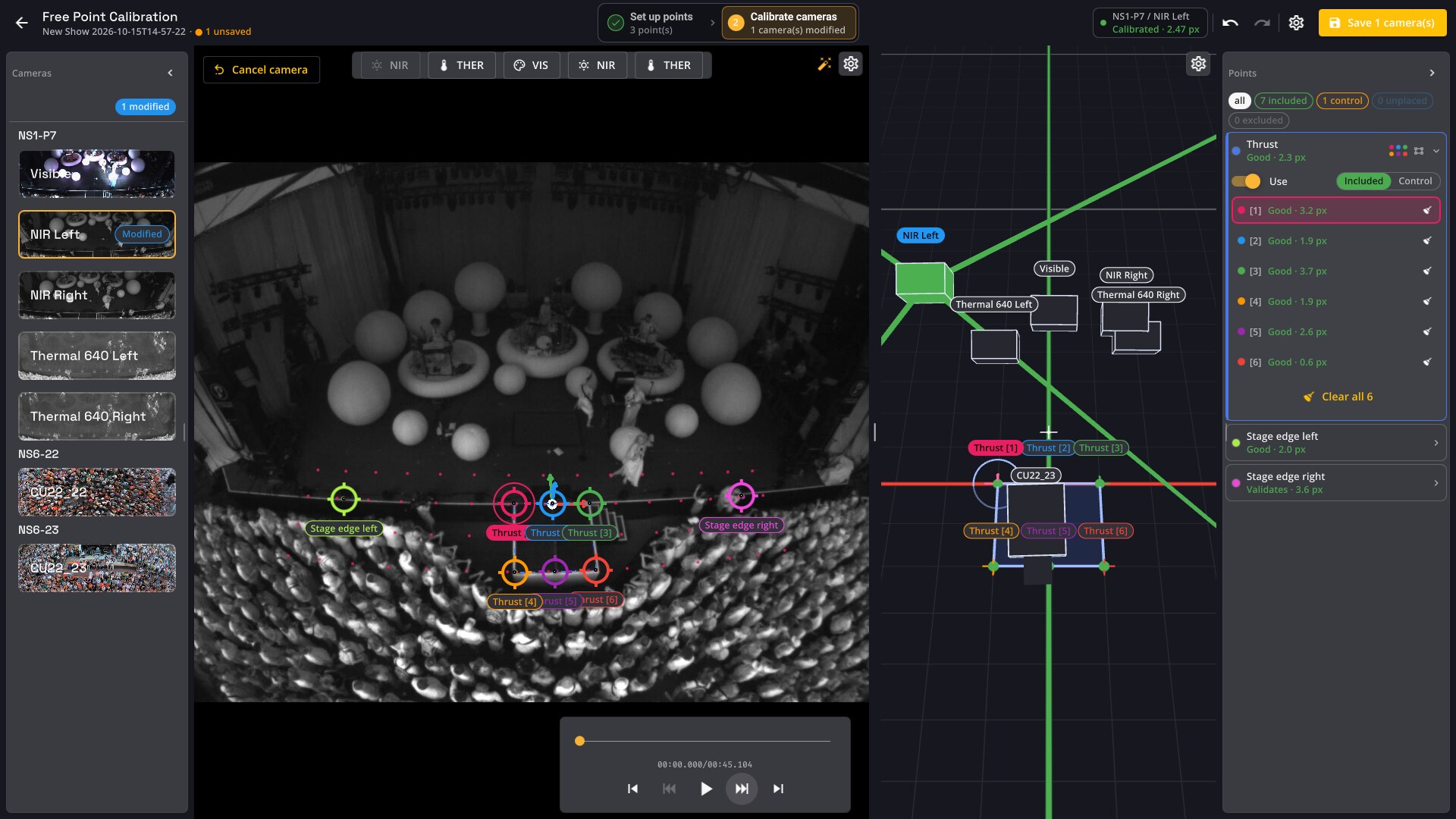
A new Free Calibration workflow calibrates the position and orientation of Kapta and Kam cameras from points placed on the camera images. Open it with the Free Calibration button of a camera, or enable the Free Calibration preview so that Calibrate opens it too. See Calibrate with Free Calibration.
Device Auto Discovery
Kratos can now automatically discover Kam and Kapta devices on the network instead of adding them manually. Enable it with the Device Auto Discovery preview.
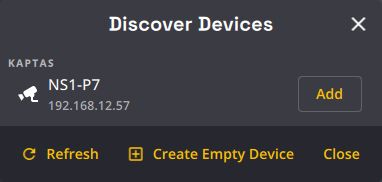
- A Discover Devices dialog lists Kaptas and Kams found on the network, each with its name and IP address. Other network cameras and video recorders are ignored.
- Click Add next to a device to add it to the show; already-known devices are shown as Added. With the preview on, Kaptas are no longer added automatically.
- A banner above the device list tells you when new devices are available to add.
Auto Discovery works hand-in-hand with the Calibration Database: once a device is discovered, Kratos identifies it and applies the matching factory calibration automatically.

Calibration Database
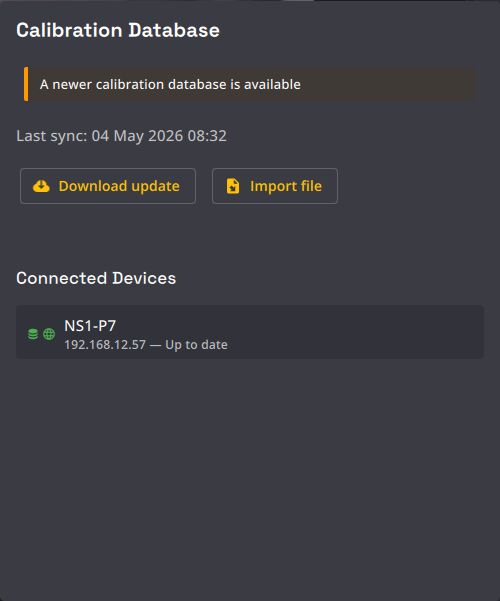
Kratos now ships with a Calibration Database (Kloud): a database of factory optical calibrations for Kam and Kapta devices. When a known device connects, Kratos automatically applies the correct factory calibration.
- Automatic calibration on connect: devices are recognized by hardware and calibrated automatically — no manual import of config files needed.
- Update notifications: per-device badges show whether each device's calibration is up to date, and a banner appears when a newer database is available online. You can check for and download updates from the Calibration Database dialog.
The Calibration Database controls appear when Device Auto Discovery is enabled (see above). See the Calibration Database documentation for details.

Automatic video reconnection
When a Kam or Kapta drops off the network and comes back, its video now resumes on its own — no need to restart Kratos or disconnect/reconnect the device.
Kam Image Controls
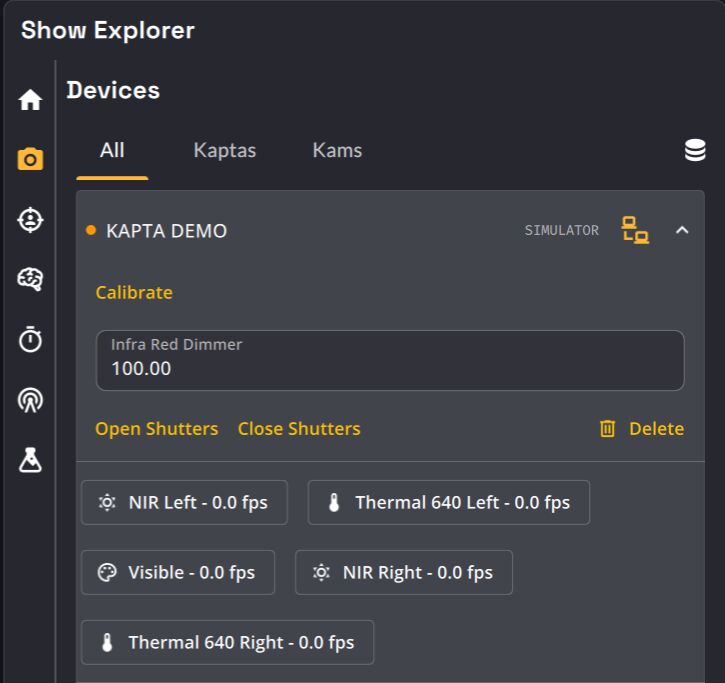
Kam devices now expose a Flip image control directly from Kratos (an Image Controls section on the device card in the Show Explorer), which rotates the image by 180° (flip + mirror). The setting is saved in the show and reapplied to the camera. Controls that only apply to Kaptas (IR dimmer, shutters) are now hidden for Kam devices, and the camera selector row is only shown for multi-camera devices.

Kapta and Kam naming
Now that Kratos handles both Kapta and Kam devices, the interface no longer says "Kapta" where any device applies: the camera view and the default page are named Camera / Cameras, and the simulator is the devices simulator. Over KratOSC, devices are also available under /kratos/devices/ (the /kratos/kaptas/ addresses still work).
User files under Documents/Kratos
Files you are meant to find are now grouped under one folder: recordings go to Documents/Kratos/Kramera (previously Documents) and exported calibrations to Documents/Kratos/Calibrations (previously Documents/calibrations).
3D Stage
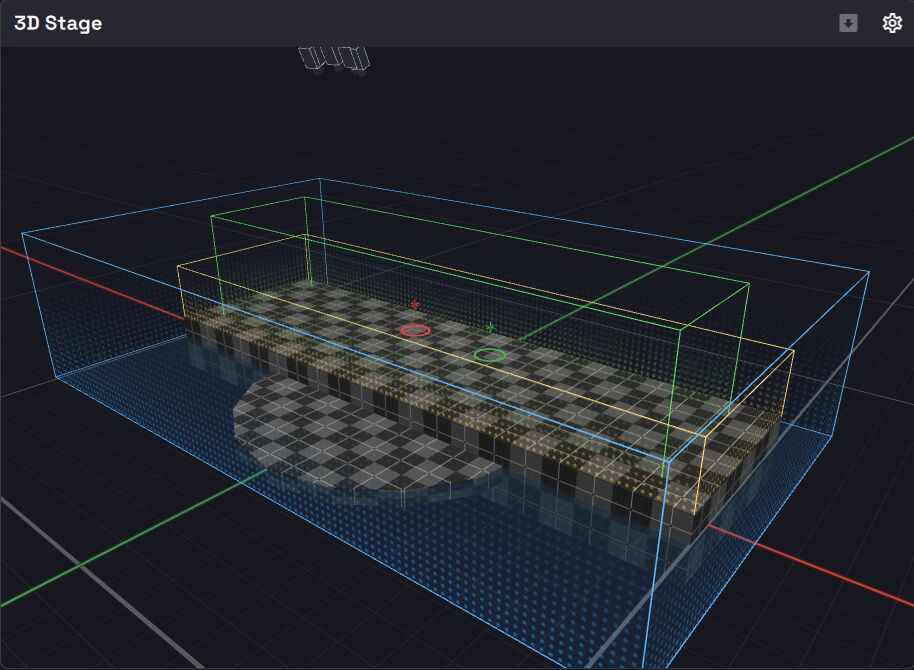
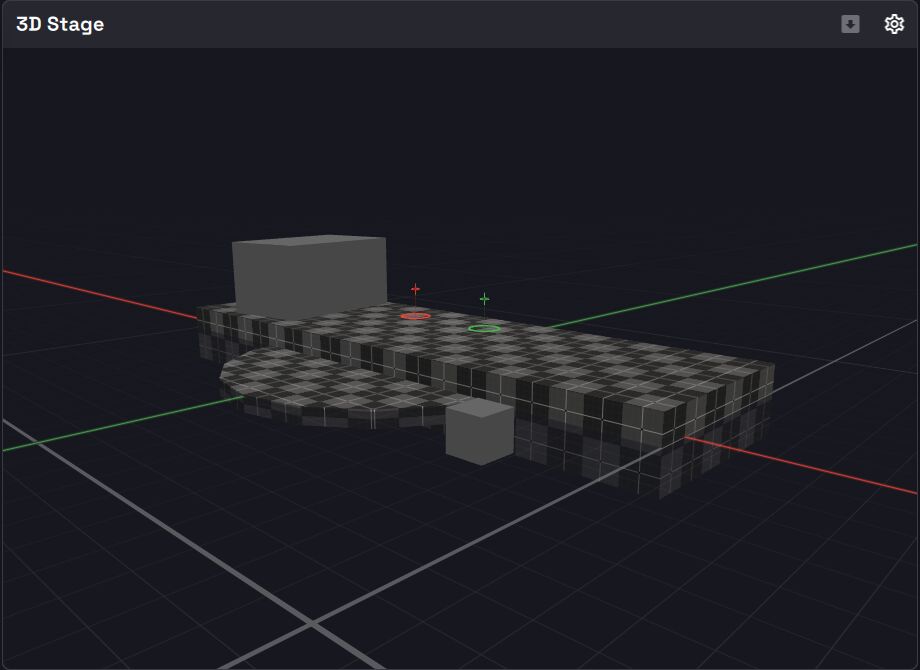
The 3D Stage view received a major rework, making it genuinely usable for editing your scene in 3D.
- New camera navigation: left-click + drag to orbit, right-click + drag to pan, and mouse wheel to zoom. The camera pose is saved with the show, and orbit/pan/zoom sensitivity and smoothing can be tuned per view in Beta mode. (Note: this inverts the previous left/right mouse behavior.)
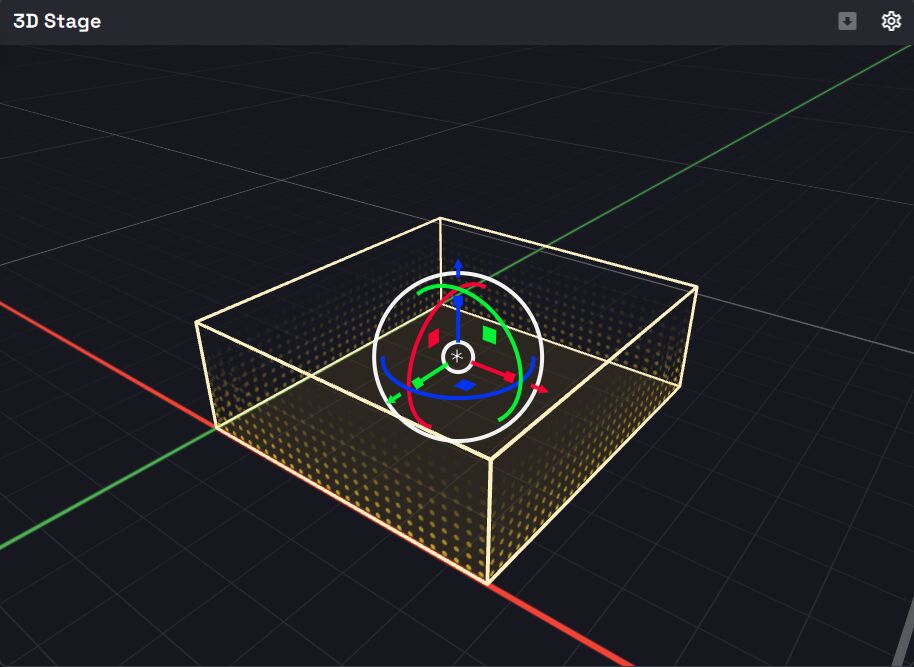
- Transform gizmo: an on-screen 3D manipulator to translate, rotate and scale Action Areas, World Points and Floor Meshes. Select an object in the scene or its list, then drag the gizmo handles. Hold Alt while dragging to duplicate the object. Optional snapping (distance, angle, scale) and "snap to floor mesh" are available.
- Multiple floor meshes: the show now supports a list of floor meshes (imported
.gltf/.glbfiles or primitive cubes), each with its own visibility, material, transform and wireframe overlay. Multi-object.glb/.gltffiles keep each object at its place. Raycast helpers (drop-to-floor, Target floor markers, auto floor Z) use all visible meshes. - Visual improvements: a new two-level grid floor, a two-pass renderer with better anti-aliasing, and a depth-aware Target glyph (sphere, floor torus and drop line) that makes a Target's height above or below the floor immediately readable.
- Camera orbit/pan no longer pollutes the undo stack.
- Experimental: the Prototype Grid floor-mesh material and Auto Floor Z From Mesh may change in future releases.
See the 3D Stage documentation for the full control reference.
Camera Views
Virtual Pan/Tilt
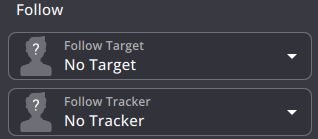
The camera view can now automatically pan the image to follow a 3D Target or Tracker, turning a fixed camera into a virtual pan/tilt by reprojecting world positions into the video feed. This works with or without a SpaceMouse.
- Follow sources: a Follow section in the camera view settings exposes three mutually exclusive sources — SpaceMouse module, Follow Target, and Follow Tracker. Selecting one clears the others.
- Auto-follow lock toggle: a crosshair button in the header lets you pause/resume auto-follow without losing the selection.
- User-interaction awareness: clicking on the view pauses auto-follow so manual panning isn't fought by follow updates; changing the selected Target/Tracker (or moving the SpaceMouse) re-enables it.
- Persisted per view: the follow Target and Tracker selections are saved with the camera view configuration.
See the camera view documentation for details.

Camera Switching via KratOSC
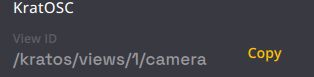
Camera views can now be switched remotely via OSC. Send the device (and optionally the camera) to a view's /kratos/views/<viewId>/camera address to change which feed it displays. Each camera view settings panel shows a KratOSC section with the view's address and a Copy button. See the KratOSC reference.
Manual Control
SpaceMouse Module
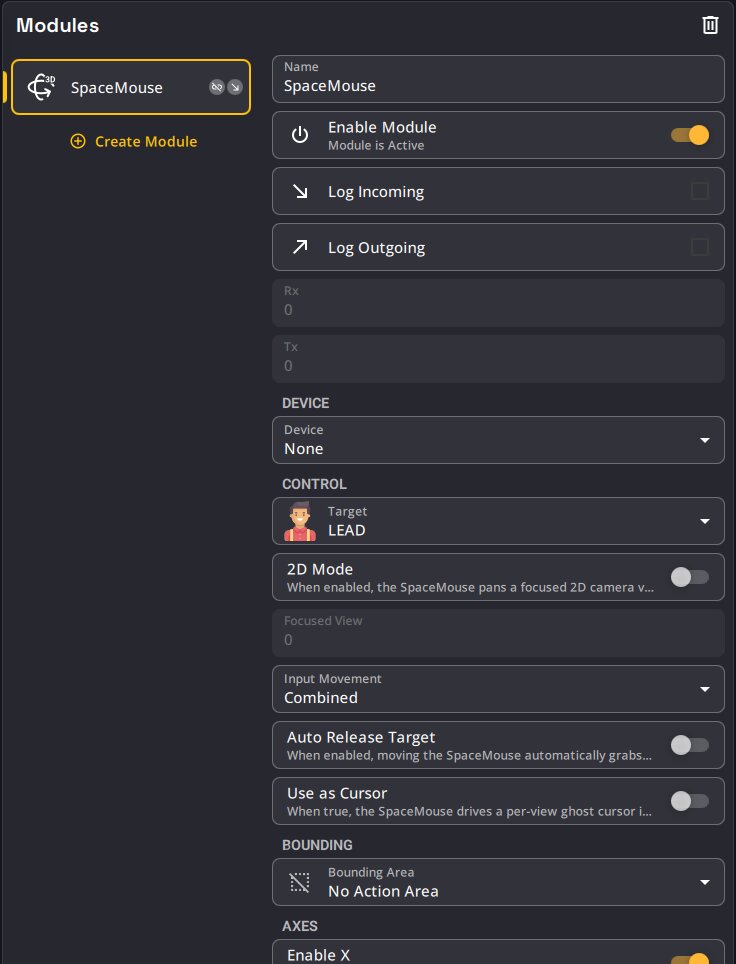
A new built-in SpaceMouse module lets you control Target positions using a 3DConnexion SpaceMouse device. It reads 6-DOF hardware input and translates it into movement on a selected Target.
- Automatic setup: enabling the module picks the first free SpaceMouse and, when it is the only SpaceMouse module, the first Target. A SpaceMouse unplugged and plugged back is routed to its module again.
- Input: Translation, Rotation, or Combined (picks the strongest signal per axis); per-axis enables, deadzones, inversion, X/Y swap and a choice of input curve (Linear, Quadratic, Cubic, S-Curve).
- Auto Release Target: optionally, moving the SpaceMouse switches the Target to manual mode automatically.
- Configurable buttons: assign Reset to Home, Release Target or Quick Assign to each of the device's two buttons.
- Z as Zoom: the Z axis can control Target height or the zoom of the focused camera view.
- 2D Mode: instead of moving a 3D Target along world axes, pan the Target within the focused camera's image plane.
- SpaceMouse cursor: with Use as Cursor, the SpaceMouse moves its own cursor on the focused camera view, and a Quick Assign button assigns the Target to the Tracker under that cursor.
- Bounding area: constrain Target movement to a selected action area.
- Camera view link: link a SpaceMouse module to camera views. A chip in each linked view shows the controlled Target (avatar, name and color); click it to focus that view. The focused view can also be changed over KratOSC or JavaScript (
focusedView).
SpaceMouse connectivity requires a Kore, Kore S or NUK. SpaceMouse use is licensed per hardware (up to 2 on NUK, 4 on Kore and Kore S). See the Modules documentation for the full parameter reference.
Target Quick Assign
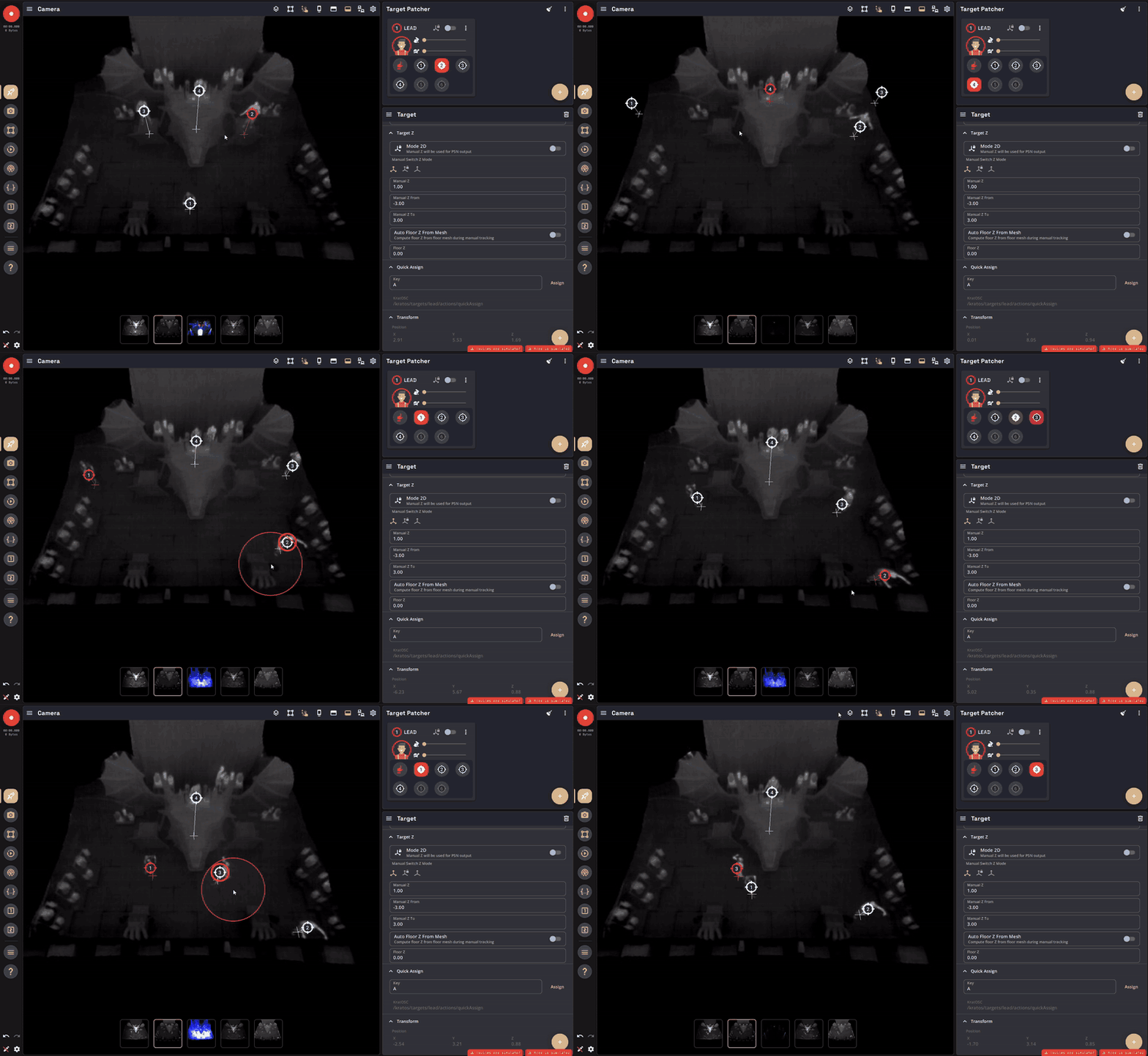
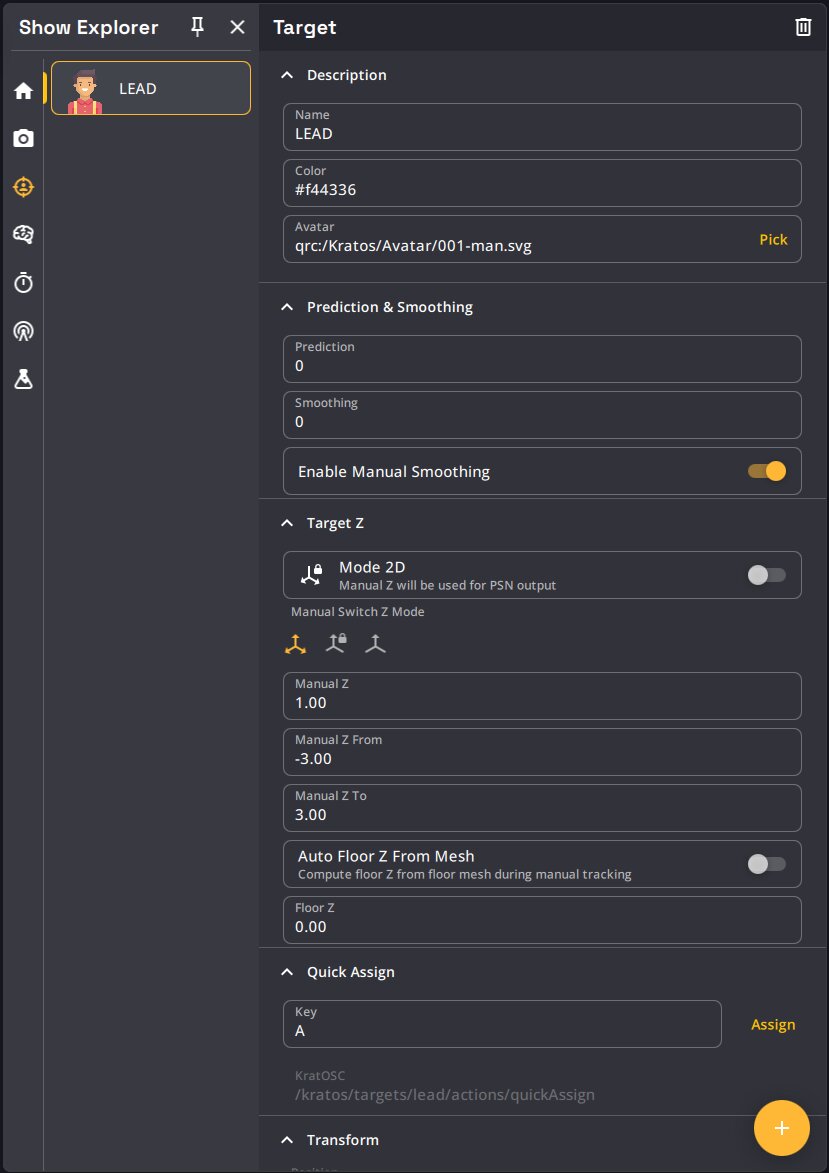
A new Quick Assign workflow lets you assign the nearest Tracker to the mouse cursor, without having to search for the correct Target and Tracker in the Target Patcher. Each Target can be bound to a keyboard shortcut or an OSC address.
- Assign nearest Tracker: point at a person on a camera view and trigger Quick Assign — the Target is assigned to the closest valid Tracker, within a configurable Max Distance.
- Three ways to trigger: a configurable keyboard shortcut (hold the key, move the cursor over the right person, release to assign), KratOSC (
/kratos/targets/<target_name>/actions/quickAssign), or a SpaceMouse button. - Per-Target shortcuts: bind a key combination to each Target's Quick Assign from the Quick Assign section in the Show Explorer.
See the Target Patcher documentation for details.
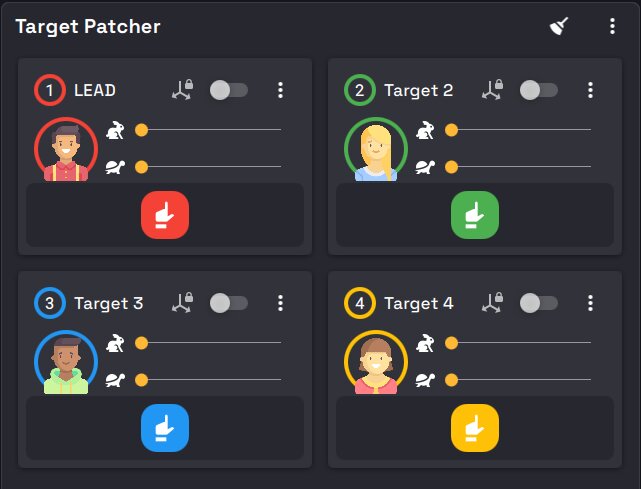
Target Patcher without Kore
On systems without a Kore (K SYSTEM Flow), the Target Patcher no longer shows Tracker buttons that can't do anything: Target cards only keep the manual tracking controls. The Tracker buttons appear as soon as a Kore connects, or when the Kore simulator is enabled.
Show Explorer
- Target parameters are regrouped into clear sections, and advanced tuning parameters (Kalman filters, raw prediction, BeaKon) are only shown in Beta mode. See Targets.
- Kore enum features are now surfaced as dropdowns in the Kore section, so enum-type settings exposed by the server (such as the 2D Tracker type) can be selected directly.
- (v1.11.30) A new AI Model dropdown in the Kore section switches between Kore Classic (2025) and Kore Fusion (2026). Shows start on Kore Classic. Try Kore Fusion. It improves K SYSTEM tracking with several Kapta and outdoors, and triangulates a 3D skeleton from 17 keypoints. See Choosing the AI model.
Actions & Scripting
See the new Scripting API reference for everything available in scripts.
- Auto assign Trackers in area: a new Unassign when leaving the area switch (on by default, the previous behavior) lets you keep Targets assigned after their Tracker leaves the area.
- Module parameters in JavaScript: module parameters can now be read and written directly from scripts (for example
module.outputPort = 9000). - Parameter sections: parameters of actions and modules are grouped in sections by category; scripts can set a parameter's
category. - Tracker age: scripts can read
tracker.age, the time in milliseconds since the Tracker appeared.
KratOSC
Several parameters and workflows are now exposed over OSC:
- Target actions:
/kratos/targets/<target_name>/actions/homePositionreleases a Target and sends it to its home position, and/kratos/targets/<target_name>/actions/quickAssigntriggers Quick Assign. - Target feedback:
/kratos/targets/<target_name>/predicted_position(position after prediction and smoothing),/speed(velocity in m/s) and/age(time since the Tracker appeared, in ms). - Action Areas: each Action Area sends its stable
id. - SpaceMouse: all SpaceMouse module parameters, including
focusedView, can be read and written.
See the KratOSC reference for the full list.
Other
Duplicating Action Areas
Duplicating an Action Area selects the new copy, so you can edit it right away.
Edit Layout indicator
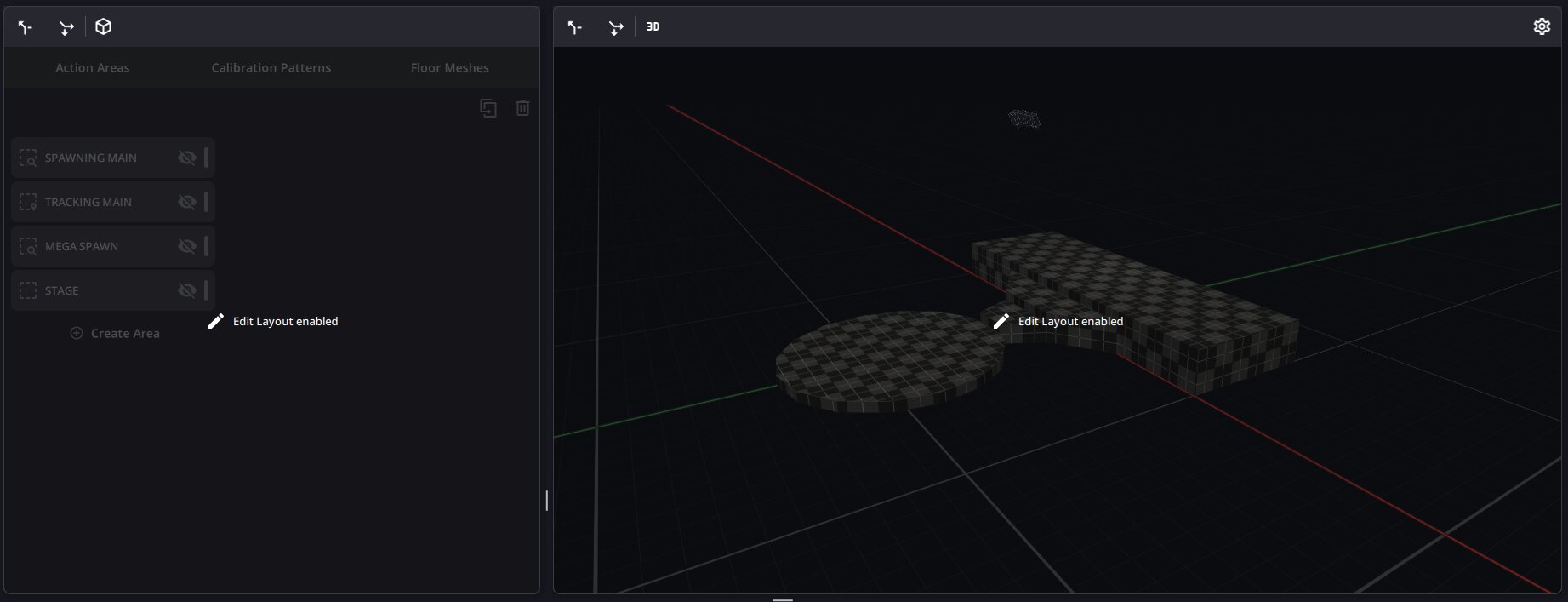
While the page editor mode is on, every view is dimmed and shows an Edit Layout enabled badge, so it is obvious when the layout can be changed.
Faster page changes
Switching pages no longer freezes the interface: pages are kept in memory once visited, and 3D Stage and camera views load in the background behind a spinner. A 3D Stage that is not visible or not moving uses much less CPU and GPU.
Bug Fixes
- Save As file picker not opening: the file picker for Save As (
Ctrl+Shift+S) failed to appear. The dialog now opens correctly. - Memory growth when Kore is unreachable: Kratos could use more and more memory, until the system stopped it, while the Kore connection kept dropping. Memory now stays stable.
- Dialogs in the system language: some system dialogs appeared in French (or the computer's language) while the rest of Kratos is in English. They are now in English.
- Edit Name popup: typing in the Edit Name popup did nothing until you clicked in the field. The field now has focus when the popup opens.