Targets
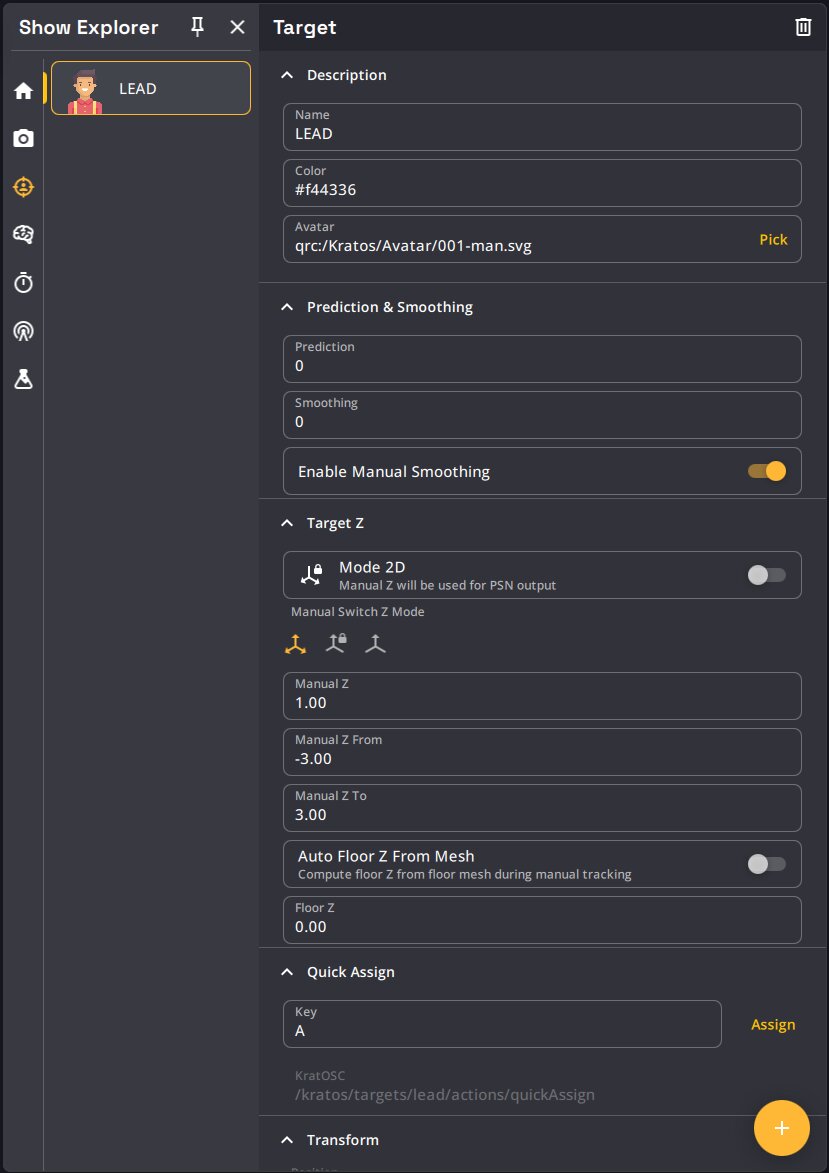
The Target tab allows you to interact and manage the Targets of your show. The list in the side panel displays all the Targets. You can interact with the selected Target's parameter in the main view.
Targets are a main element of Kratos: they are the representation of the tracked people in the 3D space, and a Target's position is what is sent to third party systems. The Target Patcher view is where you link Targets to the desired Trackers.
| Name | Description | Image |
|---|---|---|
| Create Target button | At the bottom right of the view, this button allows you to create a new Target. |  |
| Delete Target button | At the top right of the view, the trash icon allows you to delete the selected Target. |  |
In the interface, the Target parameters are grouped in collapsible sections: Description, Prediction & Smoothing, Target Z, Quick Assign, Transform and BeaKon. This page describes them by topic.
Advanced parameters are only visible in Beta mode: the Kalman filter settings of manual and prediction smoothing, raw prediction, the advanced Transform values and the whole BeaKon section. They are tuning tools and should usually stay untouched.
Appearance
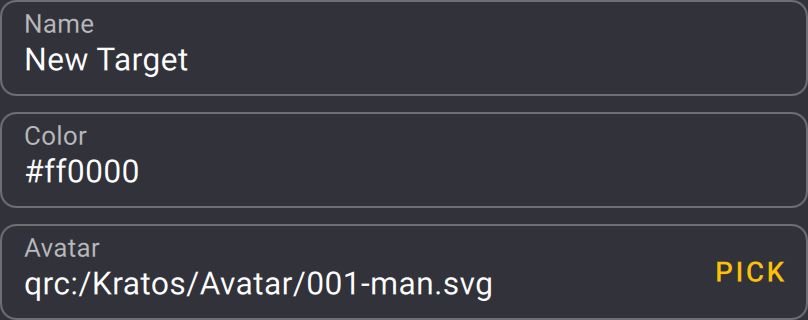
The first parameters relate to the appearance of the Target.
- You can change the Target's name. This name is the name sent via PSN.
- You can change the Target's color. The color is a hex code.
- You can change the Target's avatar by clicking the "pick" button.
You can choose other images than the ones proposed by default
To do so, you have to specify the image's path in the textfield, starting by file:
Example : file://C:/Users/nao/Desktop/singer.png
Supported image formats are .png, .svg, .jpeg, .gif
Home Position
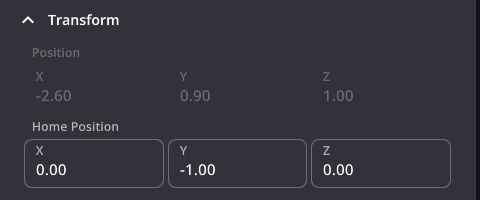
Each Target has a Home Position (X, Y, Z in meters): a known place on stage where the Target can be sent back at any time, for example its starting mark.
- Type the coordinates in the Home Position field of the Transform section.
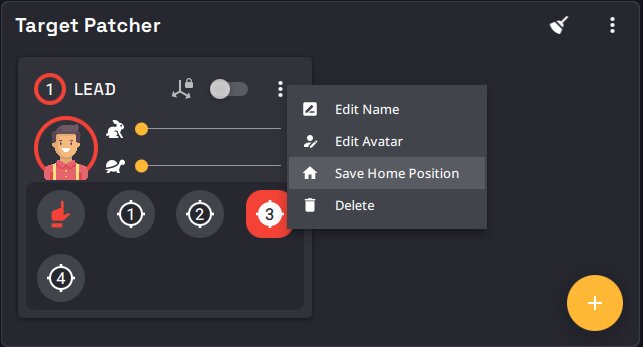
- In the Target Patcher, use Save Home Position in the Target card menu to store the Target's current position, and double-click the hand icon to send the Target to its Home Position.
- A SpaceMouse button set to Reset to Home, or the KratOSC action
/kratos/targets/<target_name>/actions/homePosition, also sends the Target to its Home Position.
Sending a Target to its Home Position releases it from its Tracker and puts it in manual tracking.
Standard postprocessing parameters
In function of the application you are in, it may be important to work on the position of a Target before sending it to third party systems. Target parameters are here to be tweaked around until you find a configuration that suits your application. The following parameters are the most standard ones :
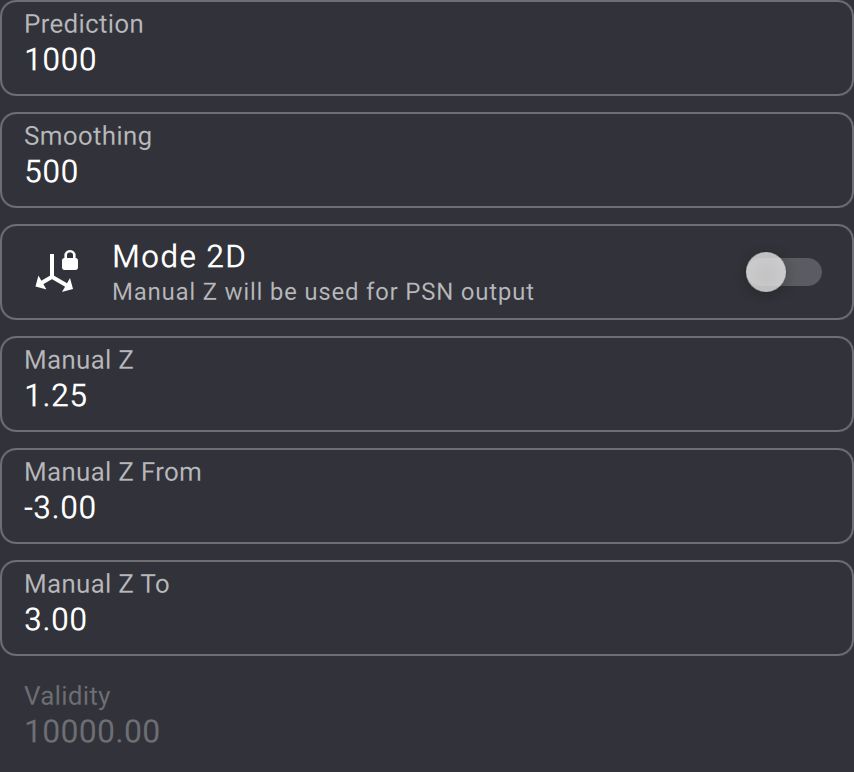
- Prediction : You can use this parameter to predict the position of a Target in function of its current speed and acceleration. The value chosen corresponds to the time you want to predict ahead in milliseconds. This parameter is for example very useful to counter the inertia of lighting fixture during followspot applications.
- Smoothing : You can use this parameter to smooth the position of a Target by averaging its position over a period of time. The value chosen corresponds to the period of time Kratos will take to average the position of a Target in milliseconds. This parameter is useful to smooth out any noise in the target's measured position.
Prediction and smoothing can be used independently and together to achieve the desired result.
- Mode 2D : You can use this parameter to force the Target to be in 2D mode when tracked automatically. This is useful to eliminate any measurement uncertainty in height that can occur with the automatic tracking.
We recommend using 2D mode whenever there is no elevation change in your tracking area.
- Manual Z : When you are in manual tracking mode, the vertical component of the Target (Z coordinate) is fixed at a certain height. This parameter allows you to change this height.
- Manual Z From and To : These parameters allow you to define the minimum and maximum values of the Target's manual Z fader in the Target patcher view.
- Manual Switch Z Mode : What happens to Z when the Target switches to manual tracking: Default keeps the full Tracker position (X, Y and Z), Use Manual Z uses Manual Z + Floor Z, and Capture Z copies the Tracker's Z into the Manual Z slider.
- Floor Z : The height of the floor under the Target, added to Manual Z in manual tracking.
- Auto Floor Z From Mesh : Computes Floor Z from the floor meshes during manual tracking. Floor Z is then greyed out (see Compute a Target's floor Z from a floor mesh).
- Validity : The validity of a Target corresponds to the validity of the Tracker associated (see Tracker validity).
Raw prediction
The speed used in the standard prediction is the speed predicted by the AI which applies a Kalman filter to the 3D tracks. This speed is very noisy and the AI has a tendency to over filter it.
When enabling the raw prediction, Kratos will calculate the speed of the Target on its own and not use the one predicted by the AI.
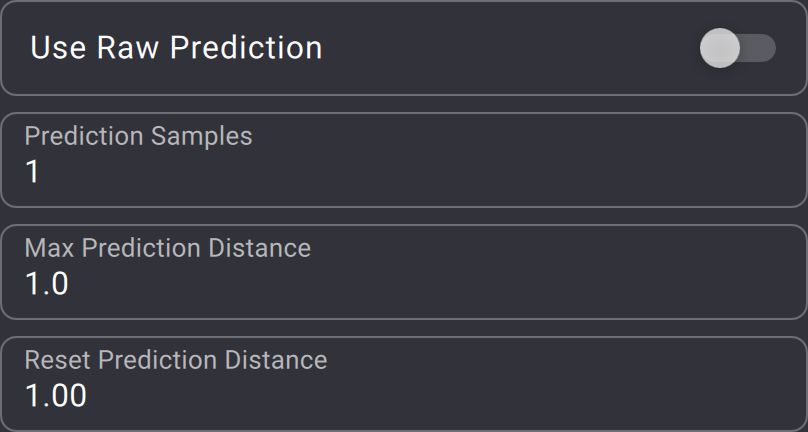
You can then have access to additional parameters about the prediction :
- Prediction samples : This parameter is the number of Target's position samples (in elapsed frames) Kratos will use to compute the current speed of the Target.
- Max Prediction Distance : This parameter is the maximum distance (in meters) Kratos is able to predict the Target's position from its actual position. This allows you to prevent Kratos from over predicting the Target position when the Target is moving fast.
- Reset Prediction Distance : This parameter is the maximum distance (in meters) a Target is allowed to move between two frames before the prediction is reinitialized. This is useful to avoid having a prediction stuck at the max prediction distance for a long period of time if you average over a lot of samples and there is a sudden big gap in the Target's position (when you change the Target's patched Tracker for example).
When using raw prediction, you still need to use the standard prediction parameter to set the time you want to predict ahead.
Manual smoothing
The manual smoothing option is a Kalman filter applied to the Target's position when in manual tracking mode.
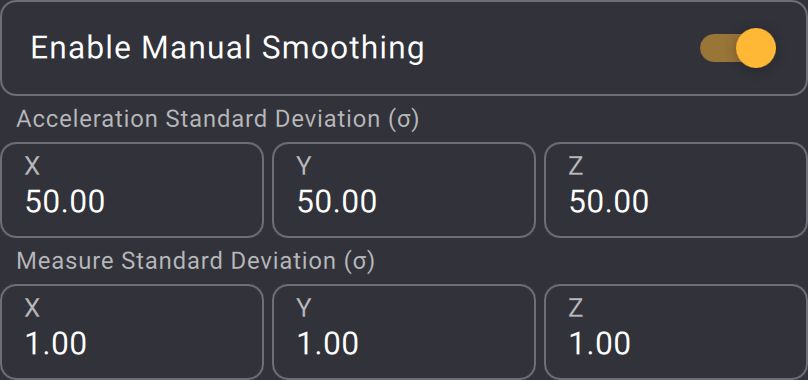
When enabled, you can manage the following parameters to tune the filter, which can be set independently for each axis :
- Acceleration Standard Deviation : Expected noise in the Target's acceleration (in m/s2).
- Measure Standard Deviation : Expected noise in the Target's measured position (in m).
The manual smoothing adds to the standard smoothing parameter.
Prediction smoothing
As for the manual smoothing, the prediction smoothing option is a Kalman filter applied to the predicted position of the Target.
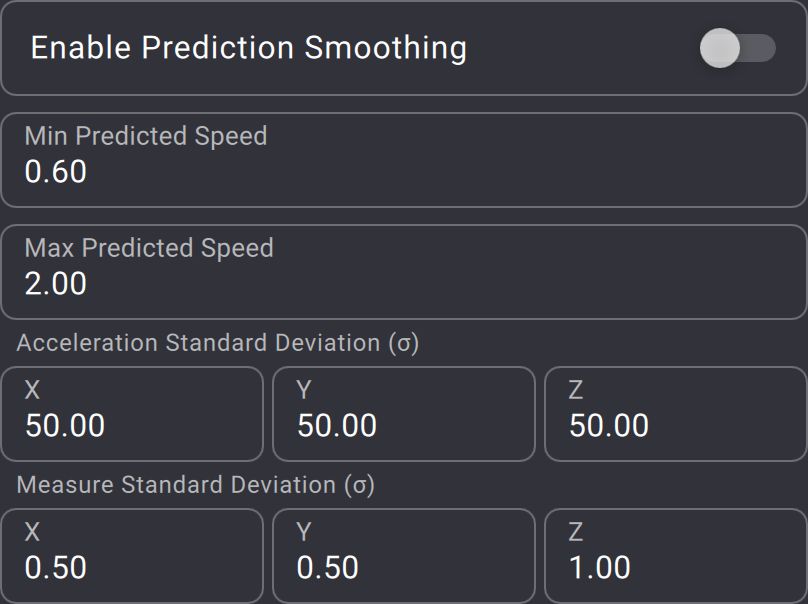
When enabled, you can manage the following parameters to tune the filter, which can be set independently for each axis :
- Min and Max Predicted speed : Clamp the speed values of the filter (in m/s).
- Acceleration Standard Deviation : Expected noise in the Target's acceleration (in m/s2).
- Measure Standard Deviation : Expected noise in the Target's measured position (in m).
As for the manual smoothing, the prediction smoothing adds to the standard smoothing parameter (and to the manual smoothing parameter if in manual mode).
Transform
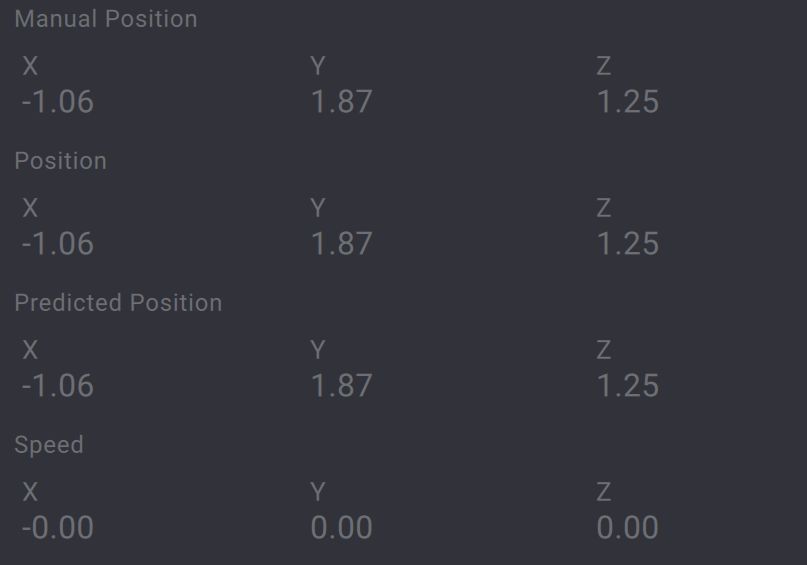
You can monitor the position and speed of the Target here. The "Predicted Position" is the post-processed position (with all the parameters applied : prediction, smoothing, etc...).
Quick Assign
K SYSTEM Sense only
Quick Assign patches Targets to Trackers created by the Kore AI.
Each Target has a Quick Assign section to bind a keyboard shortcut and copy its OSC address (/kratos/targets/<target_name>/actions/quickAssign) for Target Quick Assign. The global search distance is set in the Show tab.

BeaKon
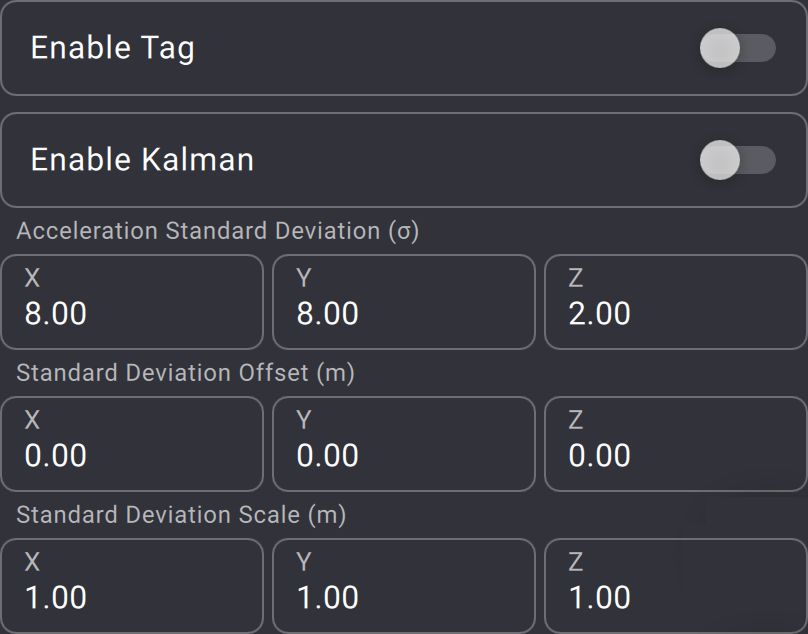
If needed, and if you have a BeaKon system set up, you can do without vision and base the Target's position only on the position of the associated tag.
Controls :
- Enable tag : This allows you to switch to the previously described operating mode (tag's position as Target's position).
- Enable kalman : If you activate the tag position mode, you can apply a Kalman filter to the tag's position to smooth it out.
- Acceleration Standard Deviation : Expected noise in the tag's acceleration (in m/s2).
- Standard Deviation Offset : Tag position offset compared to target's center of mass position (in m).
- Standard Deviation Scale : Reported tag's standard deviation scale factor.