Action Areas
The Action Areas tab of the Stage Editor is where you create and manage Action Areas. An Action Area is a volume of a determined size and position. It can be used for different purposes as it can have different behaviors.
K SYSTEM Flow and Sense
In both K SYSTEMs, Action Areas trigger Actions from the Targets' positions, and can bound a SpaceMouse's movement (Bounding Area). The Spawning, Tracking and No Tracking behaviors drive the Kore AI and are only used in K SYSTEM Sense.
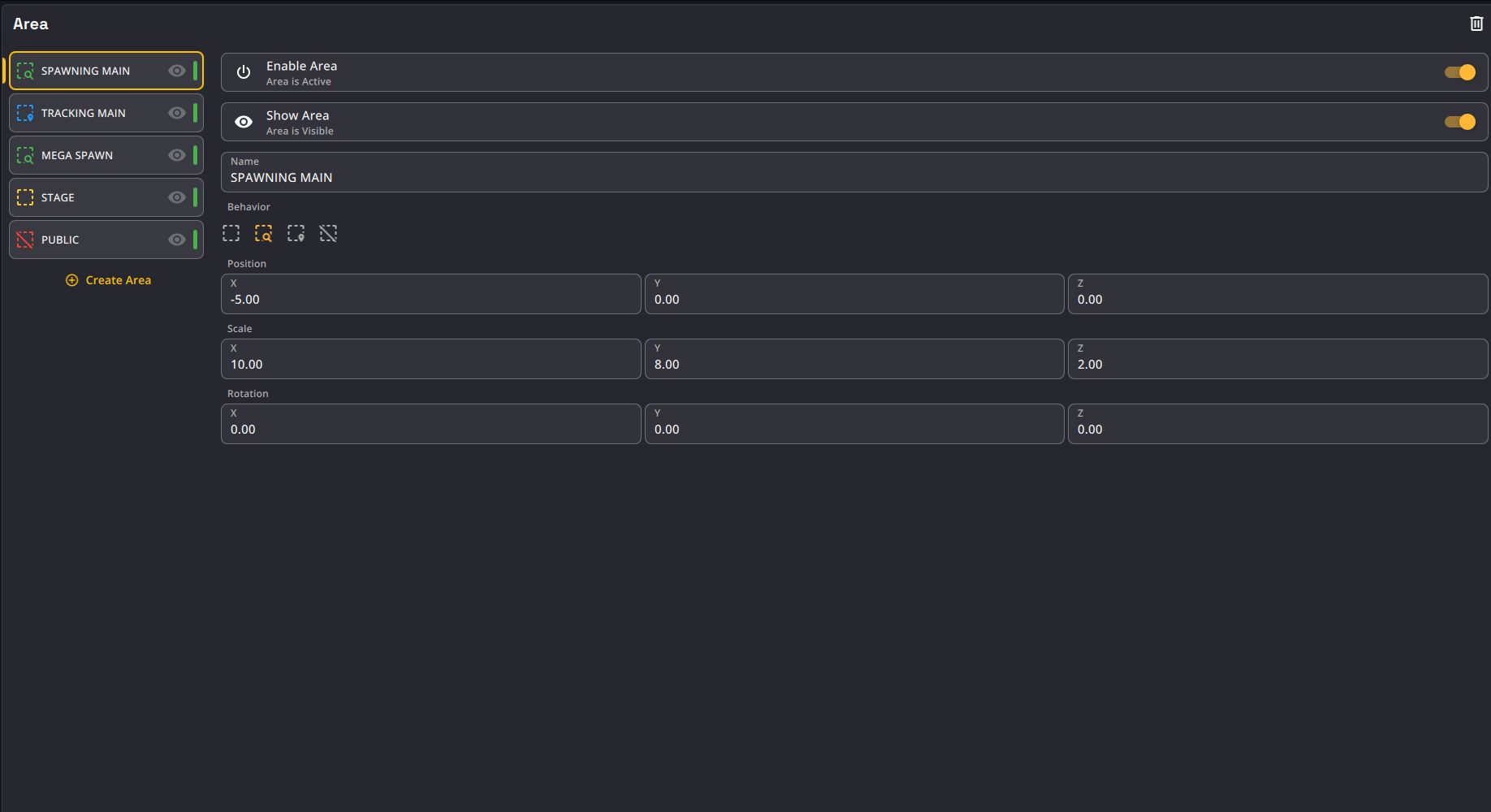
To create a Stage Editor view, check the Layout organization section.
Controls
| Name | Description | Image |
|---|---|---|
| Area list | At the left of the view is the list of all the Areas of the show. | 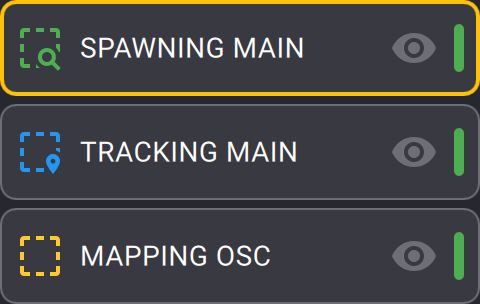 |
| Create Area button | At the bottom of the Area list, this button allows you to create a new Area. |  |
| Delete Area button | At the top right of the view, the trash icon allows you to delete the selected Area. |  |
| Duplicate Area button | At the top right of the view, the duplicate icon allows you to duplicate the selected Area. |  |
| Enable ActionArea toggle | Allows you to enable or disable the selected Action Area when needed. A disabled Action area will disable all related Actions. When disabled, the area will still be visible in the 3D Stage view but it will be greyed out. |
 |
| Show ActionArea toggle | Allows you to show or not the Action Area in the 3D Stage view. A hidden area can still be enabled. |
 |
| Name textfield | Allows you to rename the selected Action Area. |  |
| Behavior selection | Allows you to choose the behavior of the selected Action Area (see the Behaviors section). | 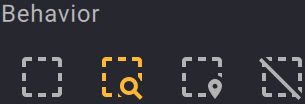 |
| Transformations vector | Allows you to change the position, scale and rotation of the selected Action Area. (see the Transformations section). | 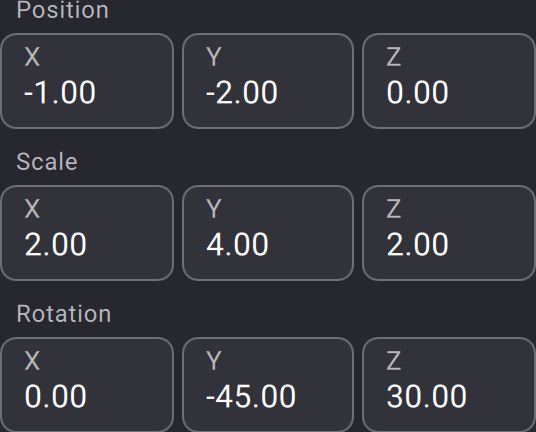 |
Behaviors
An Action area can have different behaviors that impact the way people will be detected and tracked by the AI.
Action Area
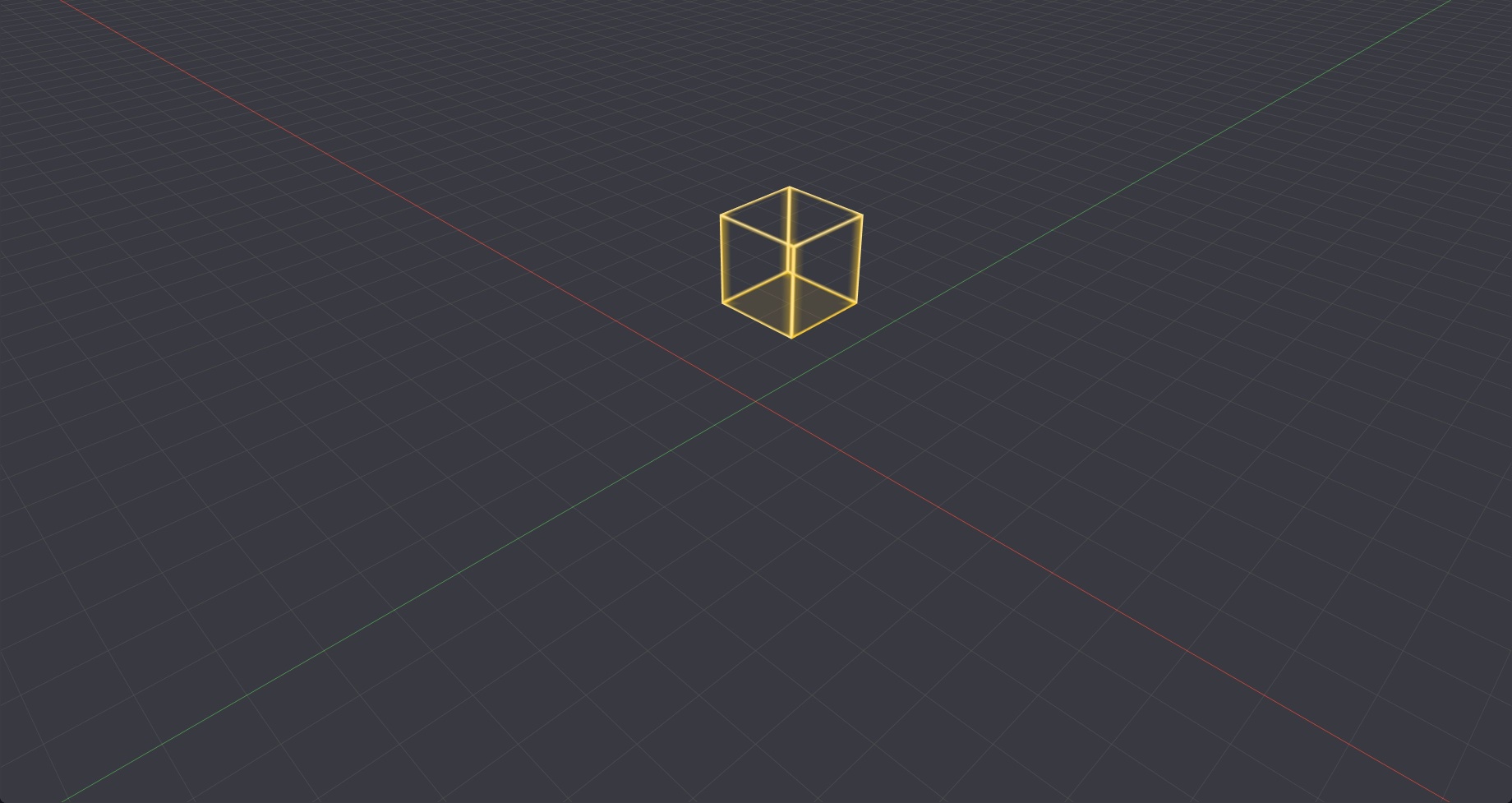
Action Area are simple volumes used for Actions. You can for example use one to trigger the send of an OSC message when a person enters it or map the position of a Target between two values in function of its position in the Area.
Action areas are represented in yellow in the 3D Stage view.
Spawning, Tracking and No Tracking areas
Spawning Area
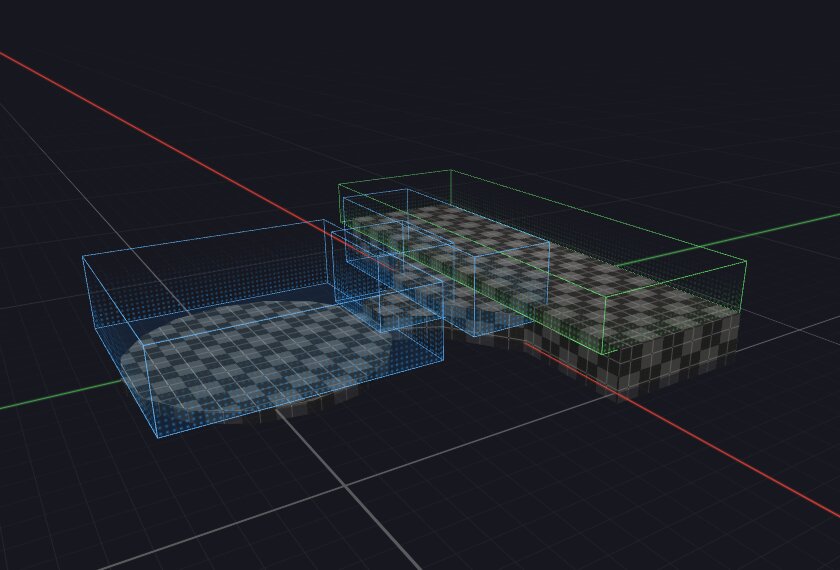
Spawning Area is an area where the AI is allowed to create a Tracker and assign it to a person when this person enters the area. On a Show, Spawning Areas have to be setup correctly to avoid the creation of undesired Trackers when and where it is not needed (if for example a part of the public is seen by the cameras).
Spawning areas are represented in green in the 3D Stage view.
Fit the areas to the stage
With the latest AI models, Spawning and Tracking areas must fit the stage properly. The areas help the AI remove outliers, so avoid oversized "catch-all" areas (for example a 40 m × 40 m × 10 m Spawning area): use a Spawning area the size of the performance area and a Tracking area slightly bigger.
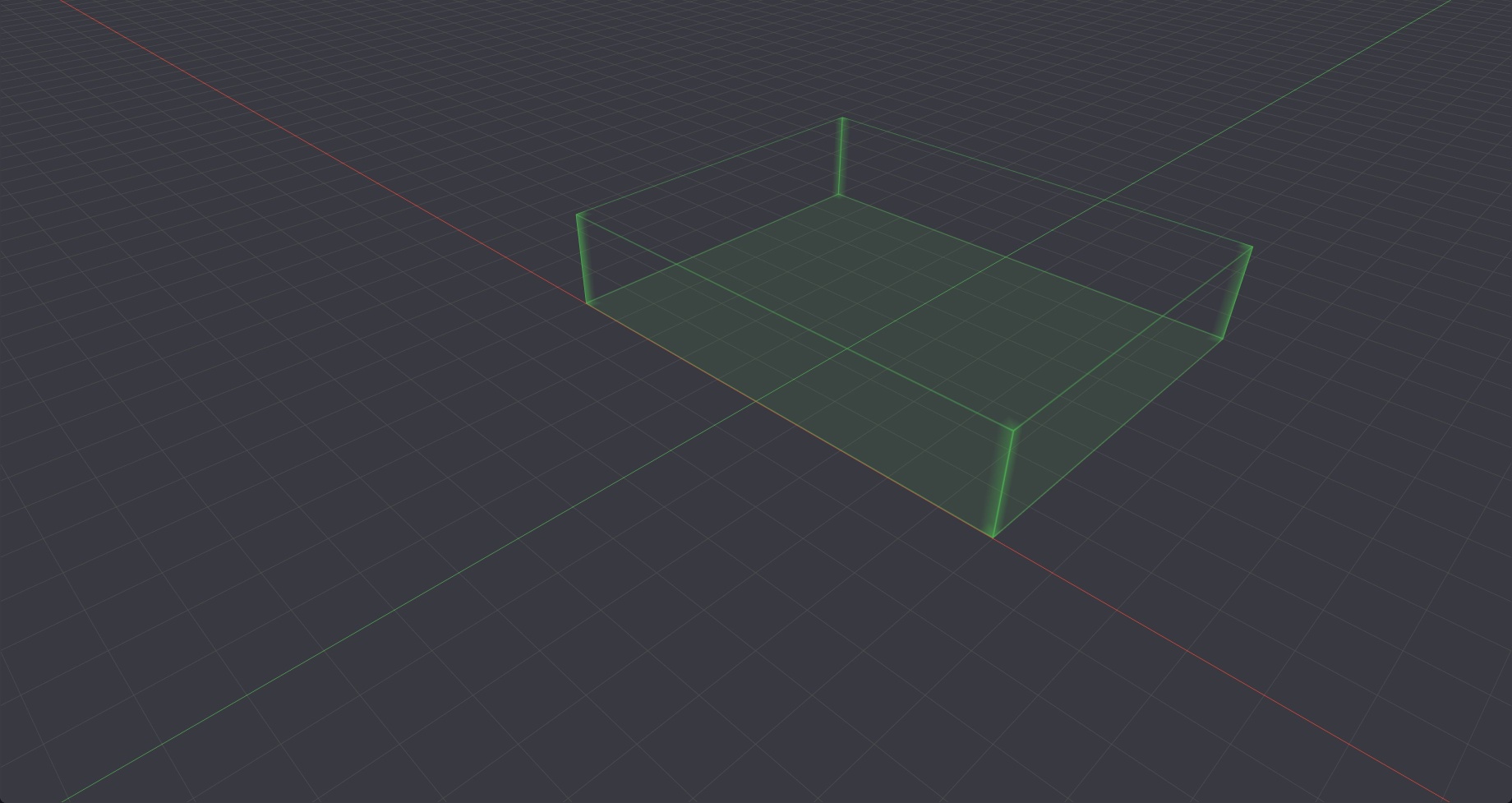
It is fundamental to create at least one Spawning area in the show of the correct position and size.
Otherwise the AI will not be able to spawn any Tracker even if it detects people
Tracking area
Tracking Area is an area where the AI is allowed to keep the track of Trackers that are already assigned to people. If a person that is assigned to a Tracker moves and is not in a Spawning or a Tracking area anymore, the AI will delete the Tracker.
Tracking areas are represented in blue in the 3D Stage view.
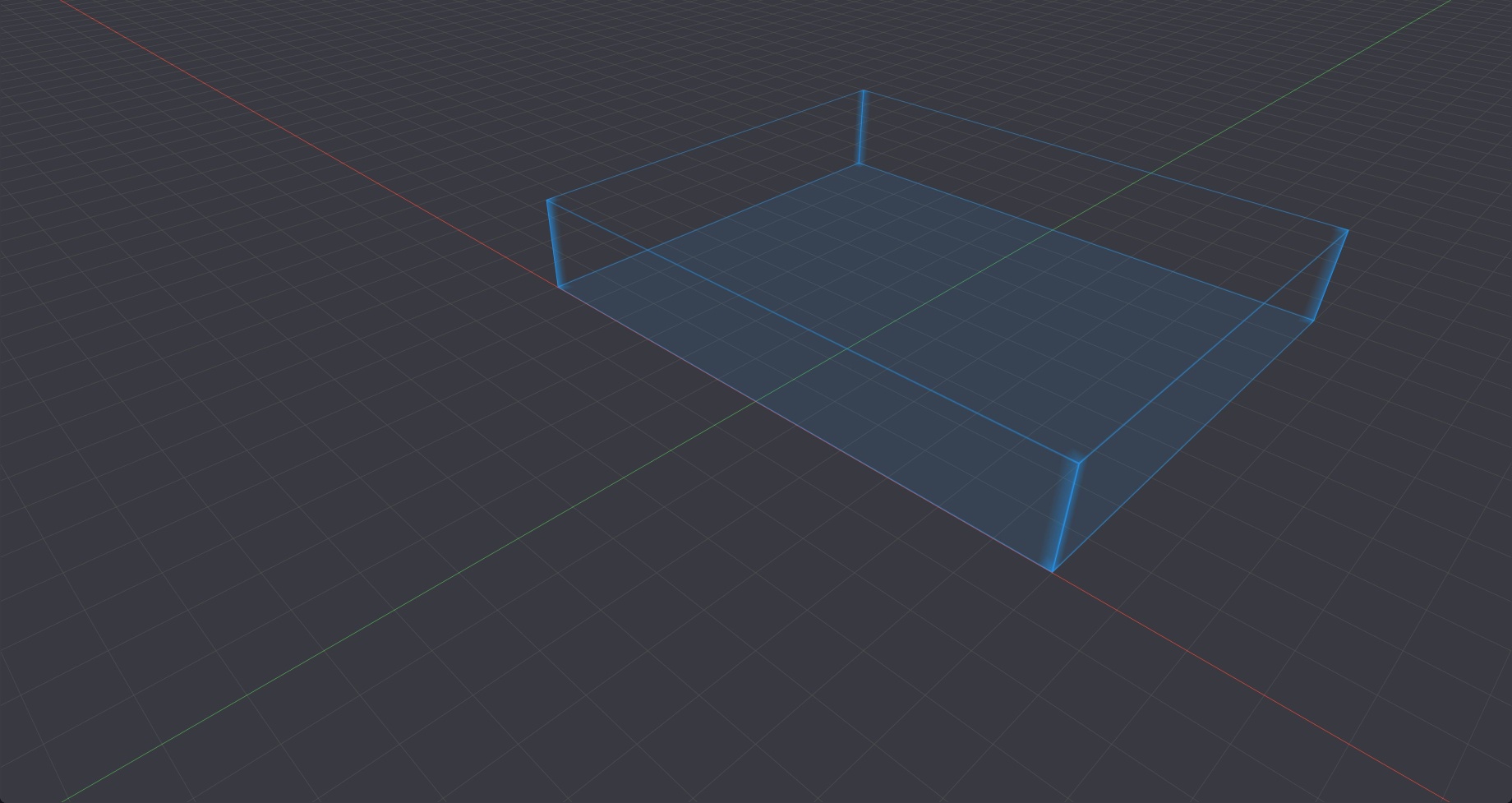
In a standard stage setup, we recommend setting-up a Spawning area that has the size of the stage and a Tracking area that is bigger and extends to the backstage.
This way the people that are present backstage are not spawned unnecessarily but if a performer that is spawned goes backstage, it will not be lost by the AI (if he is still seen by the cameras of course)
No tracking area
No Tracking Area is an area where every Tracker will be deleted when the person assigned to it enters in.
No Tracking areas are represented in red in the 3D Stage view.
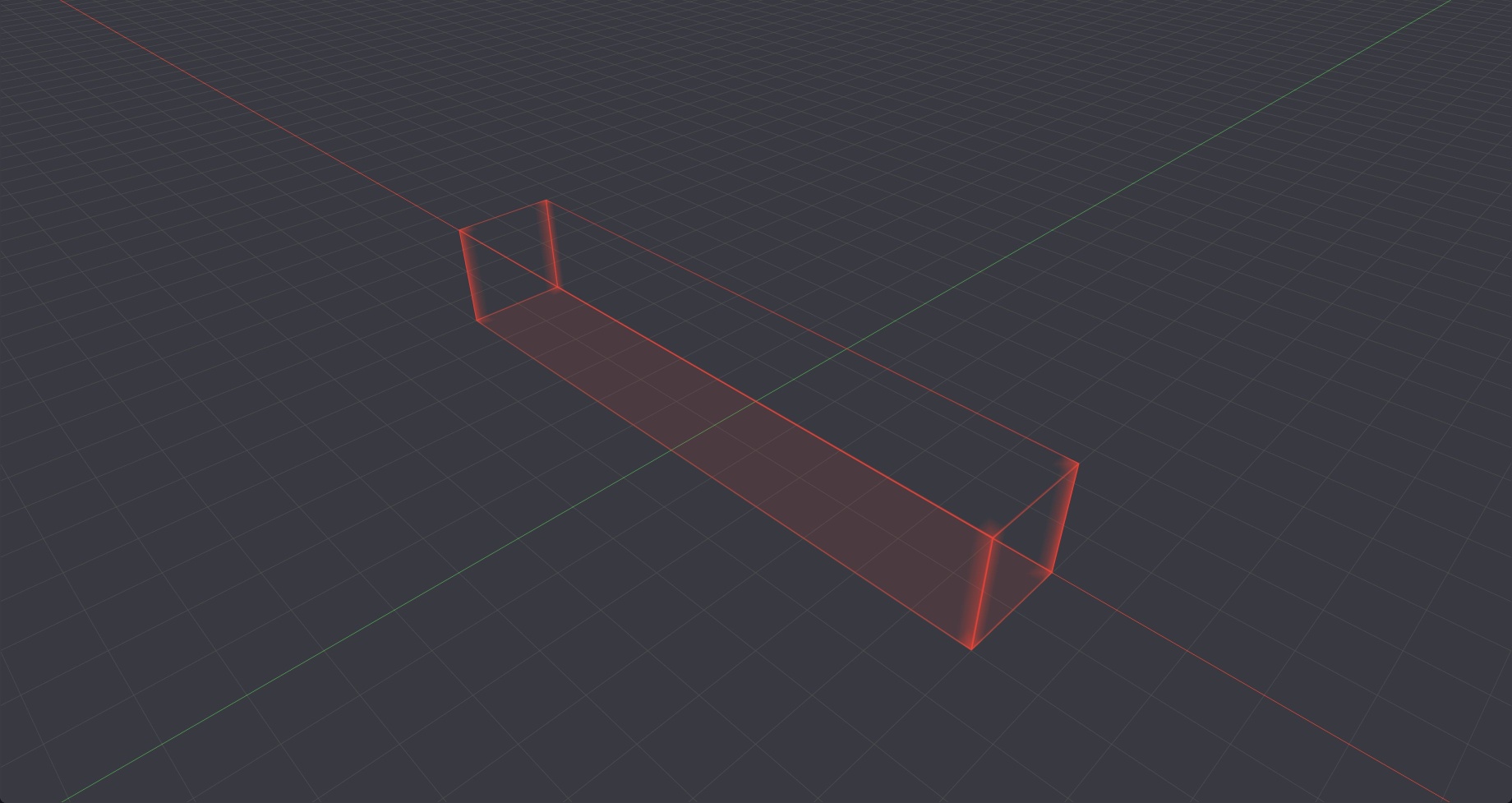
When in a situation the AI doesn't spawn any Trackers, check if at least one Spawning area has been created at the right place and that no No Tracking areas are present in this place.
Behavior recap
This animation show how the Spawning, Tracking and No Tracking areas behave when a person enters them. From left to right, zones are : Spawning, Tracking, No Tracking.
Transformations
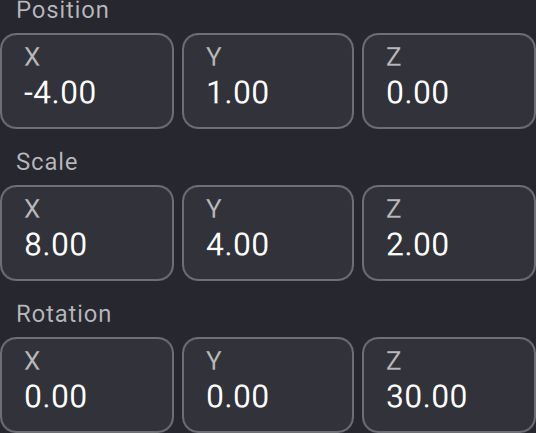
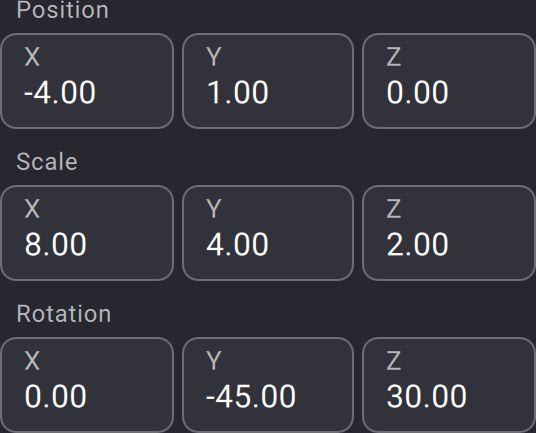
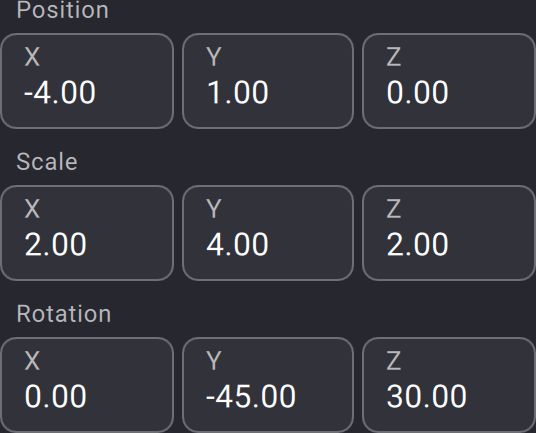
You can transform each Action Area by using the Position, Scale and Rotation vectors. Each Action area has its own coordinate system that is different from the Kratos coordinate system.
The transformations of a Action area are performed with the following rules :
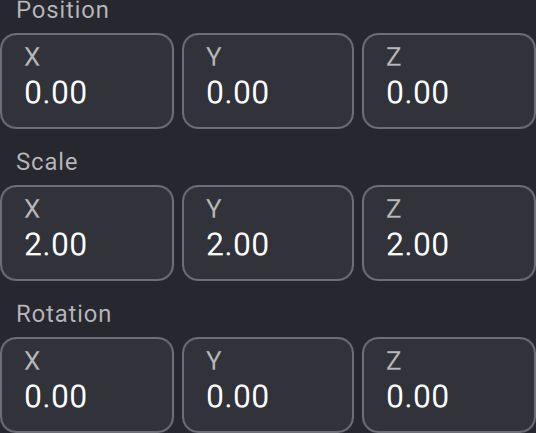
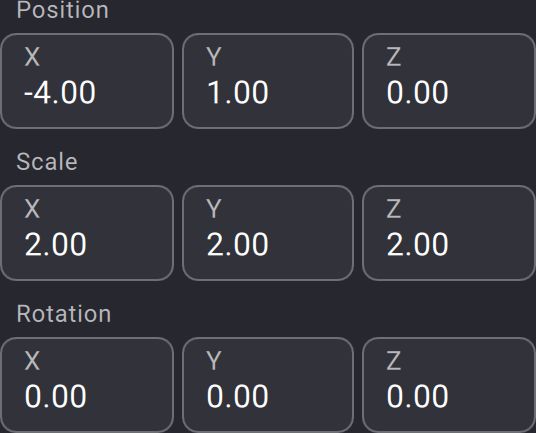
- When creating an Action Area, its origin will be placed at the origin of Kratos coordinate system, its axes aligning to the Kratos axis. It's size will be set to 2x2x2 meters.
- The position of the Action Area is the position of its origin relative to the Kratos origin in the Kratos coordinate system. Unit are in meters.
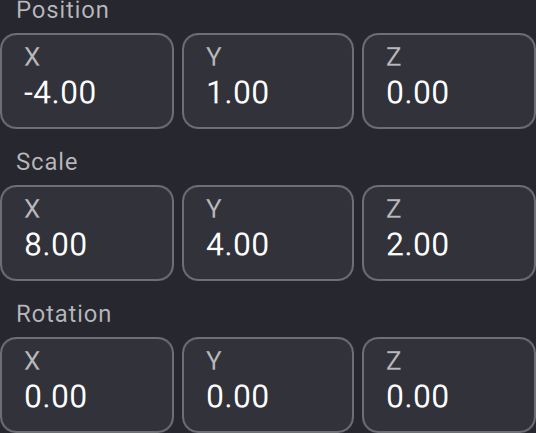
- The scale of the Action Area is the size of the Action Area from it's origin. Changing the scale of an Action Area will not move the position of its origin. Unit are in meters.
- The rotation of the Action Area are made from the Action Area's origin and along the axis of the Action Area coordinate system. Units are in degrees.
You can drag and move on each textfield of the transformations vectors to change their values quickly.
The following table will show you the behavior of the Action Area when performing different transformations. The Kratos axis are represented with continuous line. The Action Area axis are represented with dashed line. X axis are red, Y axis are green and Z axis are blue.
| Action performed | 3D Stage view | Action Area transformations |
|---|---|---|
| Creation of the Action Area | 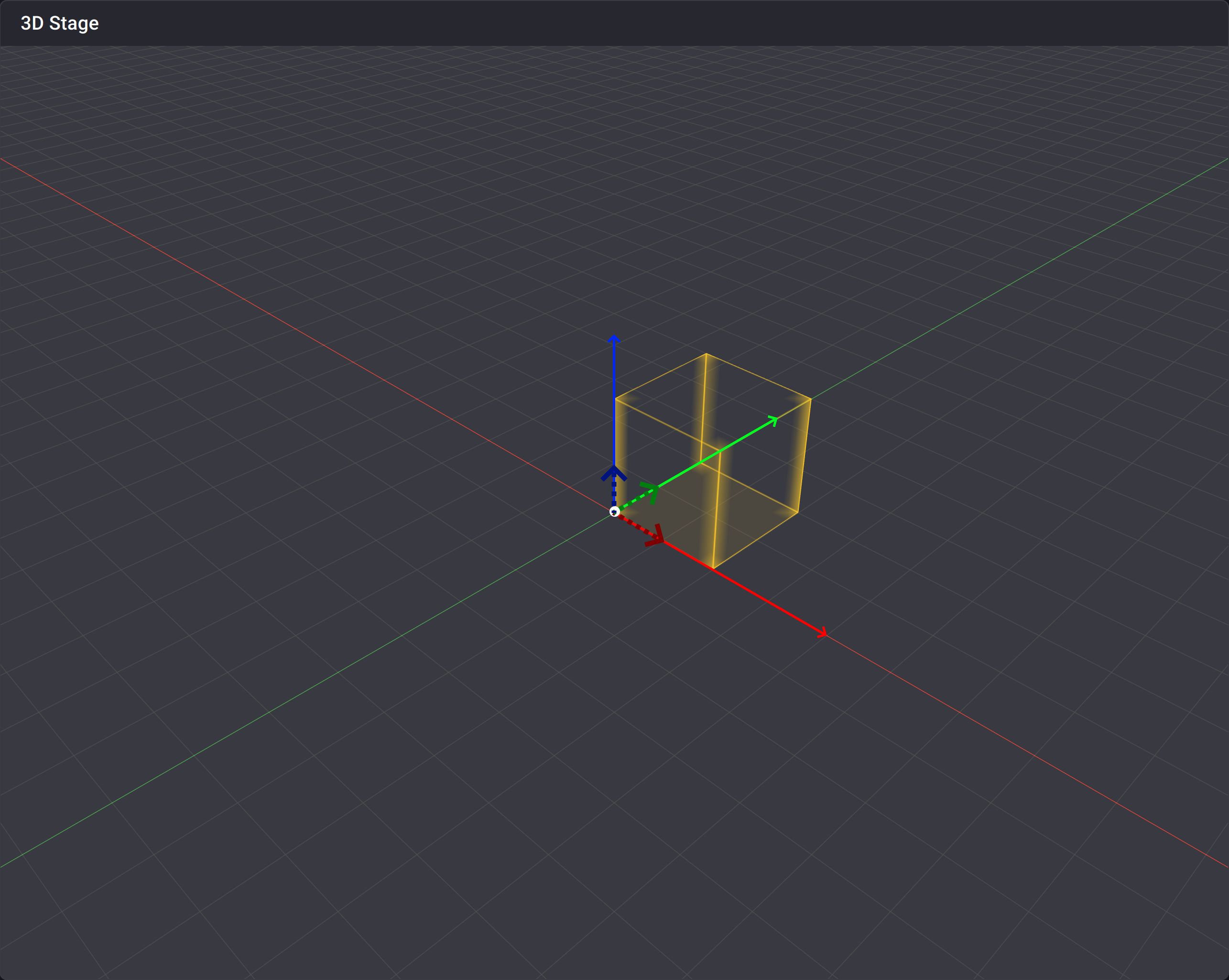 |
 |
| Moving the position of the Action Area | 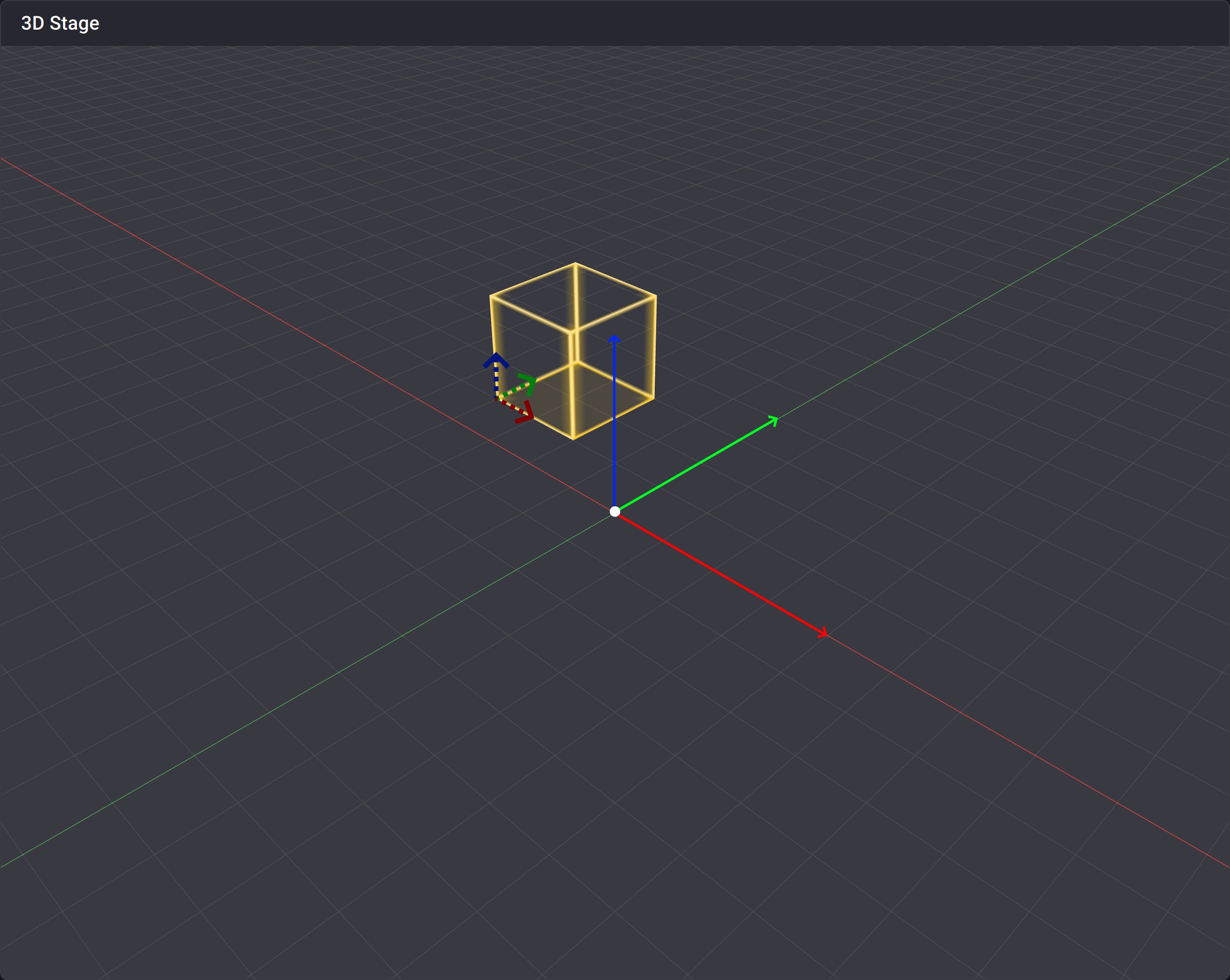 |
 |
| Scaling the Action Area | 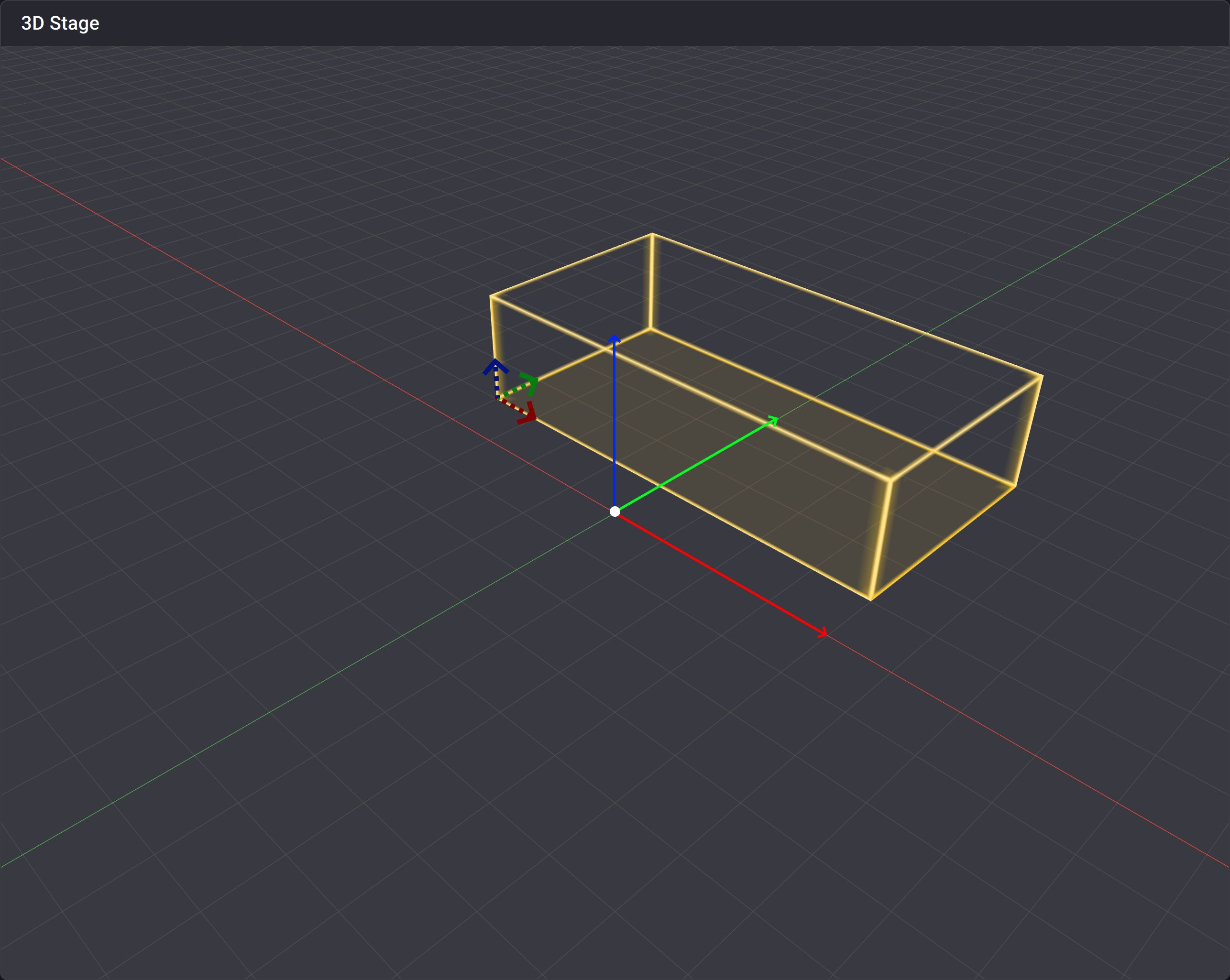 |
 |
| Rotating the Action Area by 30 degrees along its Z axis | 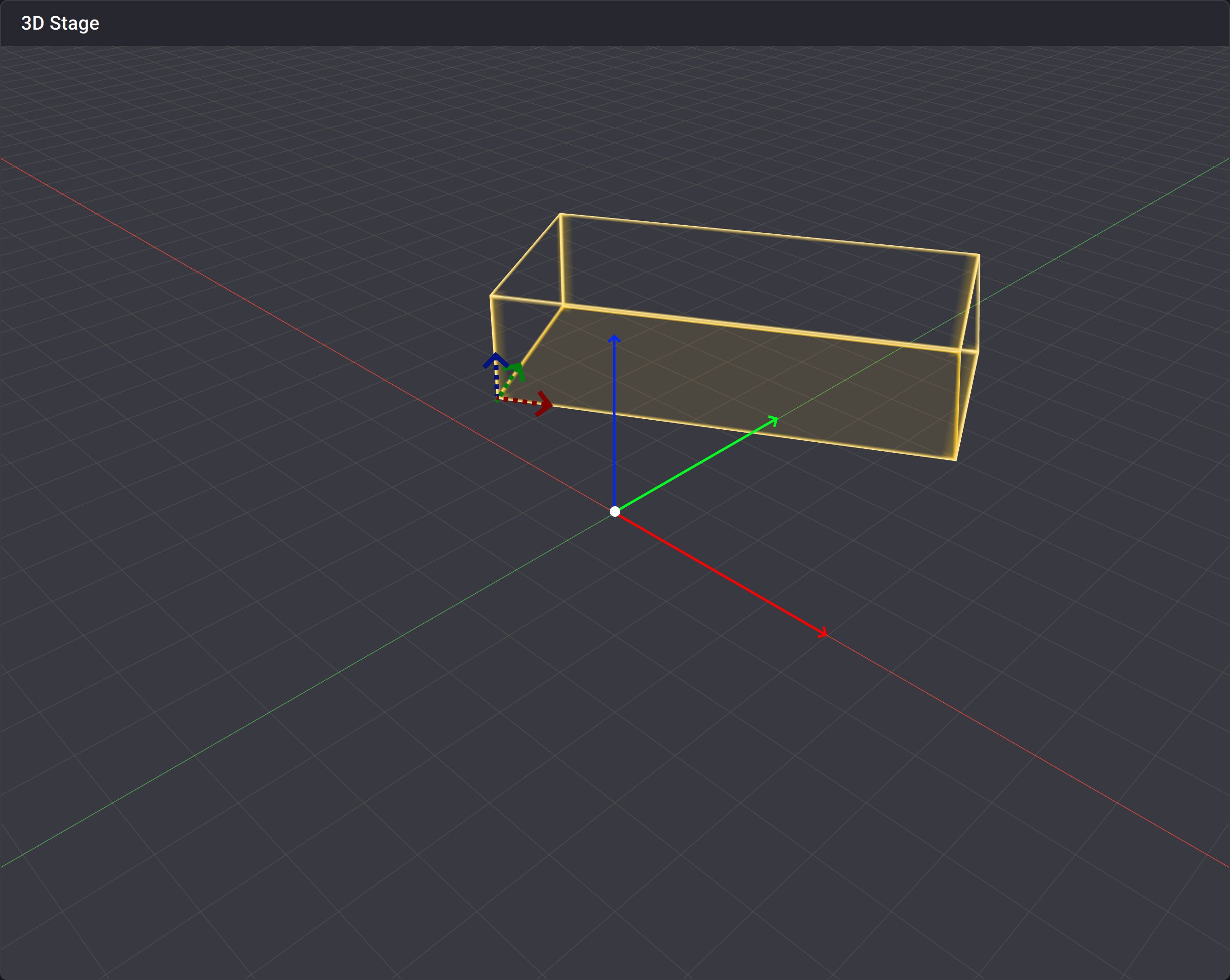 |
 |
| Making a second rotation along the Action Area's Y axis | 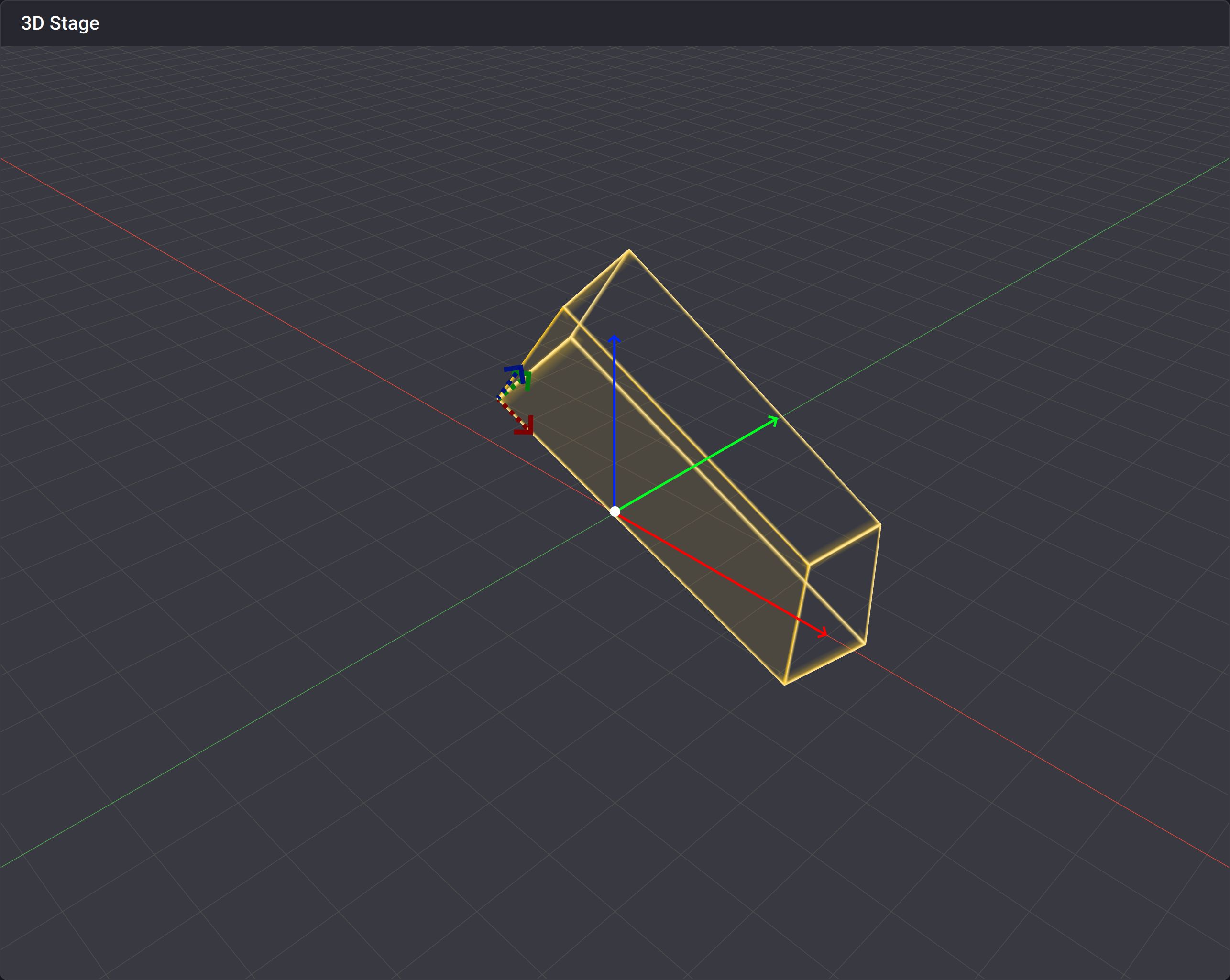 |
 |
| Scaling the Action Area again | 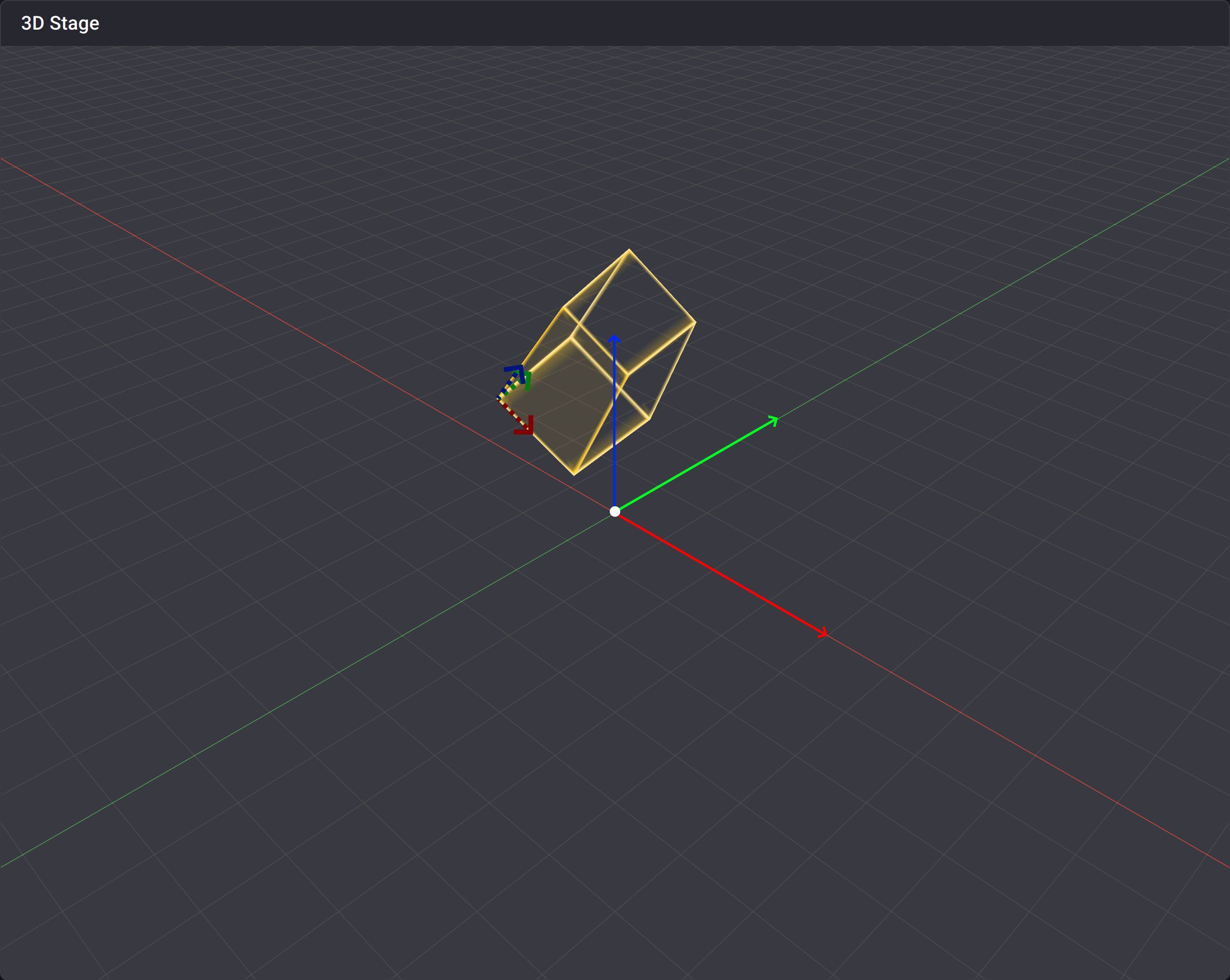 |
 |
| Moving the Action Area again | 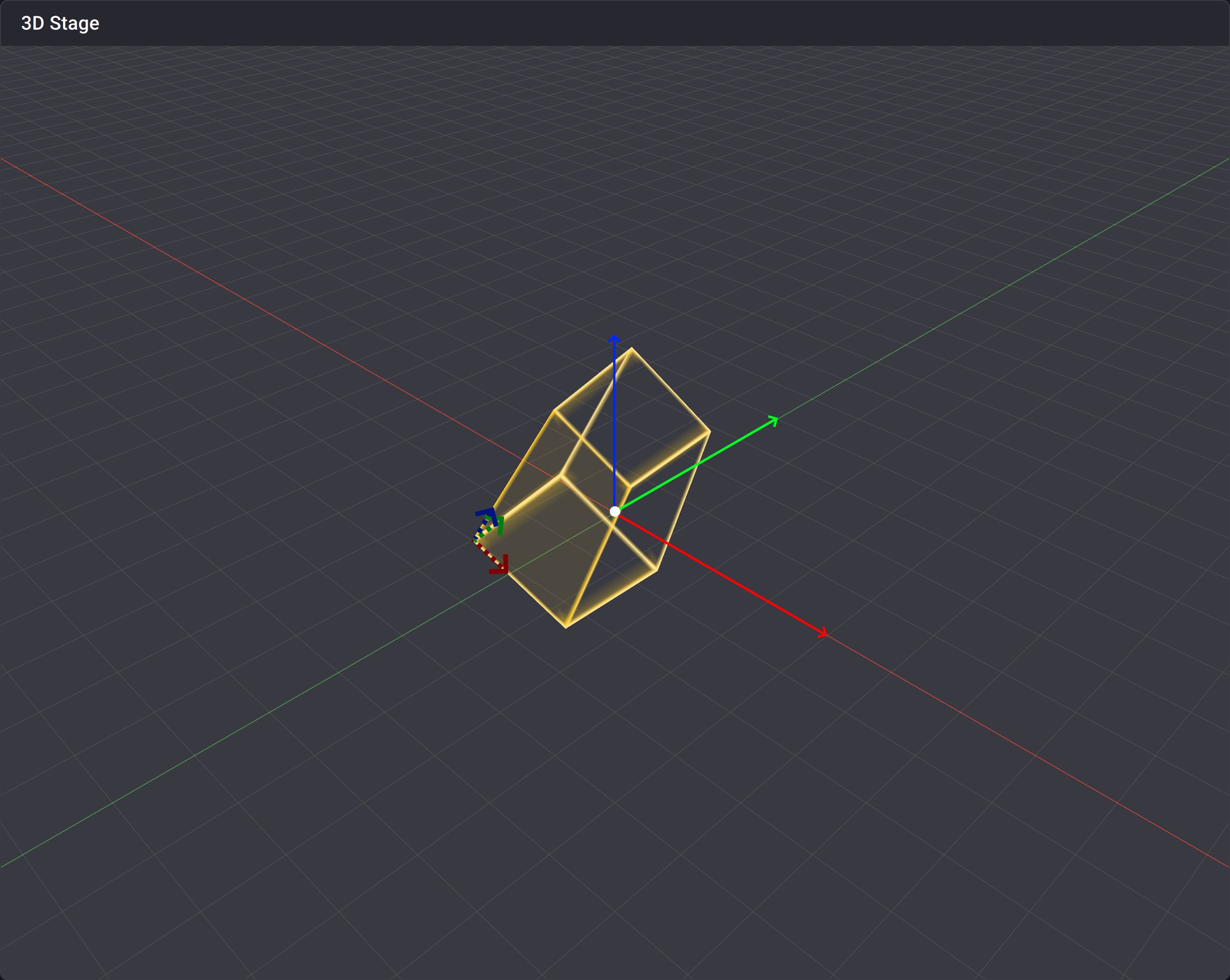 |
|
Use in Actions
Every Action Area can be used in the Actions of the show, even Spawning, Tracking and No Tracking areas.
When you use an Action Area to get the coordinates of a Target, the result are expressed in the coordinate system of the Action Area. This means that if you use an Action Area to map the position of a Target between two values and that this Action Area that has a 90° rotation along its Z axis; if the Target moves along the Kratos X axis, the mapped values that will change is the Y position of the Target. This is useful if the third party system that you want to send position information to has a different coordinate system than Kratos.