K SYSTEM Sense Quick Start guide
K SYSTEM Sense tracks people automatically: the cameras (Kapta or Kam) send their video to a Kore, whose AI creates a Tracker for each person detected. You then patch Targets to Trackers. If you control your Targets by hand without a Kore, see the K SYSTEM Flow Quick Start.
K SYSTEM Sense starts with Kam cameras and a Kore S, up to Kapta cameras and a Kore:
| Station | AI processing capacity |
|---|---|
| Kore S | 1 Kapta or 4 Kams (2 Kaptas or 8 Kams can be connected) |
| Kore | 2 Kaptas (8 cameras) |
Prior to the installation
Study the environment
- Using the charts, determine the optimal installation position, and angle for your cameras (Kapta or Kam)
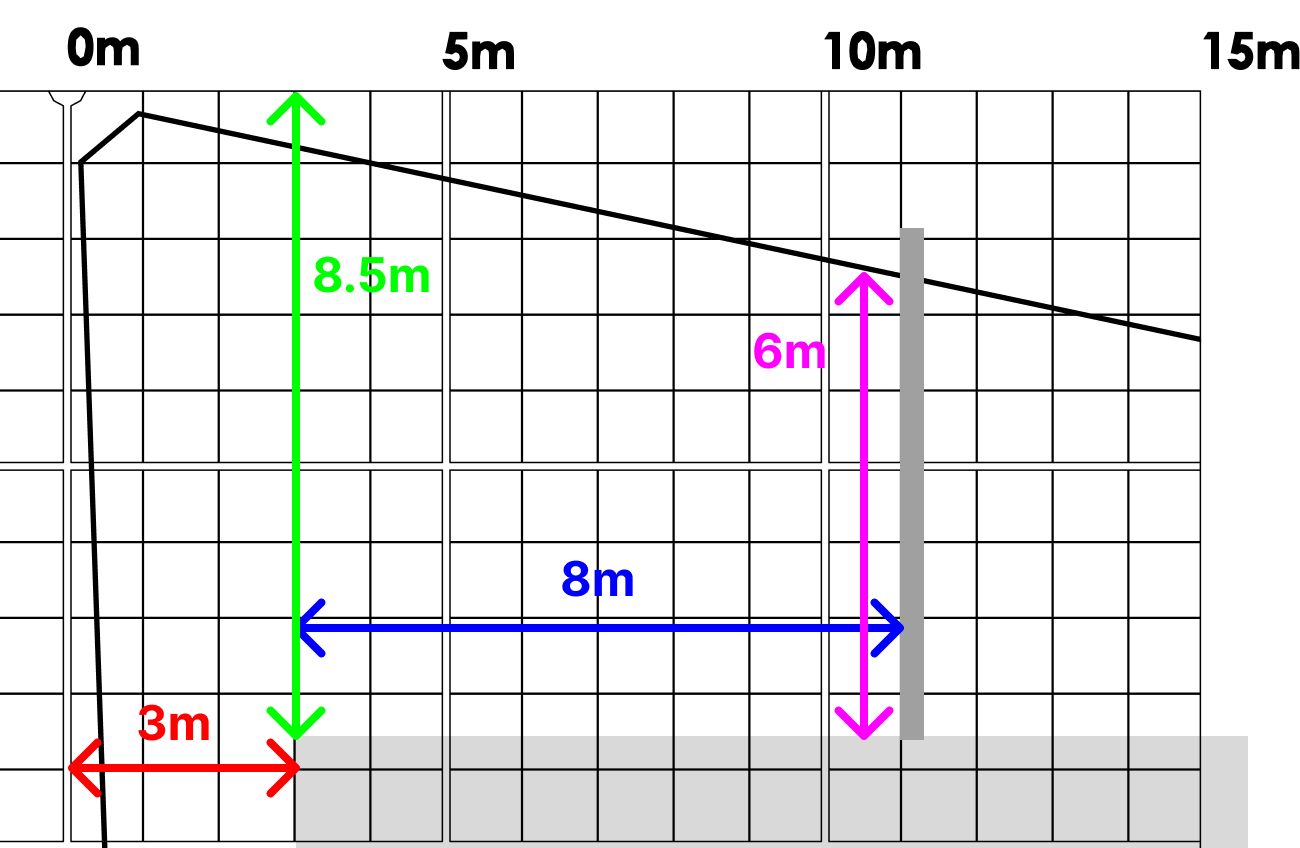
- Configure and scale the network equipment needed to connect the cameras to Kore (NaoNet network) and Kore to all 3rd party systems that need to receive data from Kratos. (see Networking)
Getting Started
Install the system
Kapta: ensure IR emitters are unobstructed and not pointed at any heat-sensitive materials — they can get very hot and pose a burn risk.
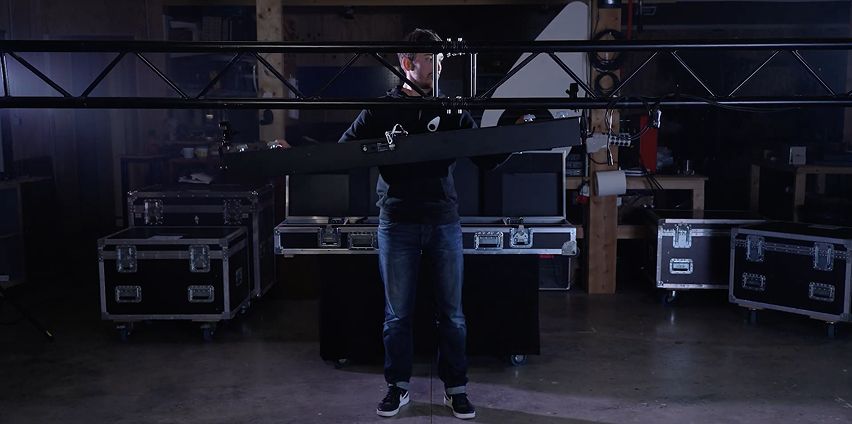
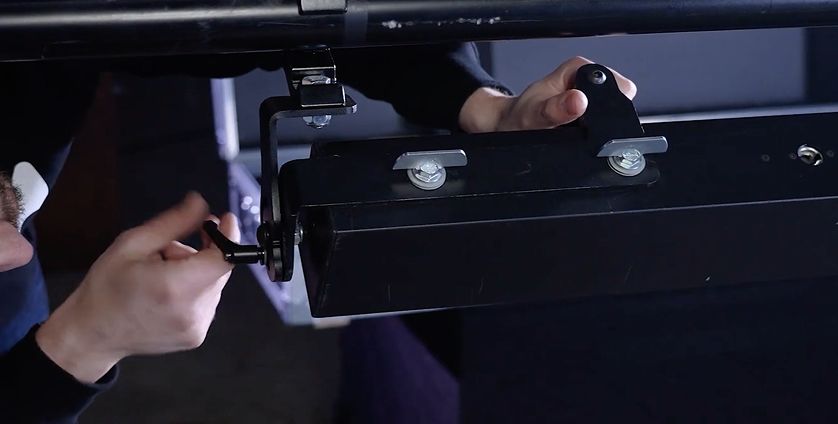
- Install the cameras at the right angle and position. Make sure to tighten the clamps and tilt locks to prevent any movement when lifting trusses.
- Create a new show or open an existing one in Kratos (see Show Menu)
- Connect the cameras and Kore via the NaoNet network
- Add the devices to the show (see Adding devices): we recommend enabling the Device Auto Discovery preview and adding the devices from the Discover Devices dialog. Without it, Kaptas are added automatically and Kams must be added manually with their configuration file.
- Before lifting the cameras, make sure:
- All cameras are sending data to Kratos at 30 fps. Expected bandwidth: around 70 MB/s per Kapta, around 100 Mb/s per Kam
- Kapta: the shutters are open (You can slightly open them manually if they are stuck)
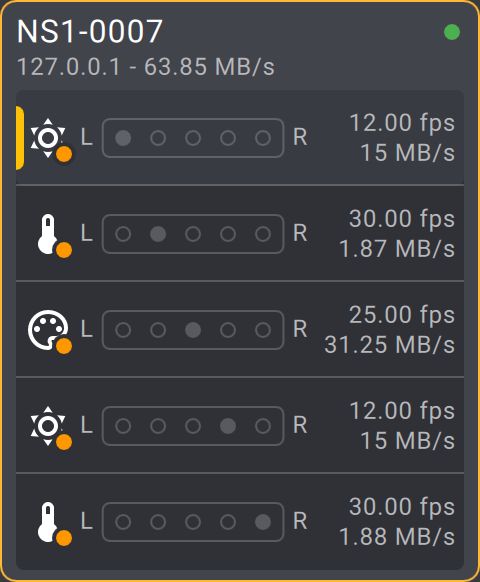
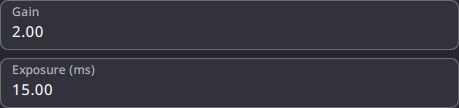
- Check the exposure of all cameras and adjust it if needed, as well as the intensity of the Kapta Infrared Emitters.

Calibrate the cameras
- Calibrate each camera (see Calibration)
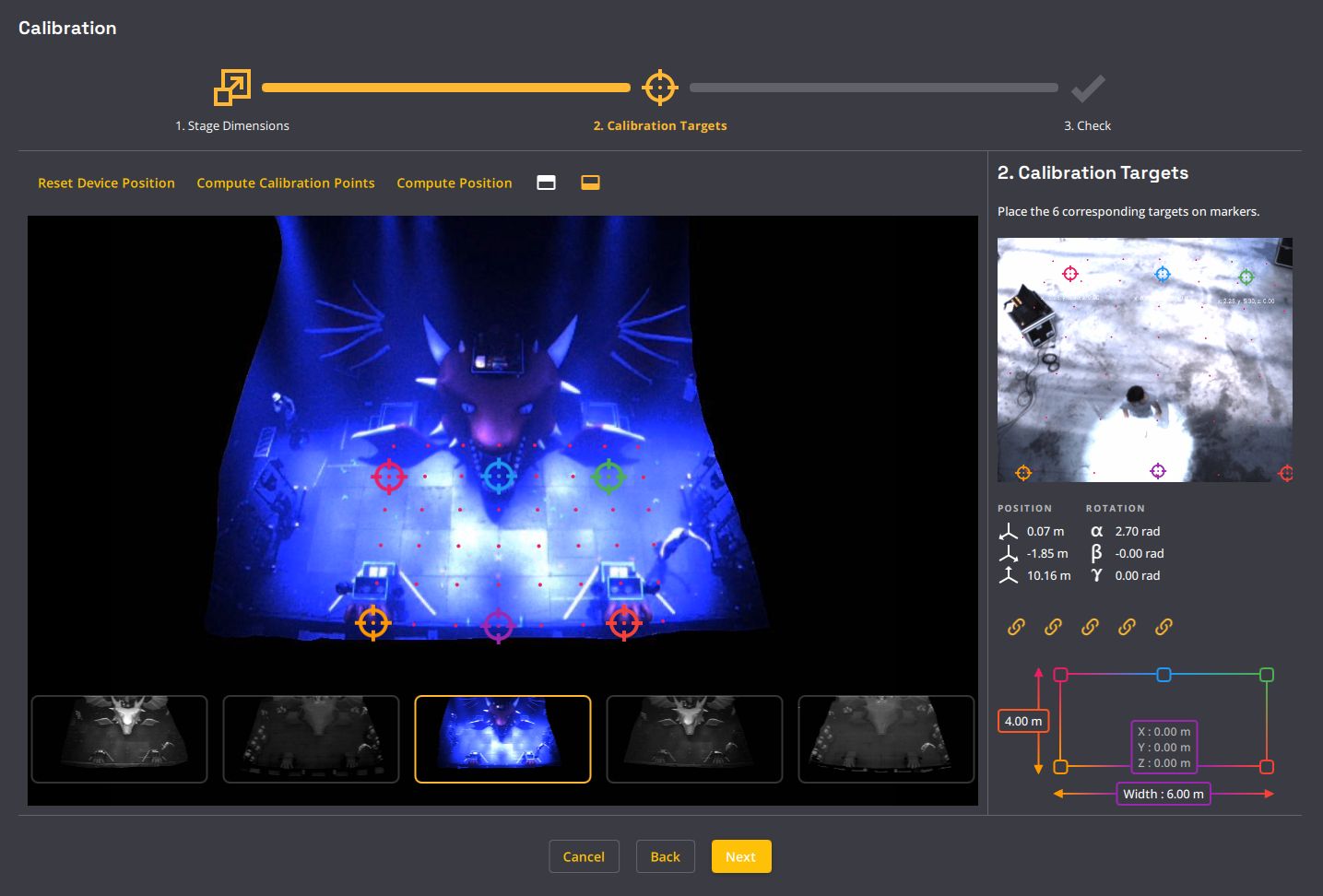
Free Calibration (preview)
Free Calibration is an alternative point-based calibration for Kapta and Kam, especially useful for multi-camera setups. Open it with the Free Calibration button of a camera, or enable the Free Calibration preview so that Calibrate opens it.
Setting up a show
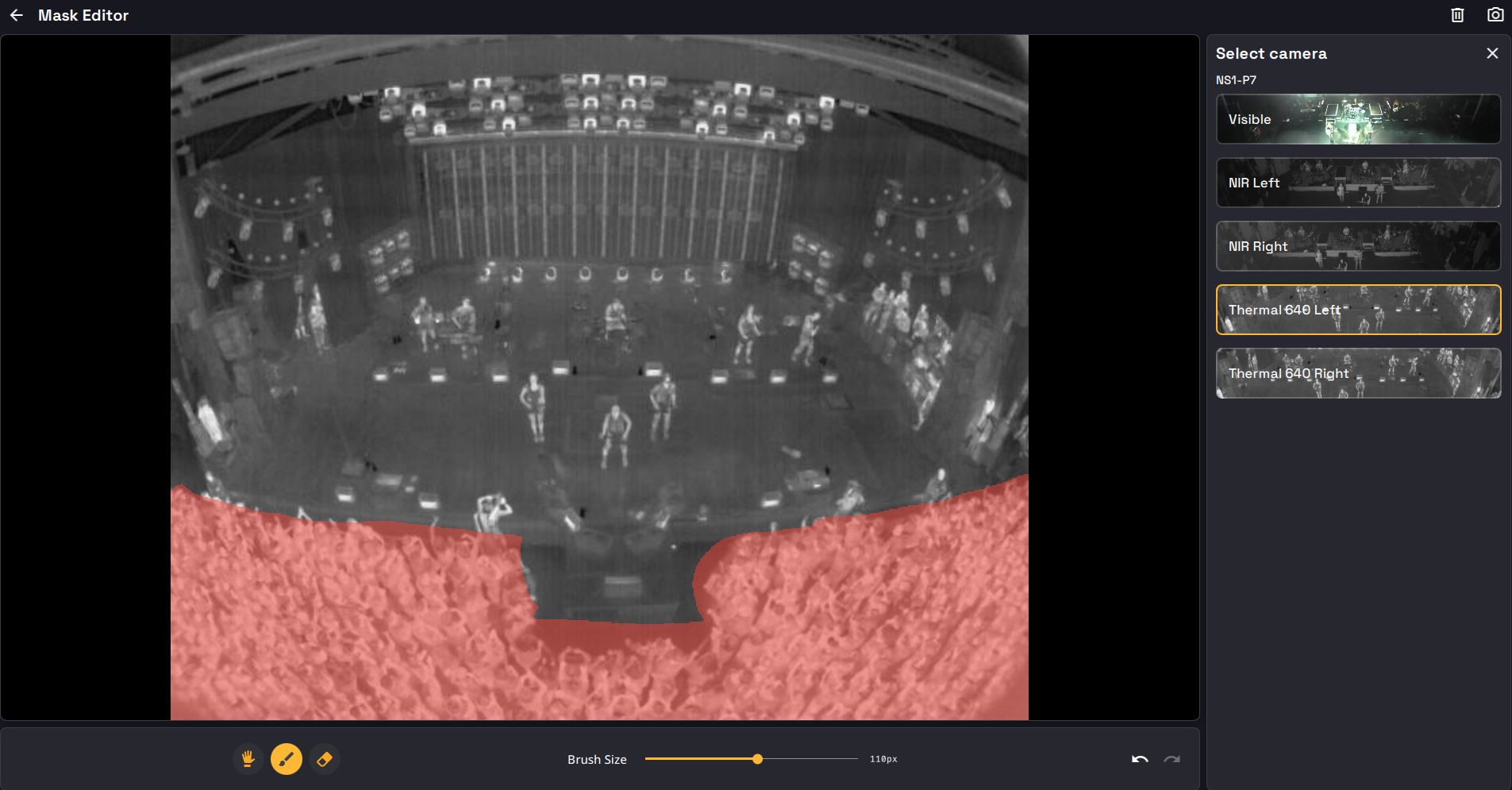
Draw the masks
- Edit the masks for all cameras. The visible camera of a Kapta can be omitted.
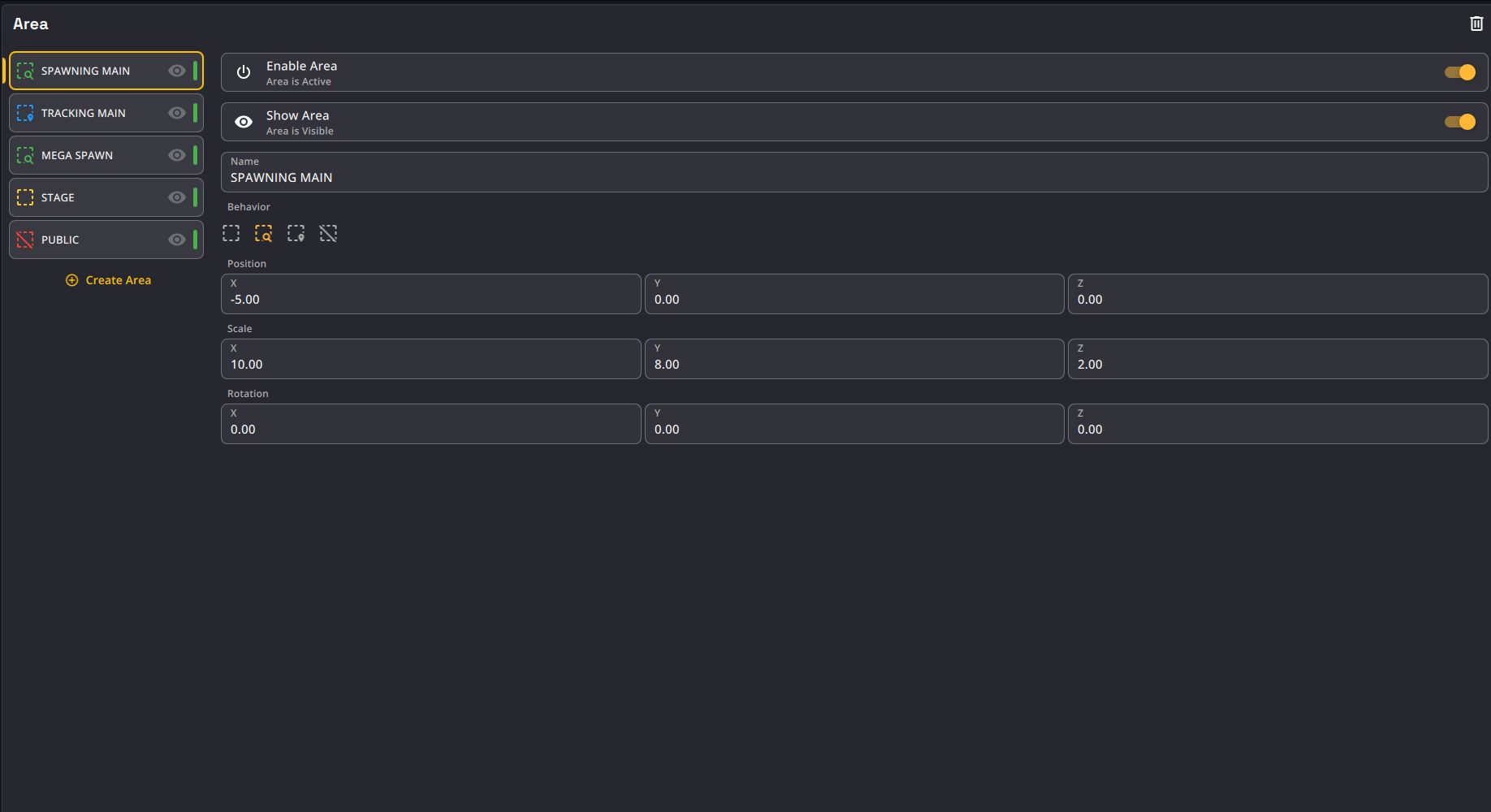
Set up the areas
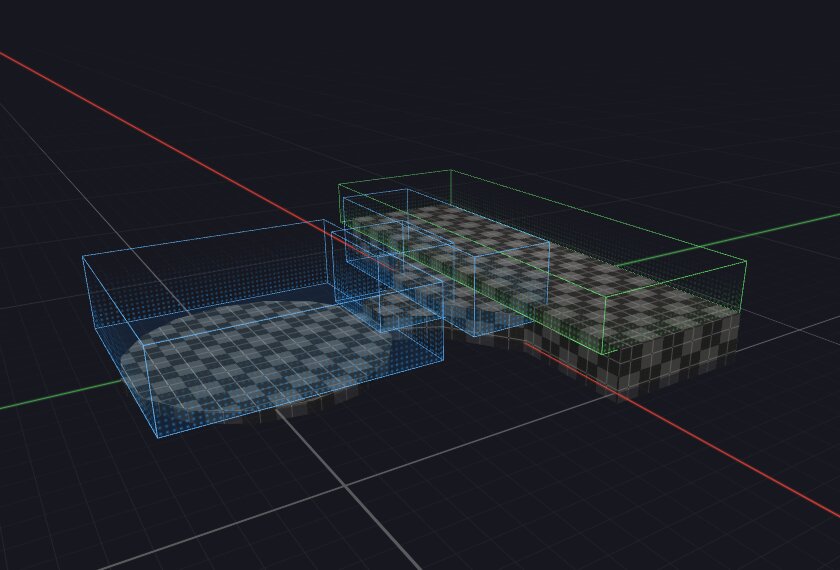
- Set up your Spawning and Tracking areas to manage the Trackers (see Action Areas).
Fit the areas to the stage
With the latest AI models, the areas must fit the stage properly: a Spawning area the size of the performance area, and a Tracking area slightly bigger. The areas help the AI remove outliers, so avoid oversized "catch-all" areas (for example a 40 m × 40 m × 10 m Spawning area).
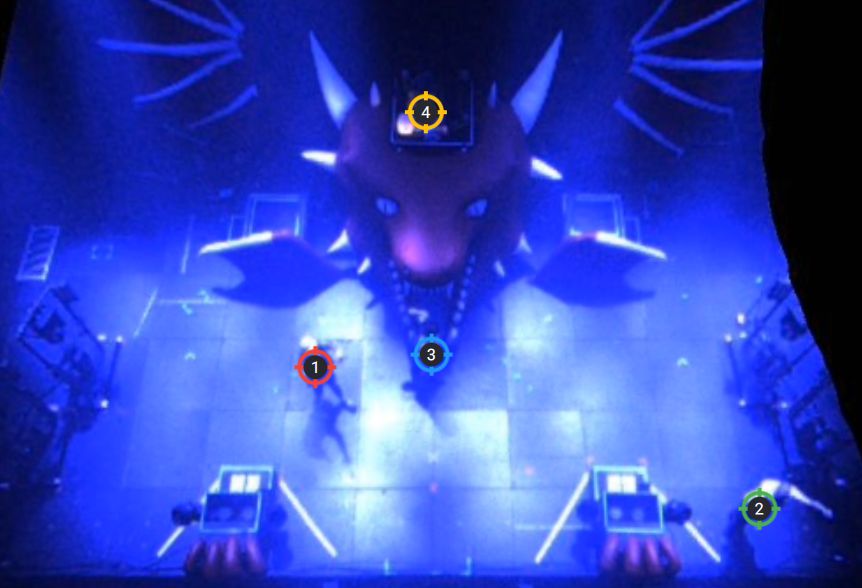
Check tracker spawning
- Record yourself or have someone walk on stage, and on all critical areas to check that Trackers spawn and follow correctly.
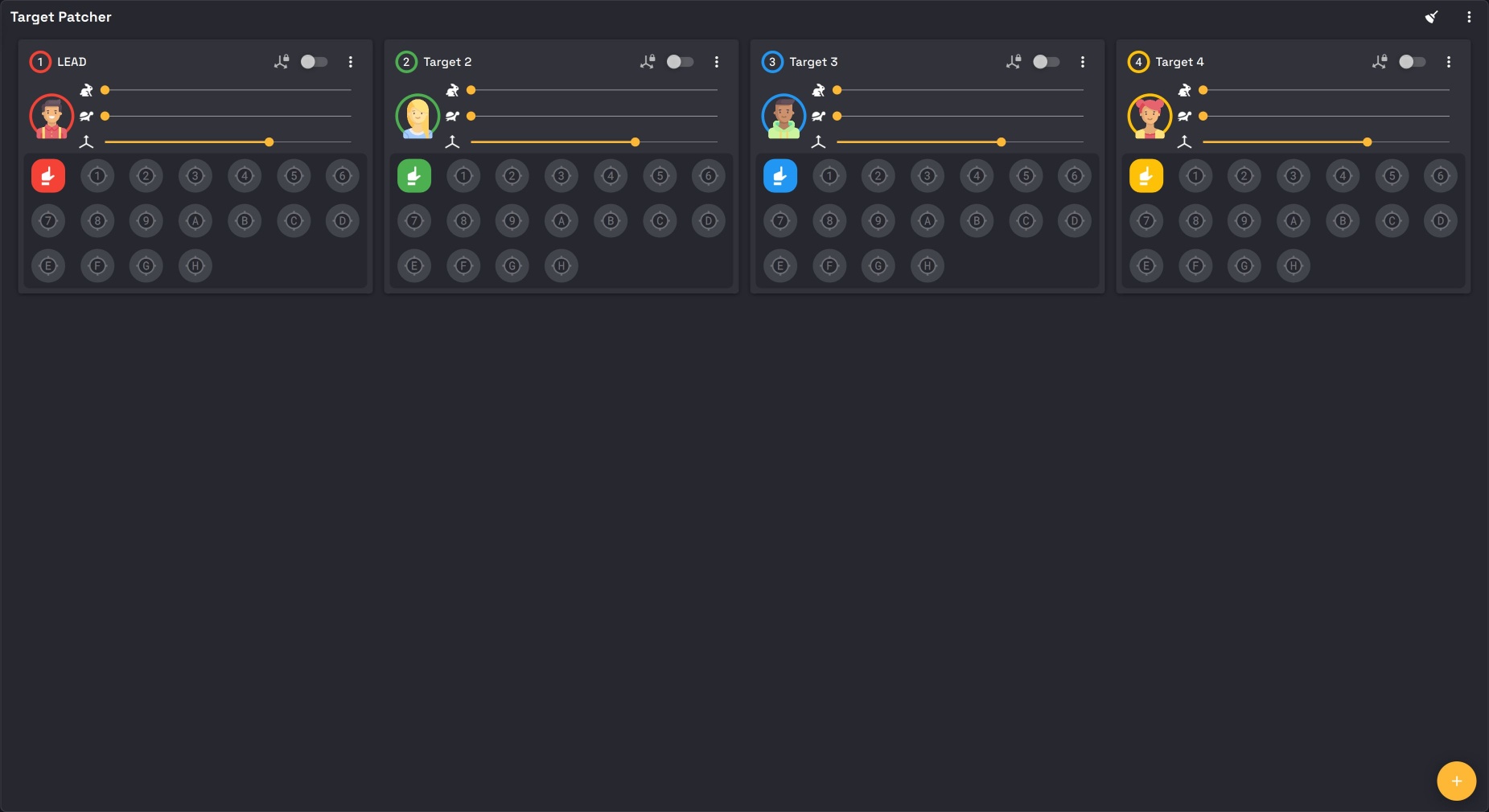
Set up the Targets
- Create a Target for each person to follow in the Target tab of the Show Explorer, and set its Home Position.
- During the show, patch each Target to the Tracker of the right person in the Target Patcher.
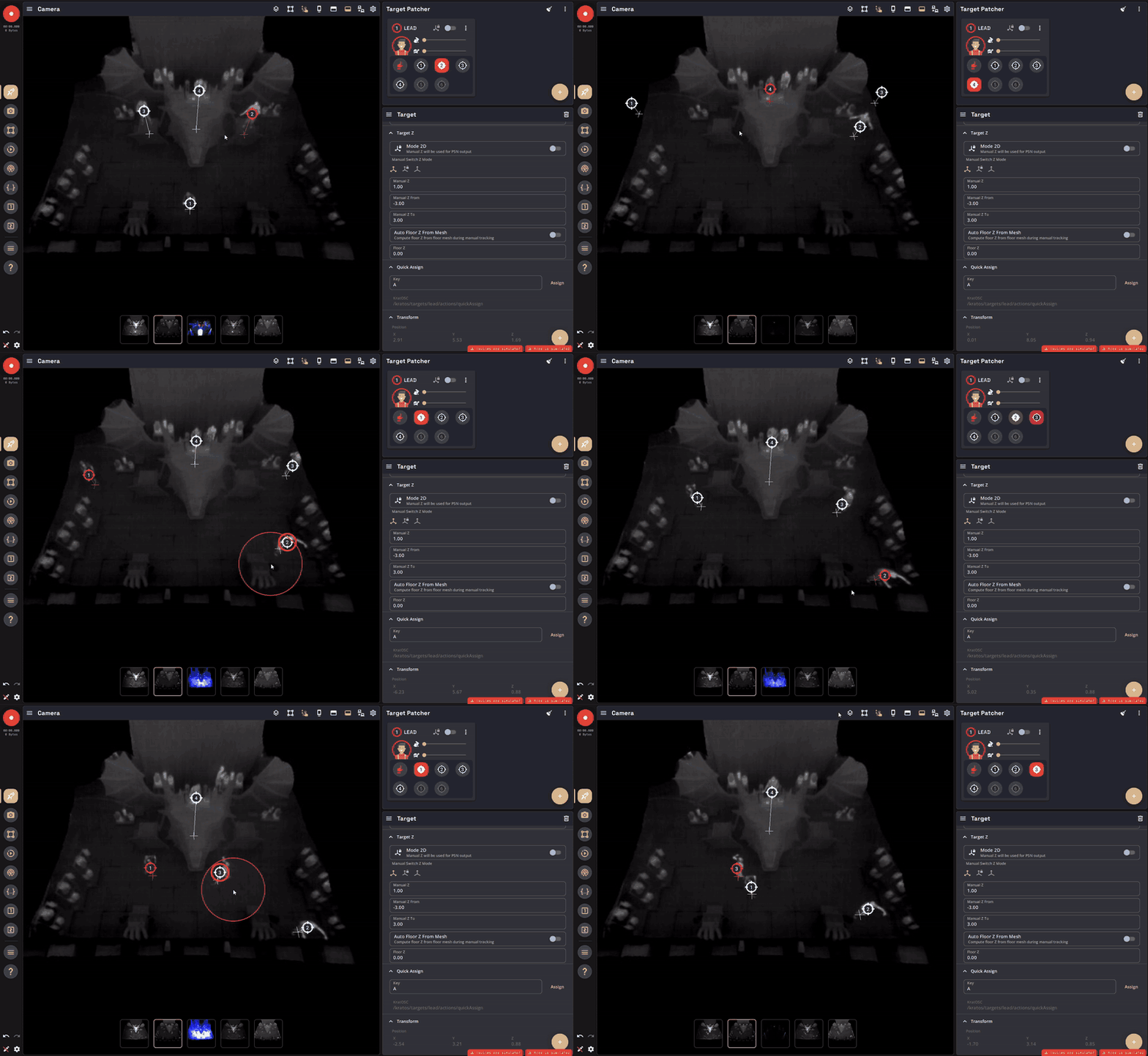
- Optionally, bind Quick Assign shortcuts to patch a Target by pointing at the person on a Camera view.
Connect K SYSTEM with your 3rd party systems
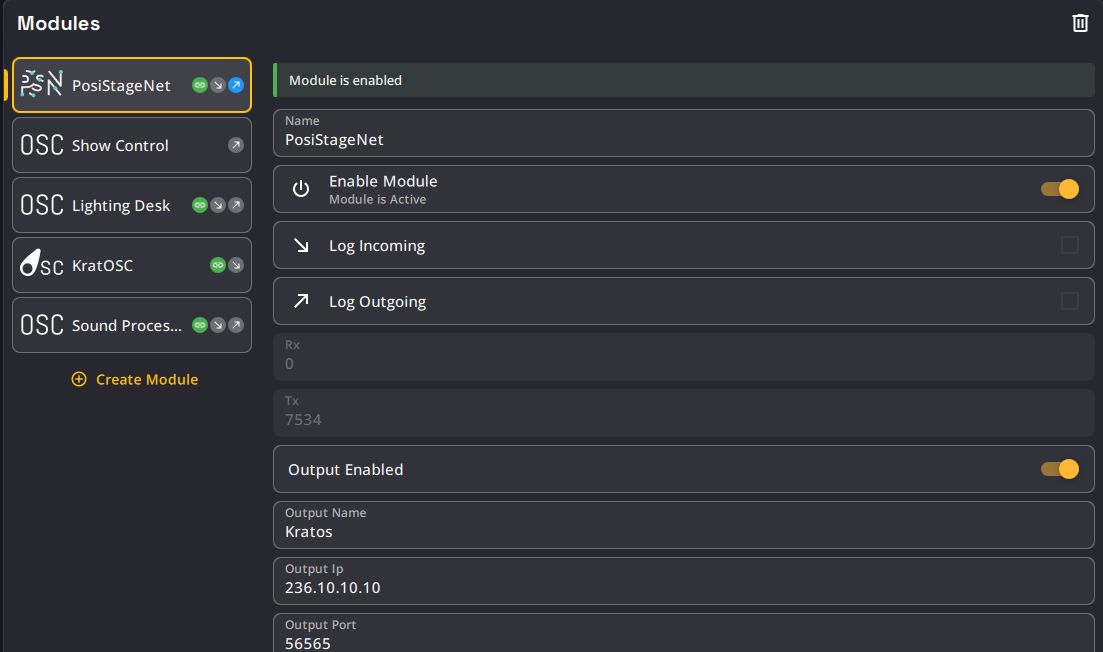
- Set up all the needed Modules for your 3rd party systems (PSN, OSC, KratOSC, grandMA…).
- Use a combination of Action Groups and Actions to create the interactive behavior you want.
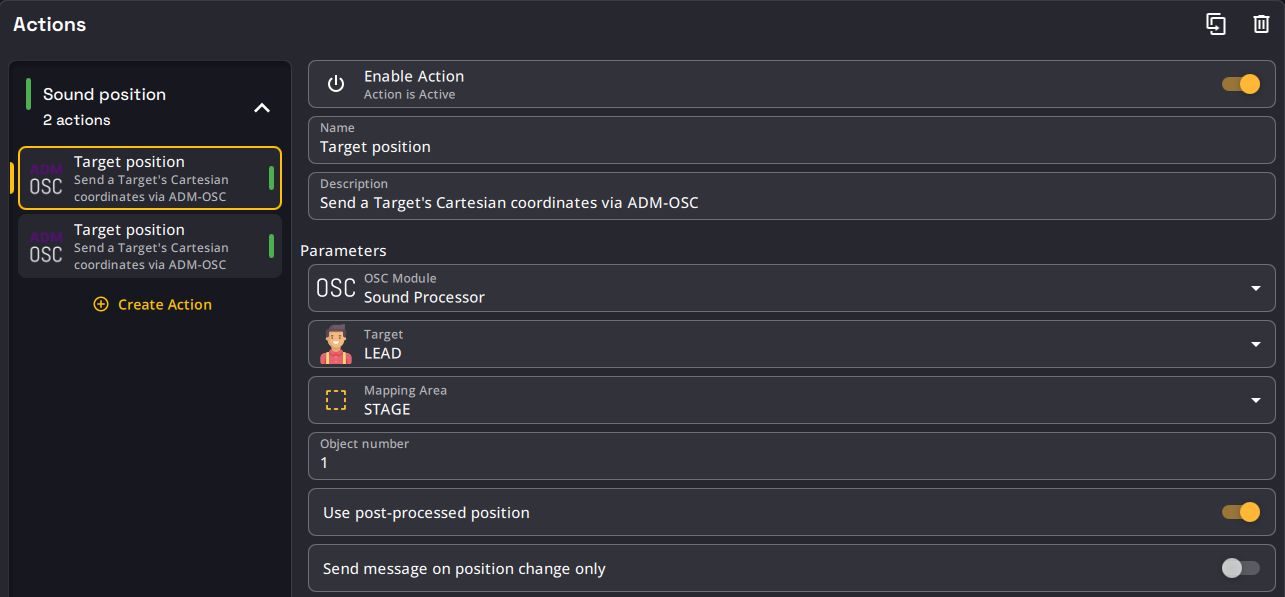
Make sure to also set up the third party system accordingly. Help is provided in the Tutorials section.
You're all done! Your K SYSTEM Sense is ready for the show.