Compute a Target's floor Z from a floor mesh
When you track a Target manually, its height (Z) is normally a fixed value. If your stage floor is not flat (a raked stage, risers, stairs, a terrain), you can import a floor mesh and let Kratos compute the Target's floor Z automatically from the geometry under it.
Experimental
Auto Floor Z From Mesh is a work-in-progress feature in v1.11 and may change in future releases.
Import a floor mesh
- Open the Stage Editor view and go to the Floor Meshes tab.
- Click + → Add Mesh… and import a
.gltfor.glbfile of your stage floor (or Add Cube for a simple raised platform). - Position, rotate and scale the mesh so it matches your real floor, with the numeric fields or with the gizmo in the 3D Stage view.
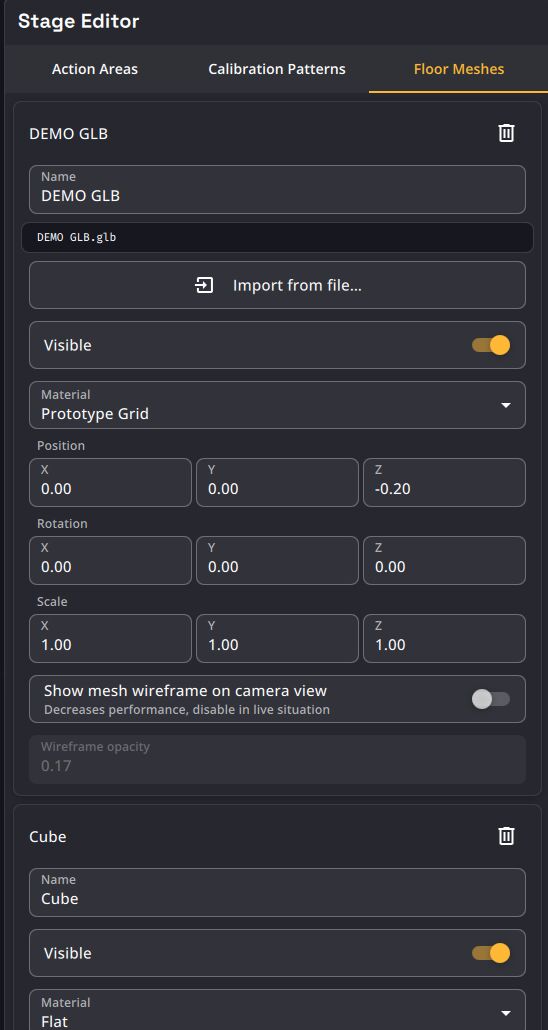
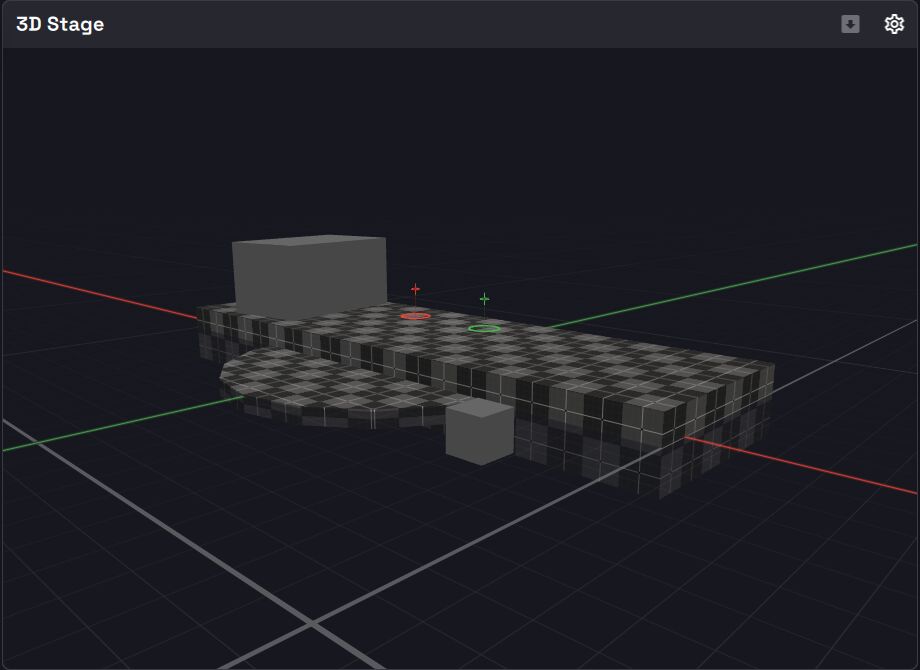
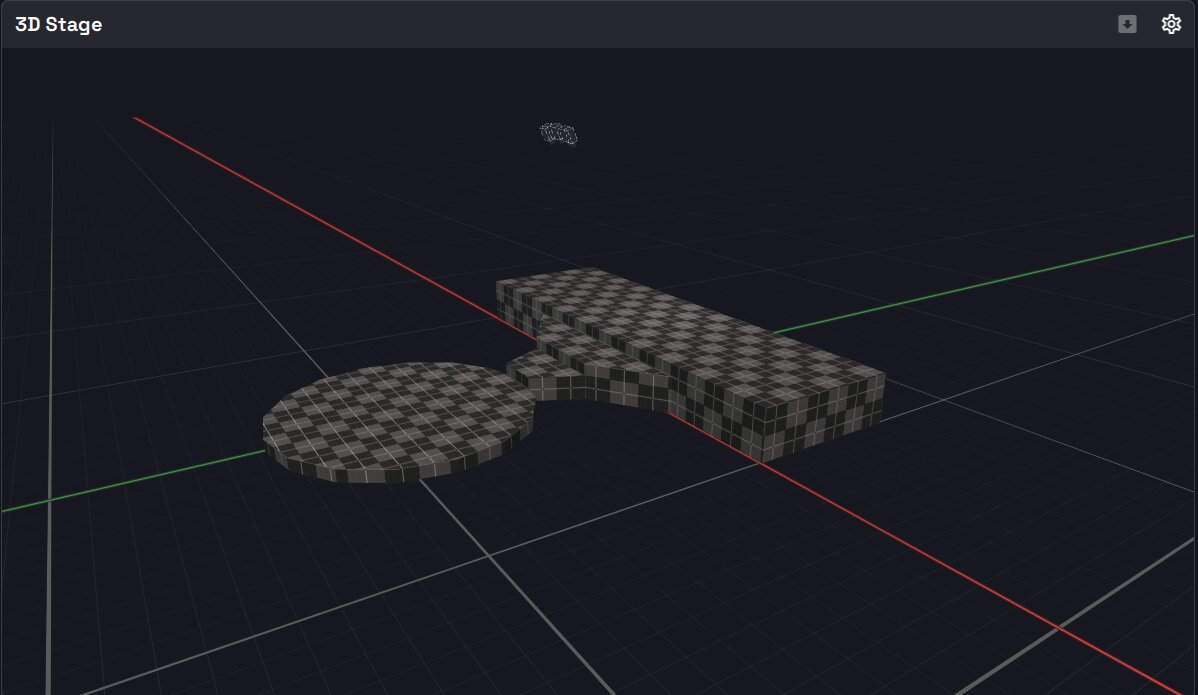
The mesh is embedded in the show file; importing a file larger than 100 MB asks for confirmation.
Enable Auto Floor Z on the Target
- Open the Show Explorer → Target tab and select your Target.
- Turn on Auto Floor Z From Mesh (Compute floor Z from floor mesh during manual tracking).
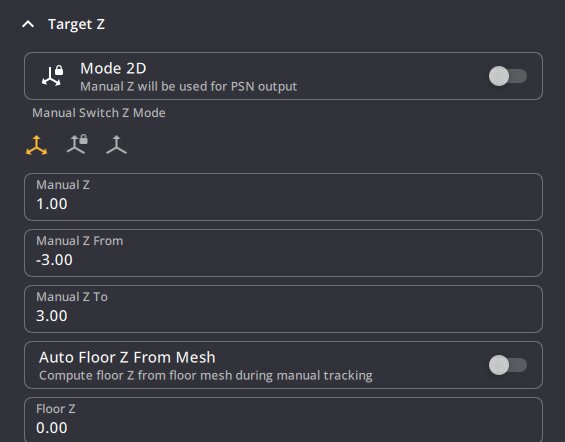
When enabled, Floor Z is greyed out and computed from the mesh; the Target's Manual Z is still added on top.
Track manually
Put the Target in manual tracking and move it across the stage in a Camera view: its Z now follows the height of the floor mesh directly below it. Outside the mesh, the Target keeps the last floor Z computed from it.
When several floor meshes are visible, the nearest surface under the Target is used.