3D Stage
The 3D stage view allows you to monitor in 3D environment all the following components:
- Action areas
- Targets position
- Beakon tags position
- World points
- Floor meshes
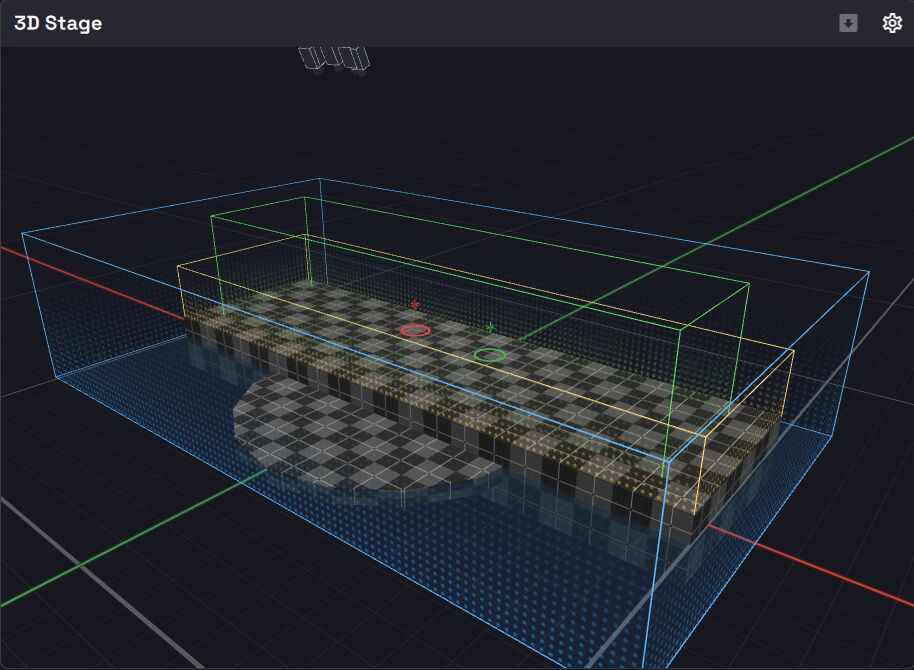
To create a 3D Stage view, check the Layout organization section.
Kratos coordinate system
Kratos uses a right-hand coordinate system with :
- X (in red) and Y (in green) axis along the floor (horizontal axis)
- Z axis representing the height (vertical axis)
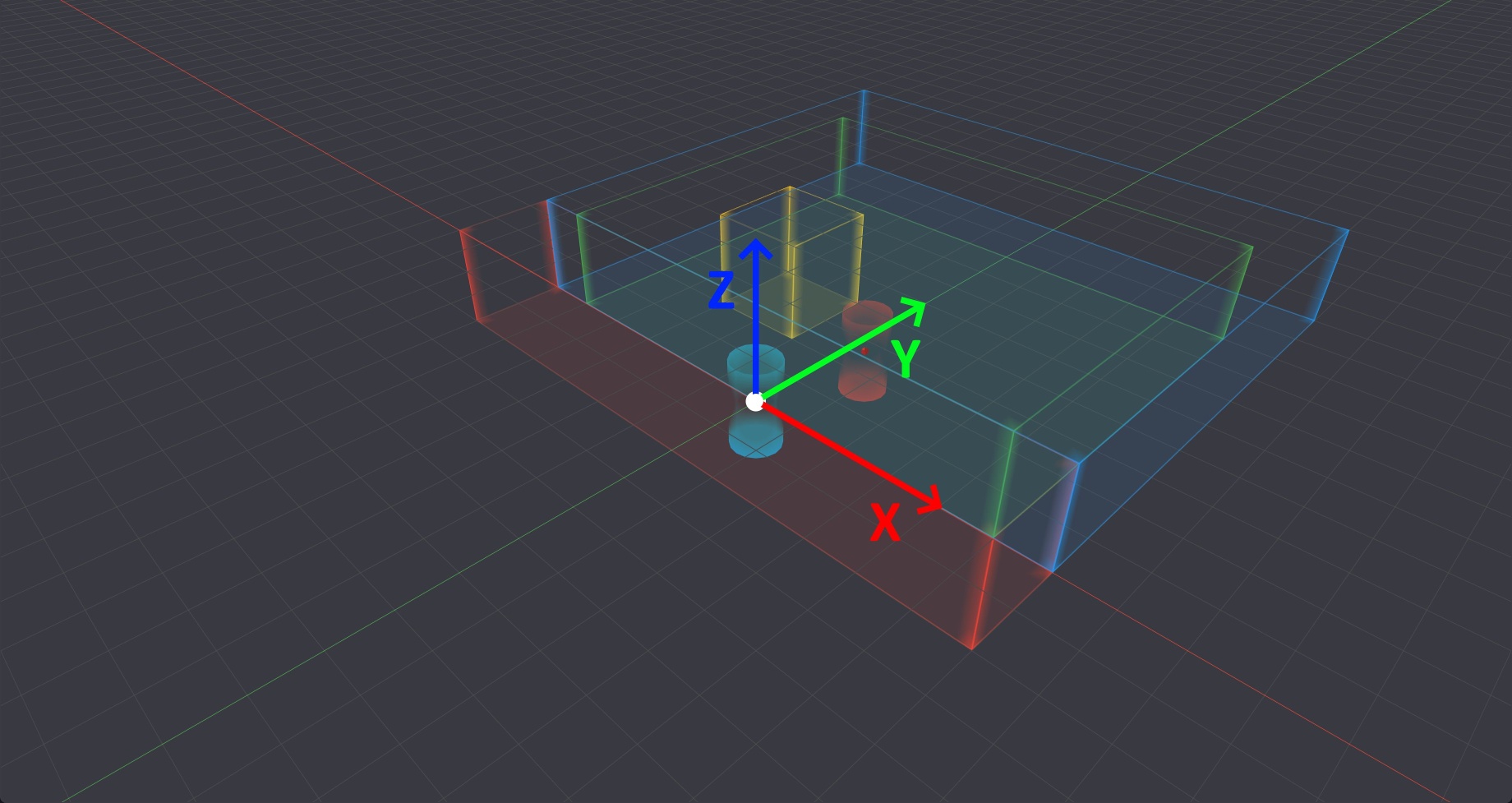
The squares on the Z = 0 plane of the 3D view have a side length of 1 meter.
When working on a project, make sure that all (and if not the the majority) of the systems involved use the same frame of reference : origin and axes orientation.
This will make your life far easier when interfacing Kratos with third party systems as you will not have to convert the coordinates from one system to another. If for some reason this is not possible for a particular system, Kratos has ways to deal with it by offsetting origin, remapping coordinates or remapping axis orientation.
See here for more information about coordinate systems.
Controls
You can navigate the 3D view with the following controls :
- Left click and drag : orbit the camera around the focus point
- Right click and drag : pan (move the focus point)
- Wheel : zoom in / out
On a touchscreen, use one finger to orbit and two fingers to pan and pinch-zoom.
A small white sphere with a cross marks the current focus point that the camera orbits around. The camera position is saved with the show and restored when you reopen it.
The navigation controls changed in v1.11.
Left-drag now orbits and right-drag now pans (this is the opposite of previous versions).
Editing with the gizmo
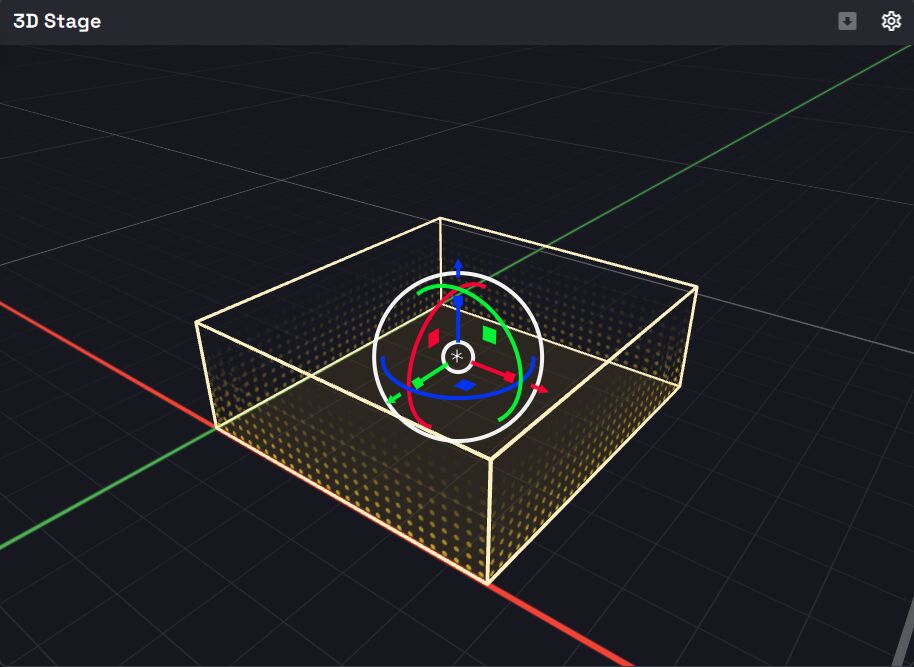
When you select an Action Area, a World Point or a Floor Mesh, an on-screen 3D gizmo appears so you can edit it directly in the view.
- Select an object by clicking it in the 3D view, or by selecting it in its list. Click empty space to deselect.
- Drag a handle with the left mouse button to transform the object. Releasing ends the edit.
- Hold Alt while starting a drag to duplicate the object and move the copy.
The gizmo mode is chosen in the Settings panel:
| Mode | Description |
|---|---|
| All | Show translate, rotate and scale handles together. |
| Translate | Move the object. |
| Rotate | Rotate the object. |
| Scale | Resize the object. |
The handle colors follow Kratos' axes: X is pink/red, Y is blue, and the vertical Z axis is green.
What each object supports:
- Action Area : translate, rotate and scale.
- World Point (single) : translate only.
- World Point (rectangle pattern) : translate, rotate and scale (to resize width/depth), following the Gizmo mode chosen beforehand (the mode cannot be changed while a world point is selected).
- Floor Mesh : translate, rotate and scale.
Floor meshes
The show can contain several floor meshes that represent your venue's floor. They are displayed here and can be transformed with the gizmo, but they are created and configured from the Floor Meshes tab of the Stage Editor.
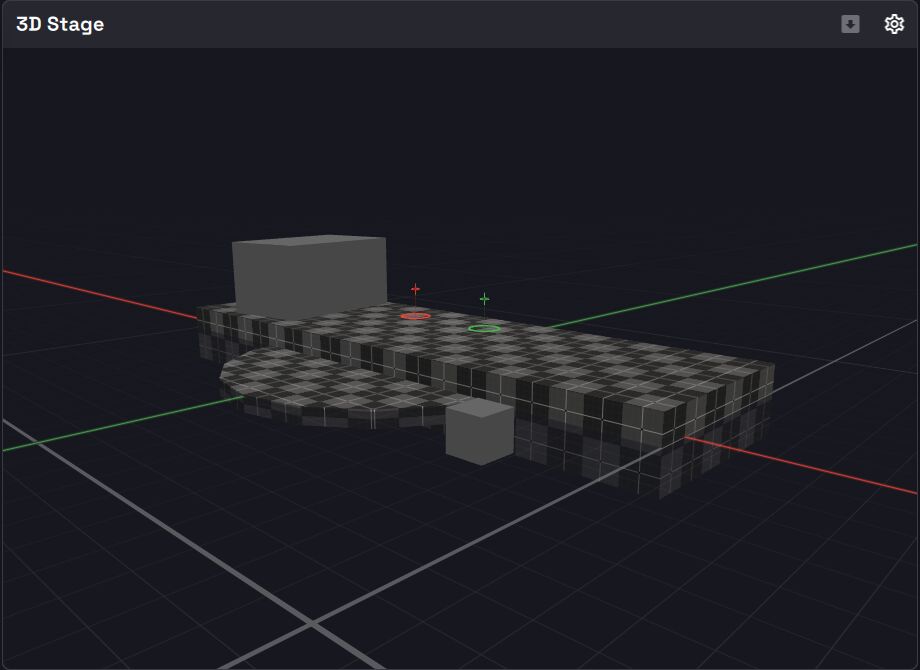
Selecting a mesh card (or clicking the mesh in the 3D view) focuses it and shows the gizmo. A hidden mesh is removed from rendering, picking and floor raycasts.
Visualization
- A two-level grid floor shows fine 1 m lines and bold 10 m lines, with a faint translucent fill so you can tell what is above or below the floor plane.
- Each target is drawn with a sphere at its true 3D position, a floor torus on the surface below it, and a drop line connecting the two, making the target's height above or below the floor easy to read.
Experimental: Auto Floor Z From Mesh
The Auto Floor Z From Mesh option of the Target settings is a work in progress and may change in future releases. See also the experimental Prototype Grid material of the Floor Meshes.
View settings
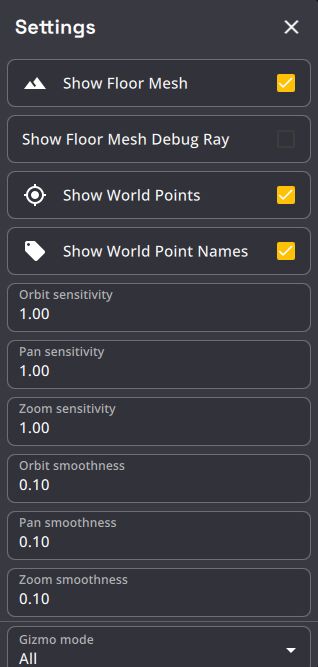
The Settings cogwheel at the top right of the view exposes per-view options (saved with the show):
- Camera (Beta mode only) : orbit, pan and zoom sensitivity (0.1–3.0) and smoothness (0.0–0.95).
- Gizmo : Gizmo mode (All / Translate / Rotate / Scale), Local orientation (transform along the object's own axes), Snap (snap translation, rotation and scale to fixed steps, with configurable distance, angle and scale) and Snap to mesh (snap a dragged world point onto the floor mesh).
- Display : Show Floor Mesh, Show Floor Mesh Debug Ray, Show World Points and Show World Point Names.