Timecode
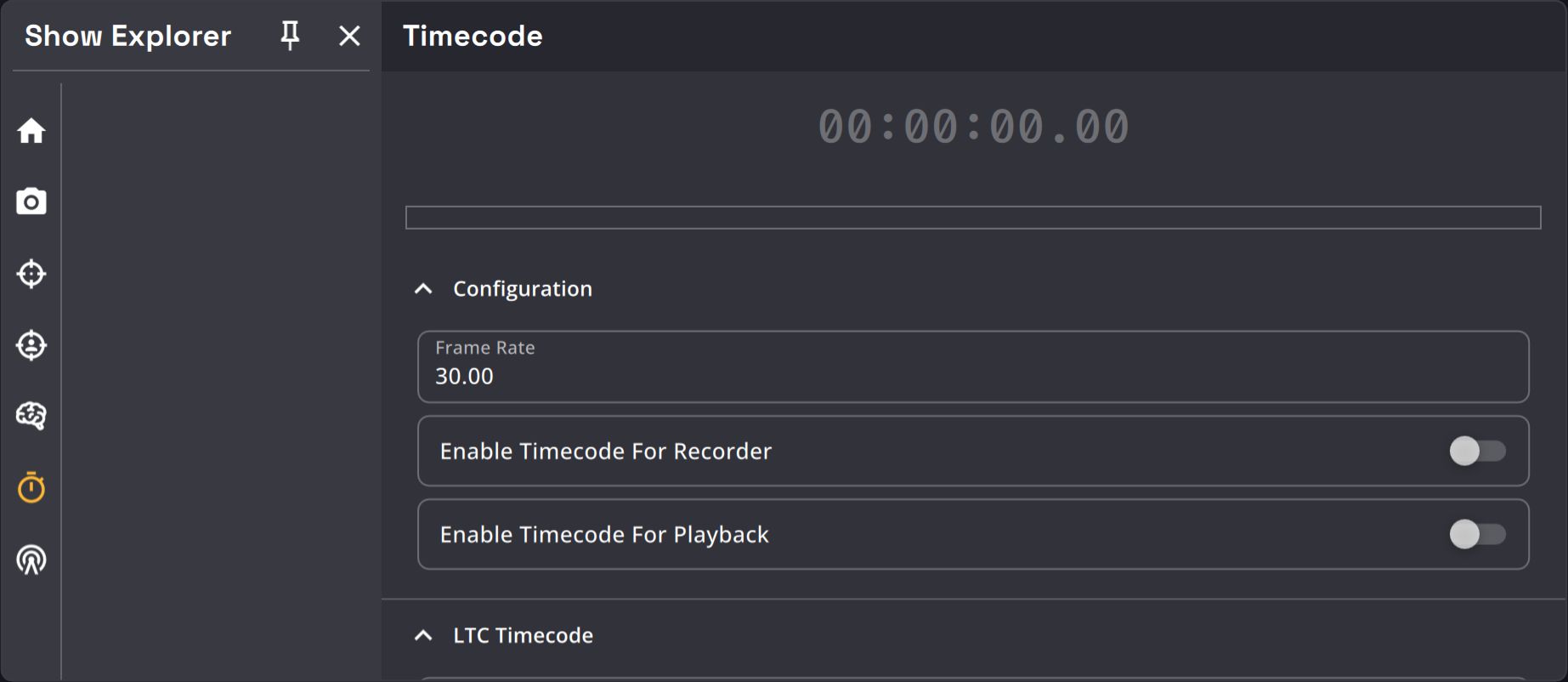
The Timecode tab allows you to manage the Timecode parameters of the show.
Kratos can listen to timecode, embed it during the recording of .kramera files, and play back the files in synchronization with a timecode input.
The timecode synchronized assets of the .kramera files are :
- Cameras video feeds (Kapta or Kam)
- Trackers position
- Targets position
If you want to save the position of Trackers or Targets in .kramera files, you have to enable the options in the show tab.
Kratos can input timecode in 2 different ways :
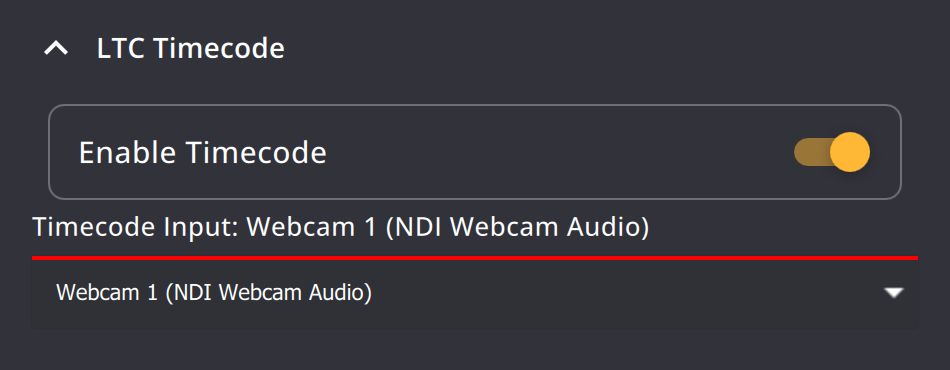
- External LTC input : You can listen to an external timecode source via one of your hardware interface.
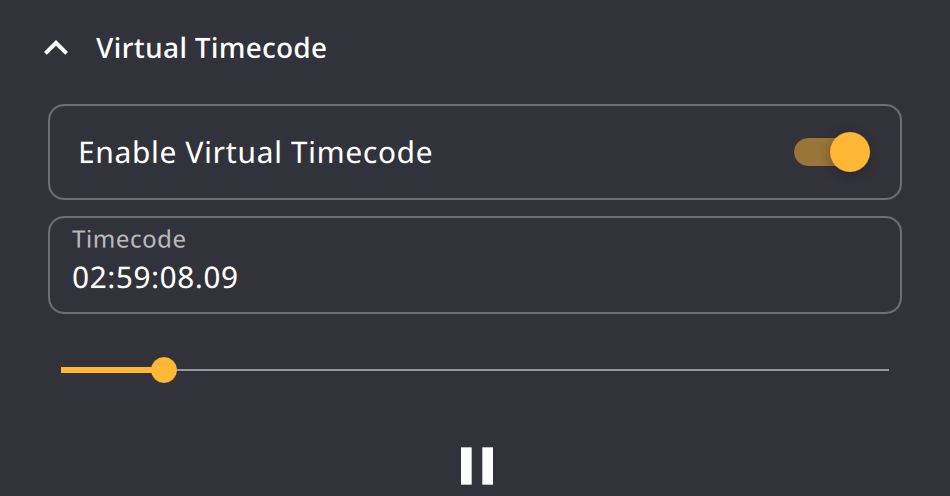
- Virtual timecode simulator : If you don't have an external timecode source, you can simulate a virtual one in Kratos.
| Name | Description | Image |
|---|---|---|
| Timecode input timestamp | Timecode input (external or generated) timestamp. |  |
| Timecode framerate textfield | You can set the Timecode framerate (in fps). |  |
| Timecode for recorder toggle | If enabled and if a timecode input is received, timecode will be embeded into .kramera files during recording. |
 |
| Timecode for playback toggle | Option used only for playback files in the BeaKon tab. If enabled, and if a timecode input is received, .kramera files that are recorded with embeded timecode can be played back in synchronization with the timecode input. |
 |
| External timecode toggle | Allows you to enable / disable the external timecode input of Kratos. |  |
| External timecode source input | You can choose the external Timecode source input here. |  |
| Virtual timecode toggle | Allows you to enable / disable the virtual timecode simulated by Kratos. |  |
| Timestamp | You can change the timestamp of the simulated timecode here. |  |
| Timacode simulator player | You can start / stop and move in the timeline of the generated timecode here. |  |
Be careful to keep the "Timecode For Recorder" option disabled if you don't have a timecode input. Otherwise the recording of .kramera files won't start.