Modules
The modules allow Kratos to send and receive information from third party systems on the network.
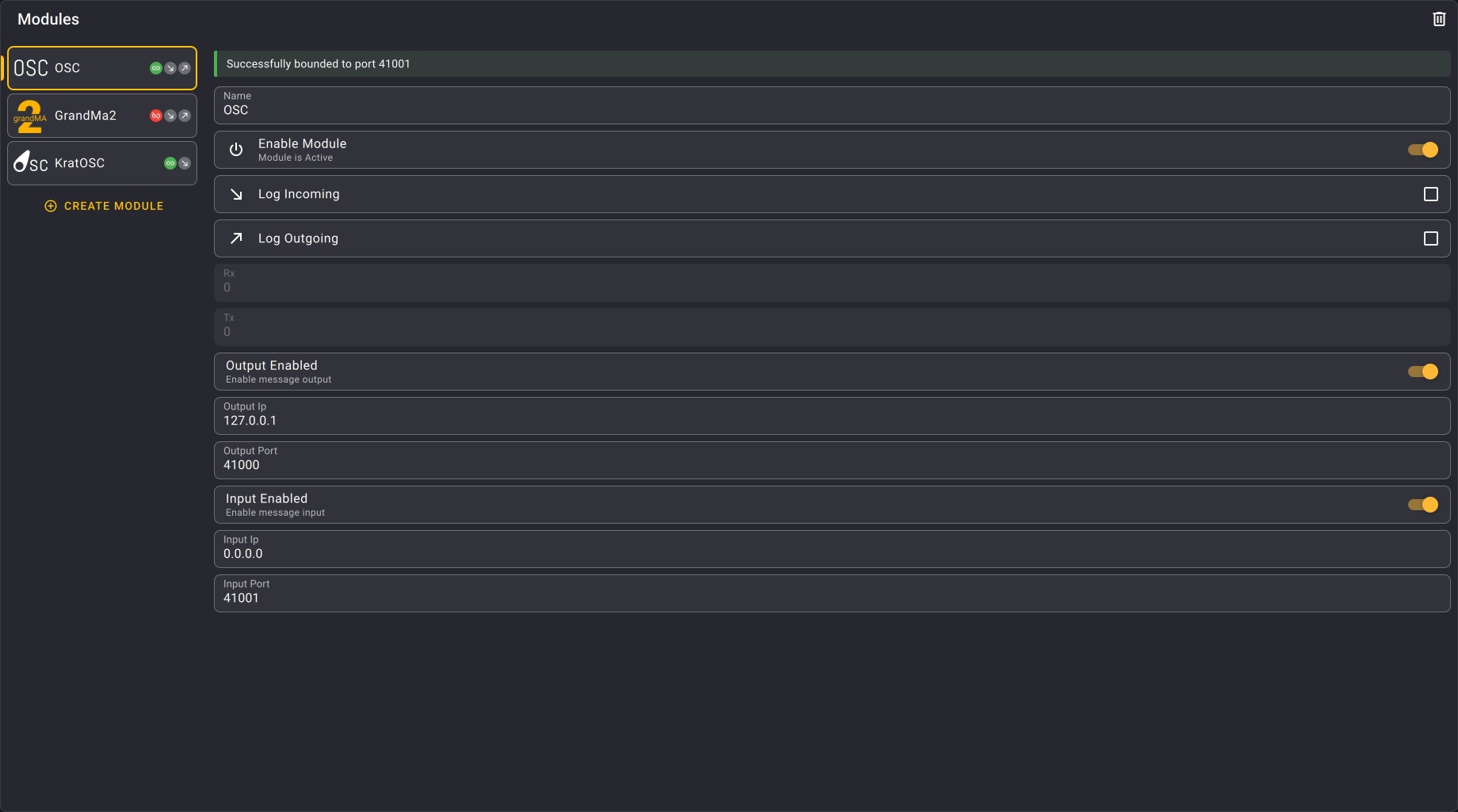
To create a Module view, check the Layout organization section.
Module types
Kratos provides several built-in module types. Click a module for its specific controls:
| Module | Description |
|---|---|
| PSN | Send and receive position information using PosiStageNet. |
| OSC | Send OSC messages to third party systems. |
| KratOSC | Control Kratos remotely via OSC and stream its state. |
| GrandMA2 Telnet | Send Telnet commands to a GrandMA2 console. |
| HTTP | Call external REST APIs from your JavaScript actions. |
| SpaceMouse | Control target positions with a 3DConnexion SpaceMouse. |
General controls
These controls are available for every module type.
| Name | Description | Image |
|---|---|---|
| Module list | At the left of the view is the list of all the Modules of the show. | 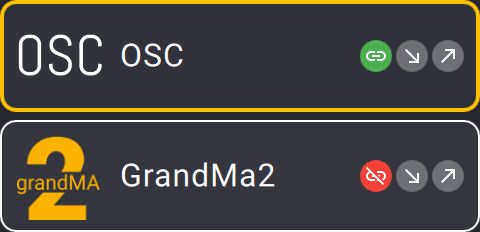 |
| Create module button | At the bottom of the Module list, this button allows you to create a new Module. |  |
| Delete module button | At the top right of the view, the trash icon allows you to delete the selected Module. |  |
| Info bar | Displays the current state of the module. |  |
| Name textfield | Allows you to rename the selected Module. |  |
| Enable module toggle | Allows you to enable or disable the selected Module when needed. |  |
| Logs check buttons | Allows you to choose if the Module’s logs are displayed or not in the Message view. | 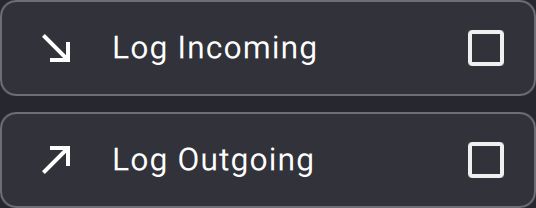 |
| Data transfer rates | Display the data transfer rates of the Module (receiving and sending). | 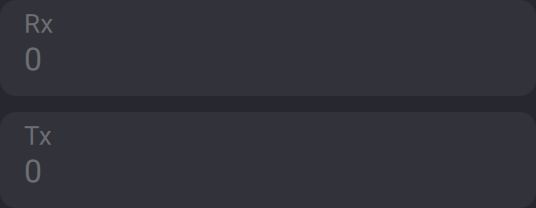 |
Modules status
The status of a module can be monitored on the info bar of a module when it is selected. The info bar will display the exact status of the module and a color code will give you a quick overview of the module’s state :
- Green : The module is running and working properly
- Blue : Kratos is establishing the connection to the third party system
- Red : The connection to the third party system is lost
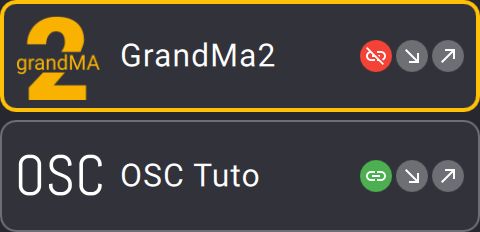
You can also monitor all the modules status in the module list on the left side of the view. The color code is the following :
 Green : Connection is established
 Orange : Kratos is trying to connect
 Red : Connection is lost
You can learn more about the different status and their meaning on the modules status page.