Quick Assign using a keyboard
Quick Assign lets you assign the nearest Tracker to a Target straight from a camera view, using a keyboard shortcut. This is much faster than clicking through the Tracker list in the Target Patcher during a live show.
K SYSTEM Sense only
Quick Assign patches Targets to Trackers created by the Kore AI.
Set the search distance
In the Show Explorer → Show tab, open the Quick Assign section and set Max Distance (%), the search radius around the cursor, as a percentage of the camera view height (default 8). A Tracker farther than this from the cursor will not be assigned.
Bind a shortcut to a Target
- Open the Show Explorer → Target tab and select a Target.
- In its Quick Assign section, click Assign.
- Press the key combination you want (you can use modifiers like
Ctrl,Shift,Alt).Escape,EnterandTabare reserved. - Click Save. If the combination is already used, Kratos warns you and disables Save.
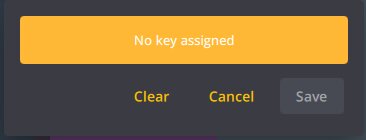
Repeat for each Target you want a shortcut for.
Assign during the show
- Hover the mouse over a Camera view.
- Hold the Target's shortcut key. An on-video preview appears: a circle (the search radius) follows the cursor, and the candidate Tracker is highlighted with a pulsing ring when one is in range.
- Move the cursor over the right person and release the key: the Target is assigned to that Tracker.
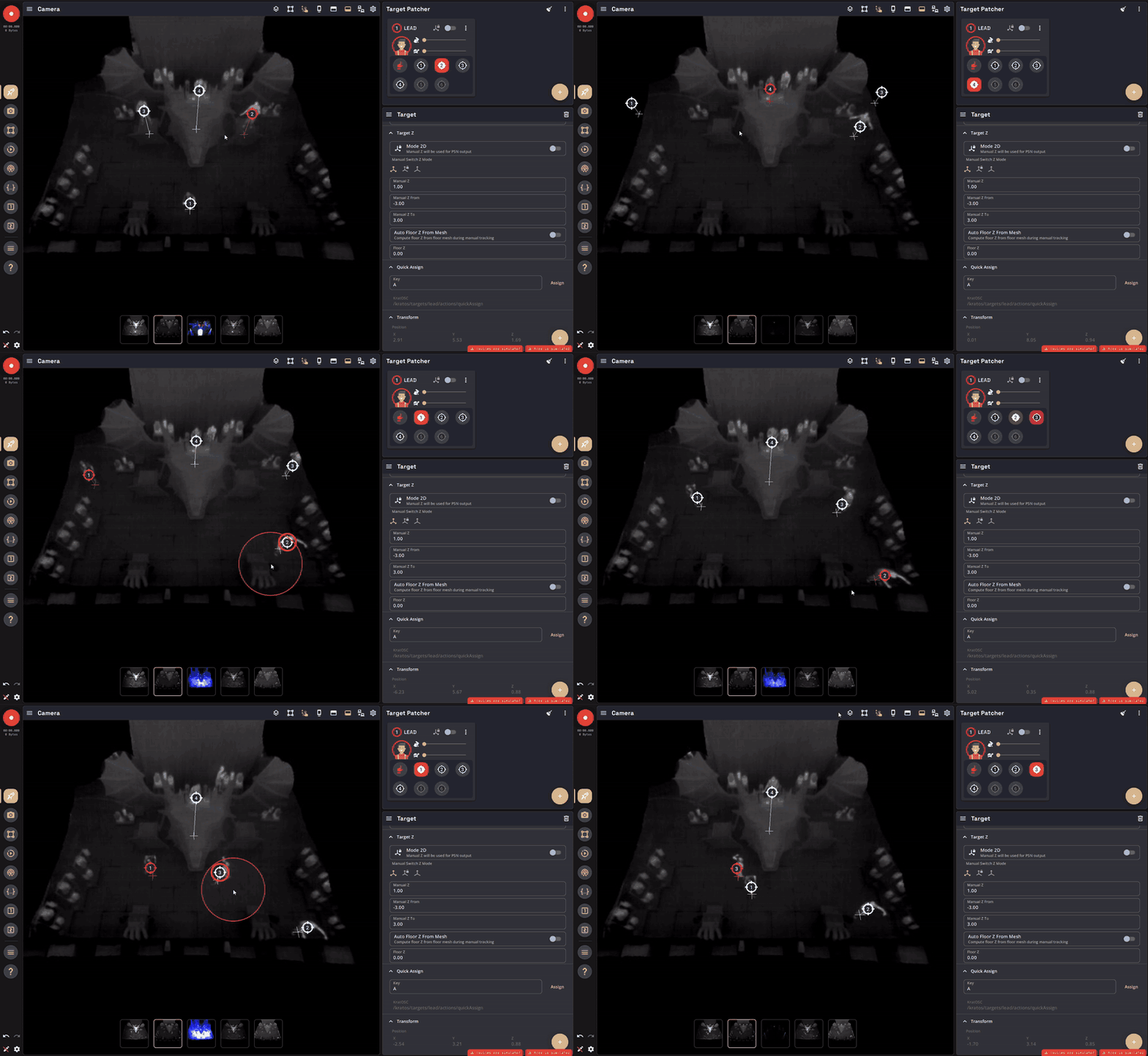
If no camera view is hovered, Kratos shows Hover a camera view to quick assign.
Quick Assign can also be triggered from an external pad or controller (see Quick Assign using an external pad or controller).