Show
The Show tab regroups all the general parameters of the show.
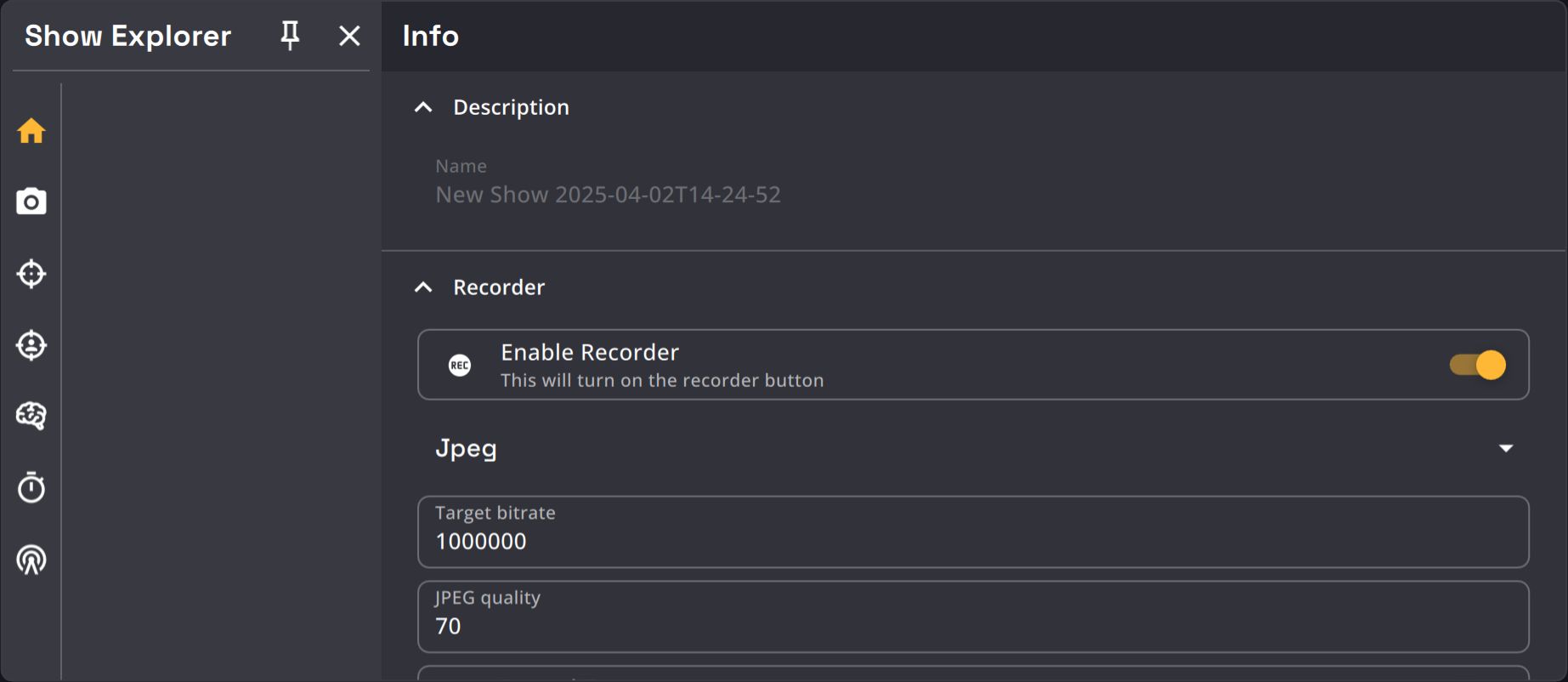
Description
| Name | Description | Image |
|---|---|---|
| Show name textfield | Show name is the .kratos file name. This property is readonly. |
 |
Recorder
| Name | Description | Image |
|---|---|---|
| Enable recorder toggle | Allows you to enable / disable the recorder button located on the side bar. See the record button section for more information. |
 |
| Recording format selection | Video feeds are not compressed between the cameras and Kore to reduce delay. You can choose to record .kramera file uncompressed (Raw) or use a compression format (Jpeg or H264). We recommend using Jpeg compression as H264 is still in Beta. |
 |
| Target bitrate | You can choose the recording bitrate Only works with H264 compression format. |
 |
| JPEG quality | You can change the JPEG compression factor. Only works with Jpeg compression format. |
 |
| Record Targets toggle | If enabled, Targets position will be saved in the .kramera file when recording. When replayed with the simulator, the Targets recorded will be seen as Trackers by Kratos. |
 |
| Record Tracks toggle | If enabled, Trackers positions will be saved in the .kramera file when recording, allowing you to simulate the Kore when replaying the file with the simulator. |
 |
| Record Pose3D toggle | If enabled, 3D skeletons will be saved in the .kramera file when recording. |
 |
| Measurements recording framerate | Allows you to change the recording frequency of the recorded measurements (Target position, Trackers position, 3D skeletons). When playing the file back, the simulator interpolates the position for each measurement between the recorded ones. we recommend recording measurements at 1Hz (1000ms). |
 |
| Measurements recording prediction | You can offset the recording of the measurements from the recorded frames with this parameter (in ms). |  |
Video
| Name | Description | Image |
|---|---|---|
| Undistort Video toggle | You can choose to rectify the video image. This removes the distortion of the camera lens and make the straights appear staight. |  |
| Undistort alpha parameter | When you undistort to an image, you can choose to lose boundary pixels in order to keep an image with straight edges (alpha = 0). If you want to keep all the pixels of the original image, to undistort it will add extra black pixel to it (alpha = 1). With this parameter, you can choose what portion of the original image you want to keep when undistorting it. This parameter is only usable when the images are displayed undistorted. |
 |
| Hide Trackers distance | Kratos displays the camera images distorted to show the maximum information possible as undistorted images cut parts of the original image taken by the camera. As the distortion effects present in the side of the images can create weird artifacts when displaying Trackers, the Trackers can be hidden when approaching the side of the images. This parameter goes from 0 to 1 with:
|
 |
| Show Mask toggle | You can choose to show or not the masks overlayed on the video feeds of the Camera view. |  |
| Mask alpha parameter | You can change the transparency of the Masks with this parameter. 0: fully transparent, 1: fully opaque. |
 |
| Mask color parameter | You can change the color of the Masks with this parameter. You can either use Hex code like #ee82ee or standard SVG color names in plain text like violet. |
 |
| Tracker color toggle | This option allows you to choose if you want to display the Trackers with a color or in plain white in the Camera view and in the Target patcher views. |  |
| Tracker position shift | You can shift the position of the displayed Trackers relative to the position of the tracked person with this parameter. Parameters are in meters, relative to Kratos coordinate system. These parameters only apply to the displayed marker, the Tracker position is not affected. |
 |
| Tracker scale parameter | You can change the size of the displayed Trackers with this parameter. |  |
| Tracker opacity parameter | You can change the opacity of the displayed Trackers with this parameter. |  |
| Minimum Tracker count parameter | You can change the minimum amount of Trackers displayed in the Target patcher view with this parameter. This number is used when:
|
 |
| 2D detections toggle | The 2D detections represent all the persons detected by the AI in each image of each camera, frame by frame. |  |
| 2D tracks toggle | The 2D tracks are the calculations made to keep the identity of a same person from a frame to another, and thus maintain its identity and filter out false positives. |  |
| 3D detections toggle | The 3D detections are the result of the association and triangulation of each pair of camera's 2D tracks put together. |  |
| 3D detection combined toggle | The 3D detection combined allows you to see the 3D detection combined in each camera view. |  |
| BeaKon tag toggle | This option allows you to display the position of the BeaKon Tags in the Camera view. |  |
| 2D skeleton detection toggle | The 2D pose detections represent the skeletons detected by the AI in each image of each camera, frame by frame. |  |
| 2D skeleton tracks toggle | The 2D pose tracks are the calculations made to keep the identity of a same skeleton from a frame to another, and thus maintain its identity and filter out false positives. |  |
| 3D skeleton toggle | The 3D pose is the result of the association and triangulation of each pair of camera's 2D skeleton tracks put together. This parameter is in beta. |
 |
| NDI output toggle | If enabled, Kratos will create a NDI source for every video stream of the devices (Kapta or Kam) connected to it. |  |
The detections and tracks are only shown in the thermal cameras images.
These information can be useful to debug the detection and tracking algorithms. We suggest to activate them at the beginning of the installation of the system to check if the AI works properly.
Quick Assign
K SYSTEM Sense only
Quick Assign patches Targets to Trackers created by the Kore AI.
The Quick Assign section sets the global parameter for the Target Quick Assign feature.

| Name | Description |
|---|---|
| Max Distance (%) | The Quick Assign search radius, as a percentage of the camera view height (0–100, default 8). A Tracker farther than this from the cursor will not be assigned. |
The per-Target shortcut and OSC address are configured in the Target tab.