Target Patcher
The Target Patcher view allows you to create and customize the different Targets you want to track before the performance. This interface is also where each Target is assigned to the corresponding Tracker during the show. Each Target represents a specific human. The properties of a Target (position, speed, acceleration) are what are send to the third party systems. You have to create a Target for every person you want to track.
You can create a new Target by clicking on the  Add button located on the bottom right corner of the view.
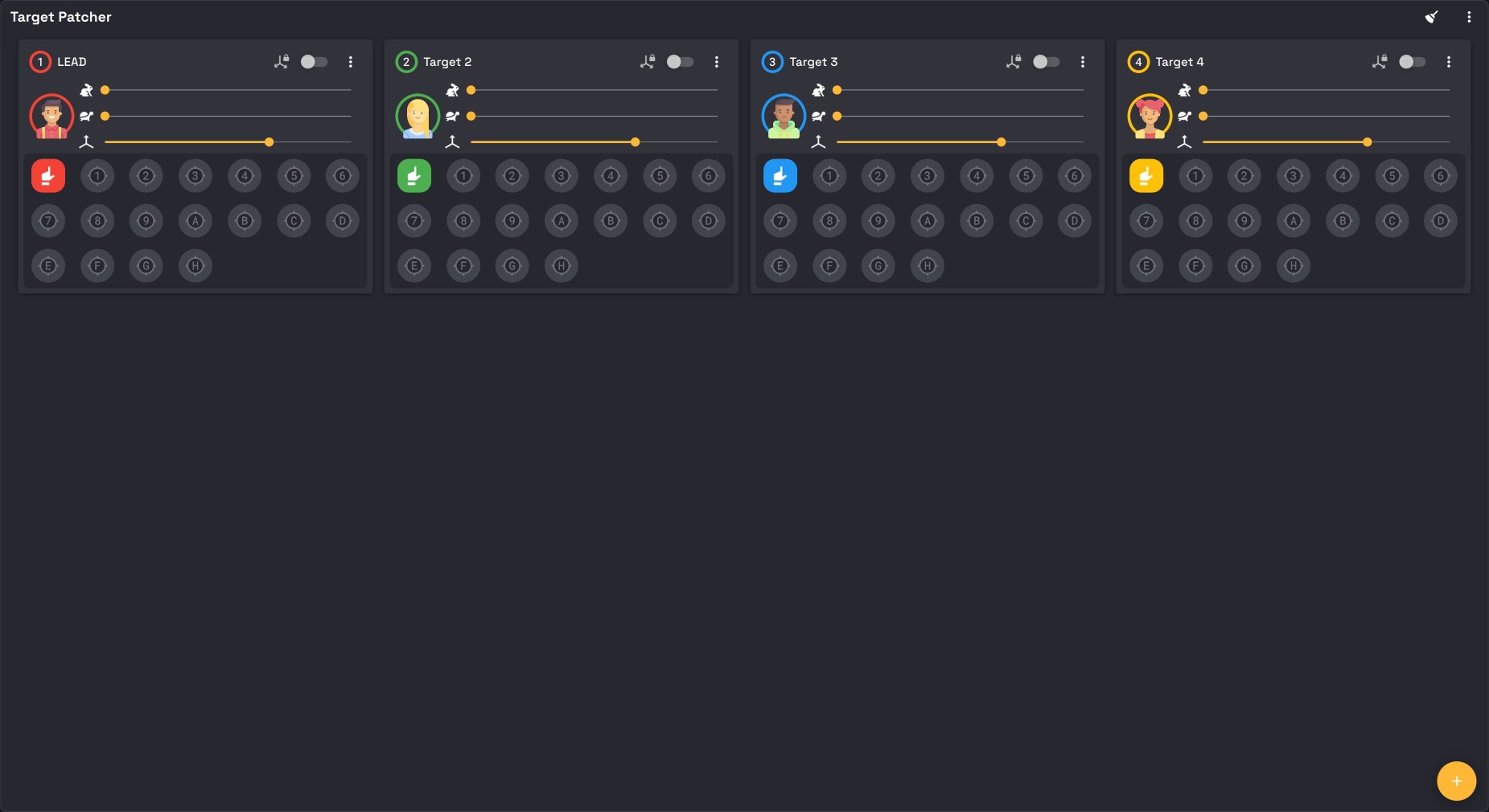
To create a Target Patcher view, check the Layout organization section.
Tracker patcher
The main use of the Target patcher view is for the operator to link (patch) each Target to the corresponding Tracker. A Tracker is what is outputted by the AI : each person detected by the AI is given a Tracker that contains the person's position, speed and acceleration. As the AI cannot retain persistent identity of a person that leaves the cameras' view and comes back in, an operator has to patch the corresponding Target to the Tracker the AI has assigned the person when it entered the stage.
In each Target card, a list displays all the possible Trackers (from 1 to G by default).
Tracker buttons are only shown when tracking is available: once a Kore has connected during the session, or while the Kore simulator is enabled. Without a Kore (K SYSTEM Flow), Target cards only show the manual tracking controls. The buttons stay visible if the Kore disconnects during a show.
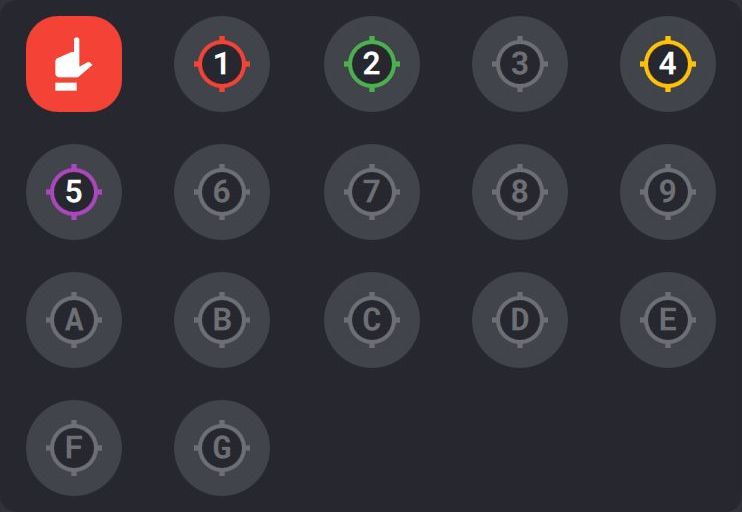
If you increase the number of tracked people, the Tracker list will grow when all the initial Trackers are used.
You can clean the Tracker lists by clicking on the broom button located on the top right of the view. This will remove the unused Trackers from all Tracker lists.
- A colored Tracker indicates a detected person has been assigned by the AI.
- A greyed-out Tracker means no person is currently assigned to that ID (or got lost).
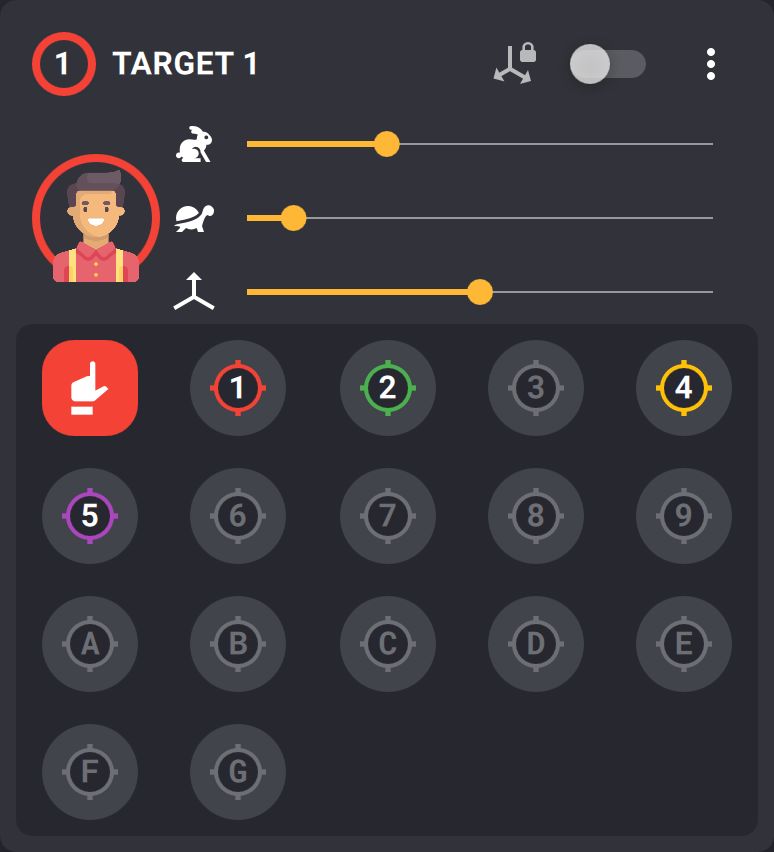
- To patch the Target to a Tracker, you simply have to click on the desired Tracker in the Target card. The circle around the Target's avatar will then change to the color of the Tracker.
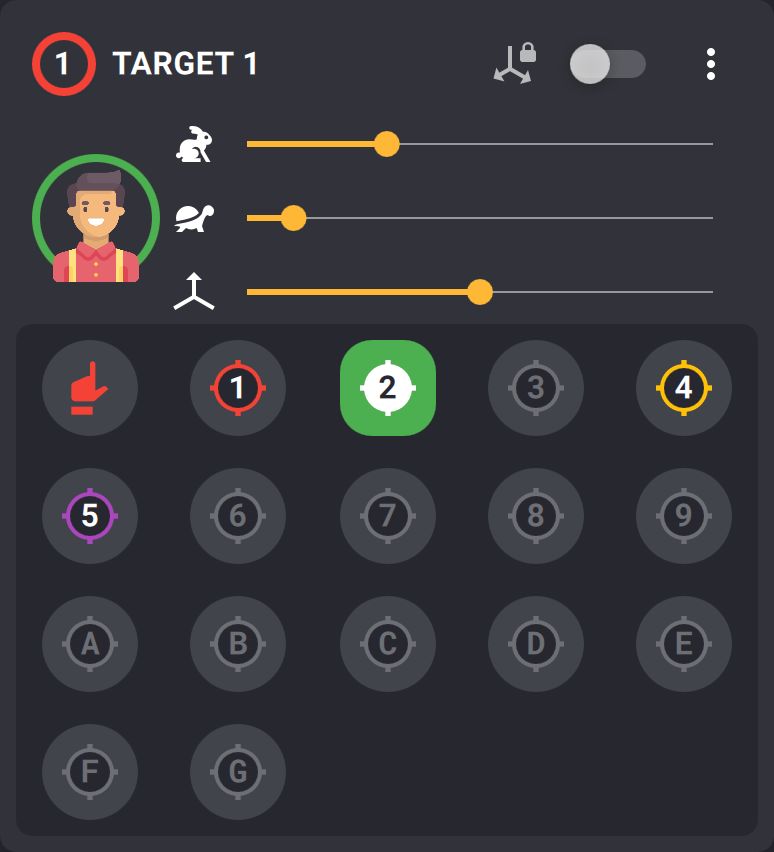
- If the Tracker is lost by the AI (when the corresponding person leaves the stage for example) or if you select a Tracker that is not assigned to a person, the Tracker area will be contoured in red to warn you that the Target is not patched to a valid Tracker.
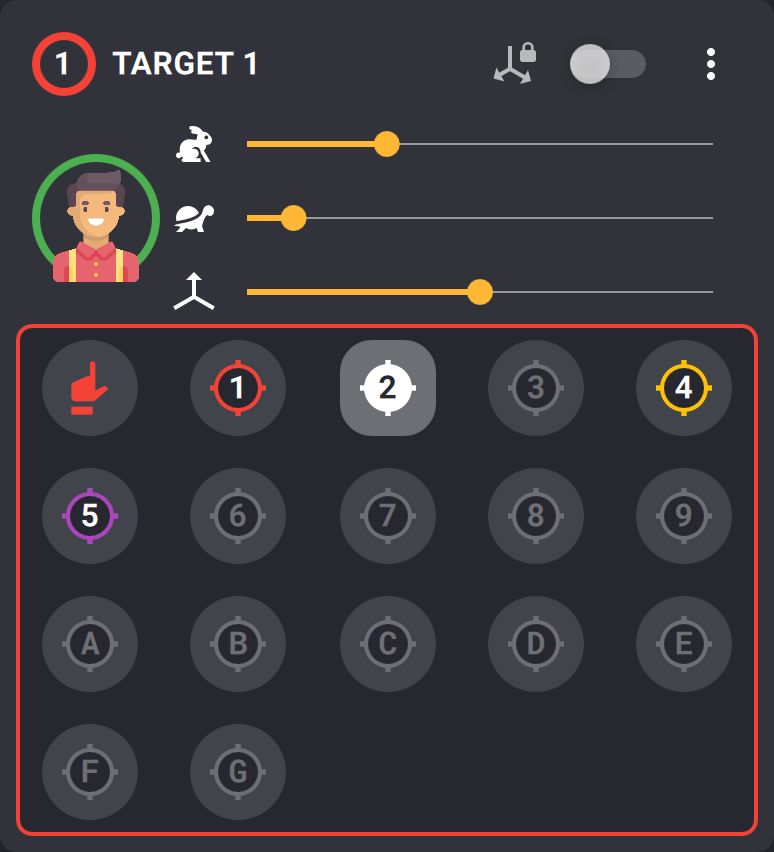
- If Auto Release Target on Tracker lost is off, the Target stays patched to the selected Tracker and gets its position back if the AI assigns that Tracker to a person again. With it on (the default), the Target is released after 1 second.
- You can also select the manual target in this area (first icon under the Target's avatar).
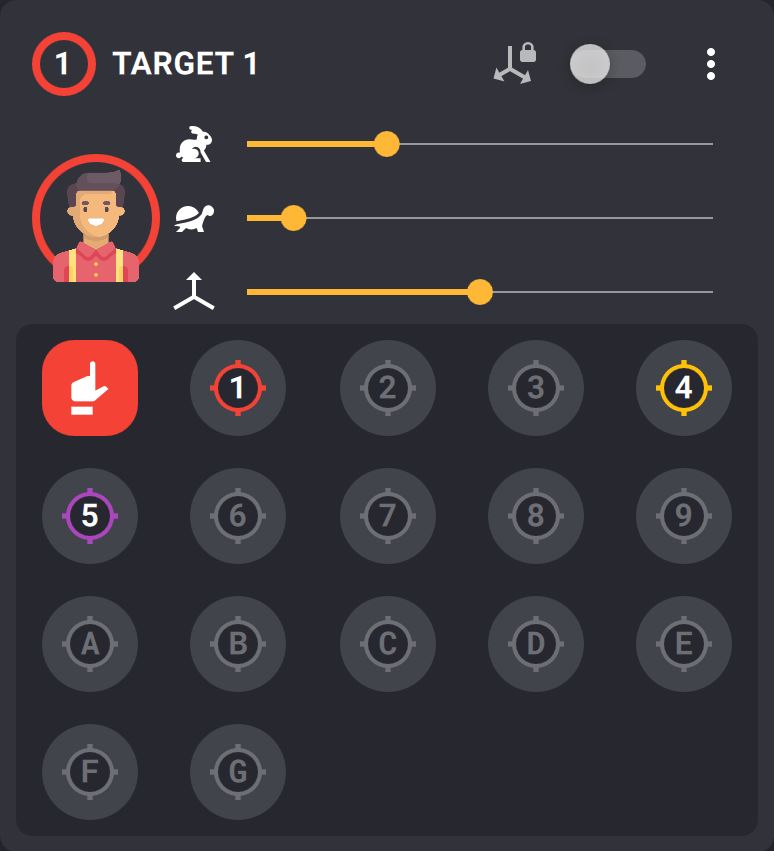
You can patch the same Tracker to multiple Targets.
Target customization
Each Target can be customized for an easier reference to the corresponding person tracked. In the Target Patcher view, at the right of each Target name, you have a quick access menu that allows you to :
- Edit the name of the Target
- Edit the avatar of the Target
- Save Home Position: store the Target's current position as its Home Position
- Delete the Target
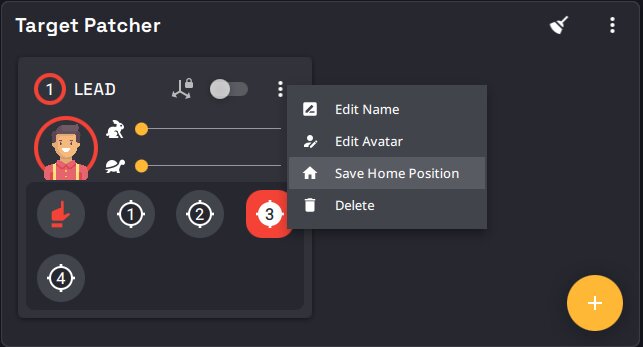
Further customization like changing the color or using a custom image as the avatar can be done in the Target tab of the Show explorer view.
Post processing parameters quick access
Some post-processing parameters can be accessed quickly via sliders in each Target's card. These parameters are :
- Prediction slider : Change the amount of time you want to predict the Target's position in the future
- Smoothing slider : Change the amount of time used to average the Target's position
- Manual Z slider : Change the Target's Z height when in manual tracking mode
- Mode 2D toggle : Enable / Disable the 2D mode
When moving a slider, it's value is displayed above the mouse cursor.
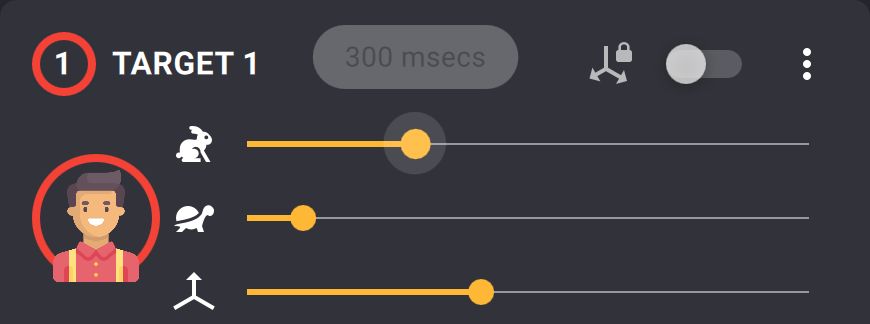
You can choose to disable each post-processing slider by clicking on the menu button located on the top right of the view and unchecking the corresponding option. This can be useful if you don't want to accidentally change a parameter during the show.
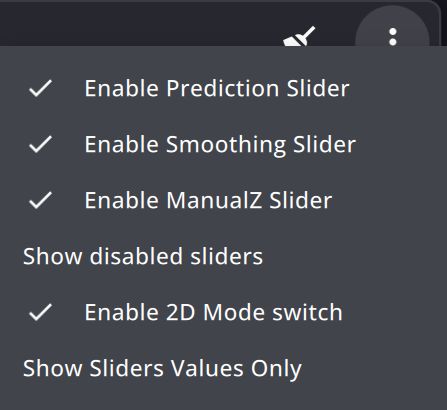
This menu also allows you to :
- Hide the disabled sliders to gain space in the view.
- Display the sliders values only. This is useful if you only want to change these parameters remotely via KratOSC.
Learn more about Target post-processing parameters in the Target tab of the Show explorer.
Color code
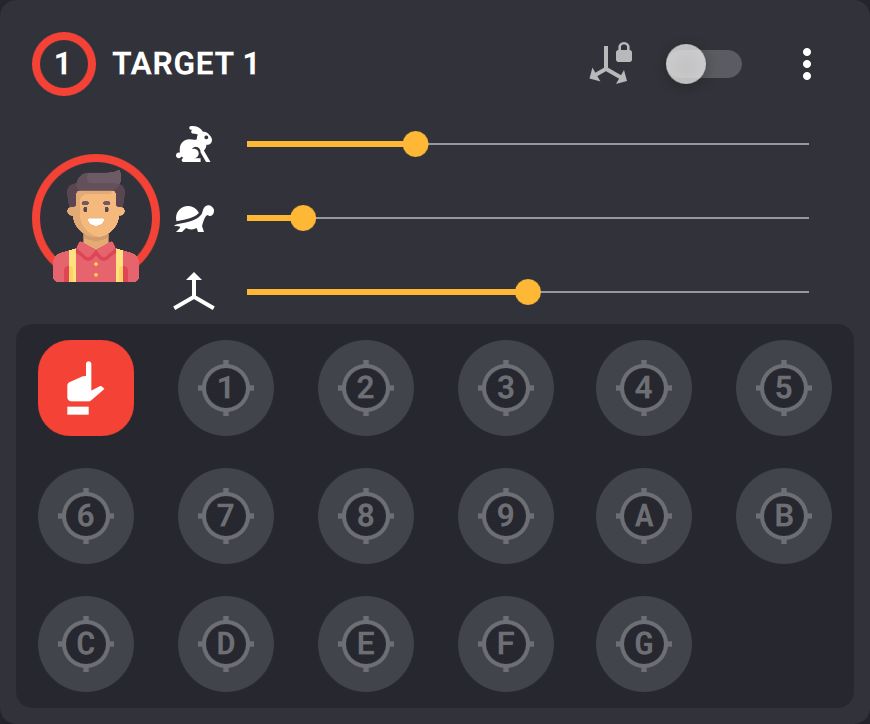
Each Target's card presents colors to display different information :
- The circle around the PSN Id (next to the Target's name) is always the Target's color
- The circle around the Target's avatar is the color of the Tracker the Target is patched to. If the Target is not linked to a Tracker or linked to the manual target, the circle is the Target's color.
- The manual target icon is always the Target's color
- If the "show track with color" parameter is disabled in the show tab of the Show explorer view, all the Trackers will be displayed in white and the circle around the Target's avatar will always be the Target's color.
You can change Target color in the Target tab of the Show explorer view.
Manual tracking
Manual tracking mode allows you to manually set the position of a Target. This mode is useful when you want to track something that is not a person for example, or to set fix position quickly. To put a Target in manual tracking mode, simply click on the hand icon under the Target's avatar.

A manual target will then appear on the Camera view.
- The color of the manual target corresponds to the color of the Target.
- If the Target was previously linked to a Tracker, the manual target will appear at the last known position of the Tracker.
- Otherwise the manual target will appear at the origin of Kratos' coordinate system.

Home position
Double-click the hand icon to release the Target from its Tracker and send it to its Home Position, in manual tracking. To change the Home Position, use Save Home Position in the Target card menu, or the Target tab of the Show Explorer.
If you don't see the manual target on the Camera view, right click somewhere on the view to make it teleport to the mouse cursor position.
Check out all the manual tracking controls in the Camera view.
Quick Assign
K SYSTEM Sense only
Quick Assign patches a Target to a Tracker created by the Kore AI.
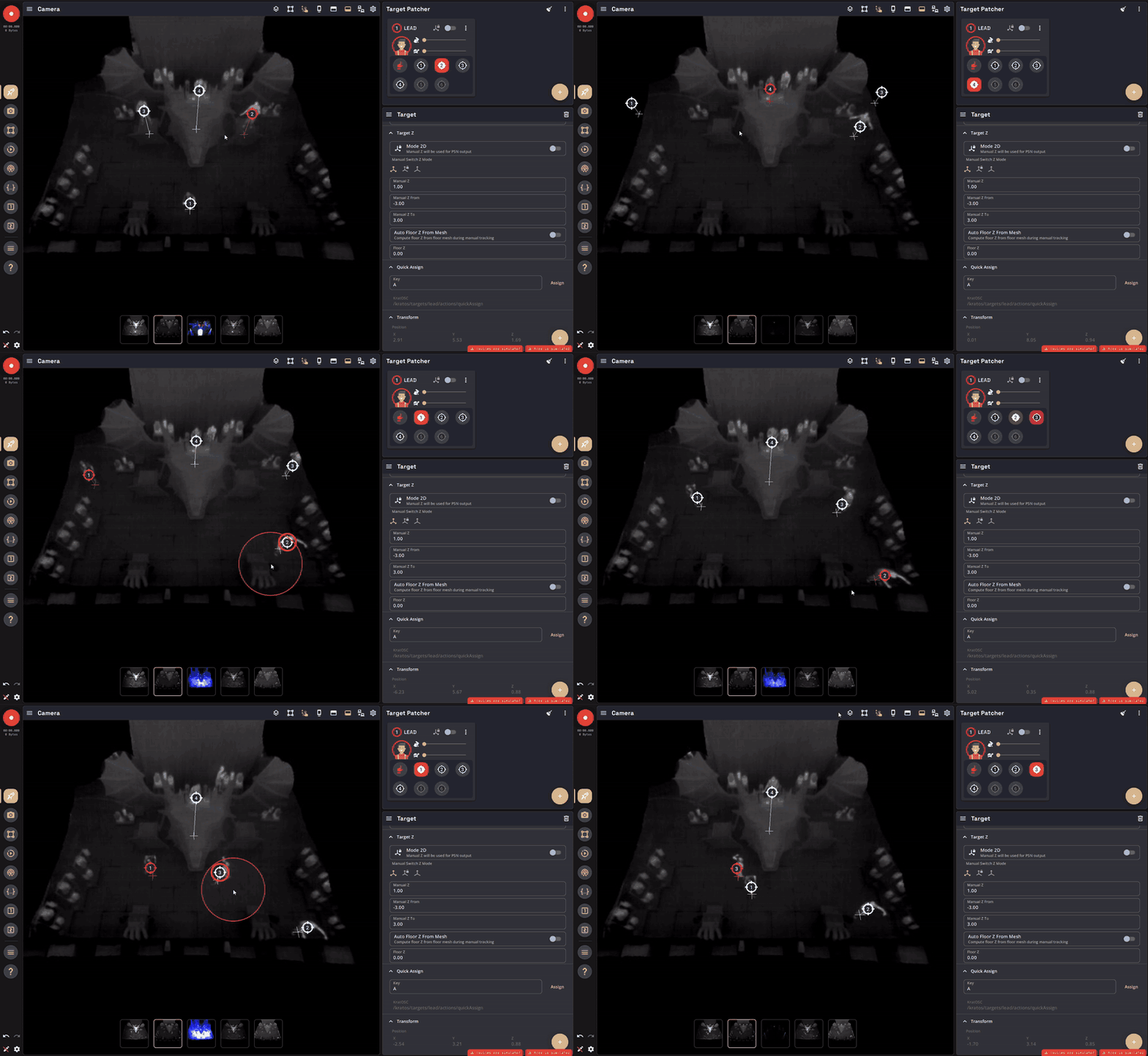
Quick Assign lets you assign the nearest Tracker to a Target straight from the camera view, without clicking through the Tracker list. You point at a person on a Camera view and trigger Quick Assign: the Target is patched to the closest valid Tracker, as long as it is within the configured Max Distance.
There are three ways to trigger it:
- Keyboard shortcut : hold the Target's assigned key, move the cursor over the right person on the camera view, and release to assign.
- KratOSC : send
/kratos/targets/<target_name>/actions/quickAssignwith no argument to assign at once, ortrueon press (preview) thenfalseon release (assign). - SpaceMouse : set a SpaceMouse button to Quick Assign. With Use as Cursor enabled, the SpaceMouse moves its own cursor on the focused camera view and assigns the Tracker closest to it.
While the trigger is held, an on-video preview follows the cursor: a circle shows the search radius (in the Target's color when a Tracker is in range) and a pulsing ring marks the Tracker that will be assigned.
Configuring Quick Assign
Quick Assign is configured from the Show Explorer:
- In the Show tab → Quick Assign section, set the global Max Distance (%), the search radius as a percentage of the camera view height (default 8).
- In the Target tab → Quick Assign section, bind a keyboard shortcut to each Target (the Assign button opens a shortcut picker) and copy that Target's KratOSC address.
Auto Release Target on Tracker lost
K SYSTEM Sense only
This behavior applies to Targets patched to Trackers.
When a Target's assigned Tracker is lost (for example when the person leaves the stage), Kratos can automatically release the Target (switch it to manual mode) after 1 second: the Target is unpatched and stays at the Tracker's last known position instead of staying stuck on a Tracker that may never come back.
This behavior is a preview feature (Auto Release Target on Tracker lost), enabled by default.
As an exception, a Target whose Tracker is linked to a BeaKon tag registered in the Kore is not released: it stays patched, because the tag still gives its position.