Calibration Patterns
The Calibration Patterns tab of the Stage Editor is where you define the 3D reference points used to calibrate your cameras with Free Calibration.
A calibration target is a world point placed in your venue at a known position. There are two types:
- Point : a single 3D reference position (use risers, marks on the floor, any known location).
- Rectangle pattern : a 6-point pattern (a 3×2 grid) of a chosen width and depth, placed on a flat surface.
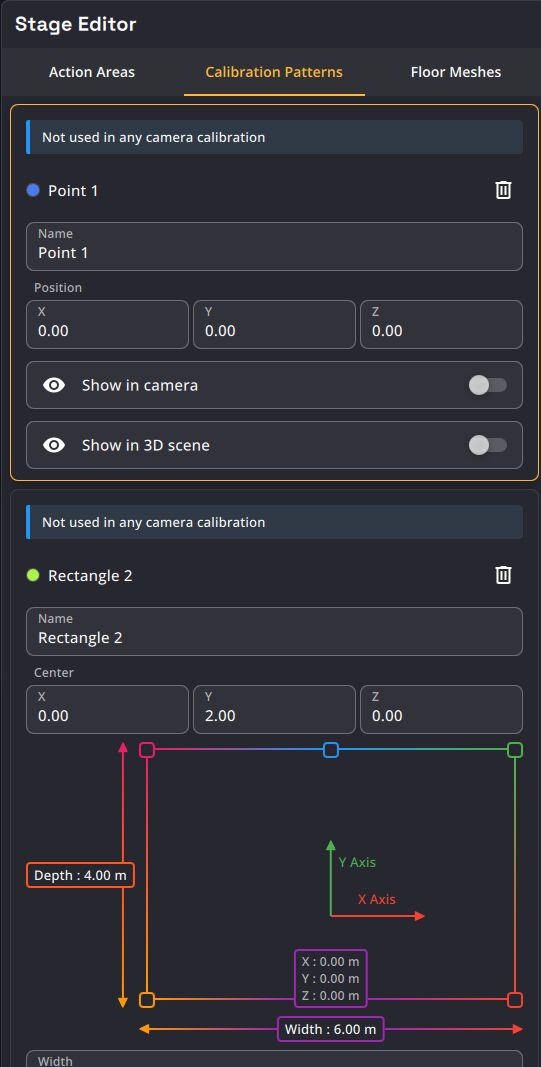
Adding a calibration target
Use the + button (Add calibration target) at the bottom of the list:
- Add point : creates a single world point ("Point N").
- Add rectangle pattern : creates a rectangle pattern ("Rectangle N").
Each new item gets a distinct color so you can tell them apart in the 3D scene and on the camera image.
Common properties
| Name | Description |
|---|---|
| Name | Rename the point or pattern. |
| Position / Center | The world position in meters (labelled Center for rectangle patterns). |
| Show in camera | Show the point's marker overlaid on the camera image. |
| Show in 3D scene | Show the point in the 3D Stage view. |
A trash button on each card deletes the point (with confirmation).
Rectangle pattern properties
In addition to the common properties, a rectangle pattern has:
| Name | Description |
|---|---|
| Width | Pattern width in meters. |
| Depth | Pattern depth in meters. |
| Rotation | Orientation in degrees: X (pitch), Y (yaw), Z (roll). |
A small top-down schematic shows the pattern layout as you edit it.
Editing in 3D
World points and patterns can be positioned directly in the 3D Stage view with the transform gizmo:
- A single point can be translated.
- A rectangle pattern can be translated, rotated and scaled (to resize its width/depth).
You can also drop a selected point onto the floor mesh, or snap it to the mesh while dragging.
Points in use are locked.
When a point is used by one or more camera calibrations, its card shows Used by N camera(s) for calibration and its geometry is locked, so you can't accidentally move a point a calibration depends on. To move it, edit it in the Set up points step of Free Calibration, then check the cameras that use it.
Relationship with Free Calibration
The Calibration Patterns tab defines where your reference points are in the world. Free Calibration then uses those same points for each camera: you mark their position on the image and choose, per camera, whether each point is Included in the calculation or used as a Control point to check the result.