SpaceMouse module
The SpaceMouse module allows you to control Target positions using a 3DConnexion SpaceMouse device. It reads up to 6-DOF HID input and translates it into X/Y/Z movement on a selected Target, or into a pan of a camera view in 2D mode.
The module only moves the Target when it is in manual tracking. With Auto Release Target disabled (default), the Target must already be in manual mode. With it enabled, moving the SpaceMouse switches the Target to manual mode as soon as input is detected.
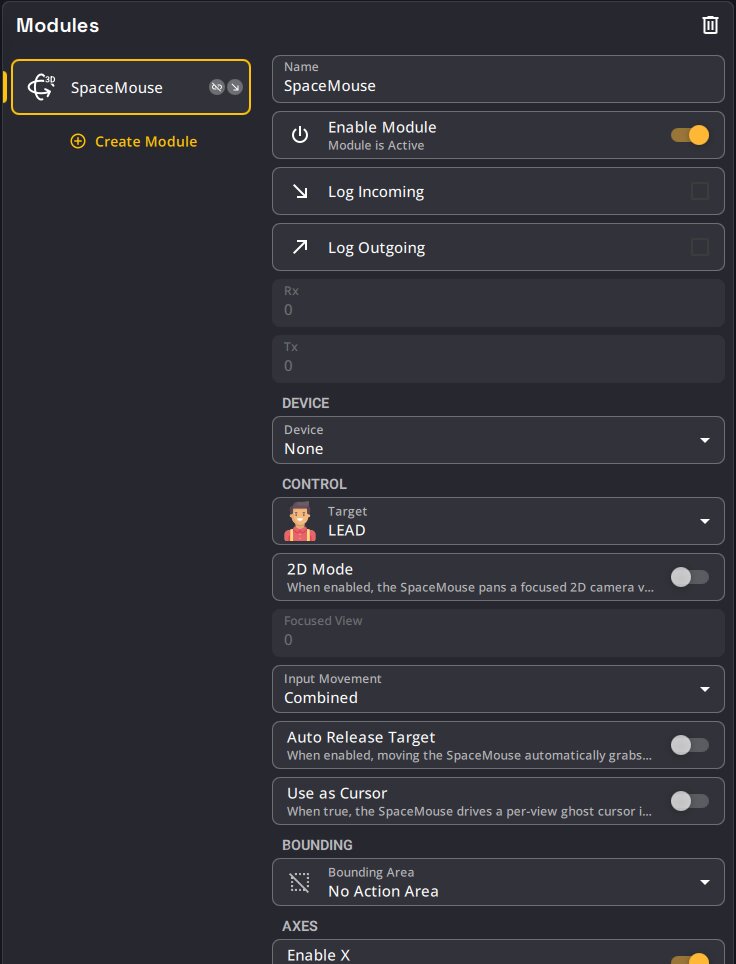
A SpaceMouse license is only available on Kore, Kore S and NUK. On other platforms the module can be created and configured, but it shows No SpaceMouse license available and cannot connect to a device.
Automatic setup

When you enable a SpaceMouse module:
- If no Device is selected, the first connected SpaceMouse that is not already used by another module is picked automatically. If you explicitly selected None, your choice is kept.
- If no Target is selected and the show contains a single SpaceMouse module, the first Target of the show is selected.
- When a SpaceMouse is unplugged and plugged back in (even on another USB port), it is routed back to its module.
A SpaceMouse device can only be used by one module at a time.
Device
| Name | Description |
|---|---|
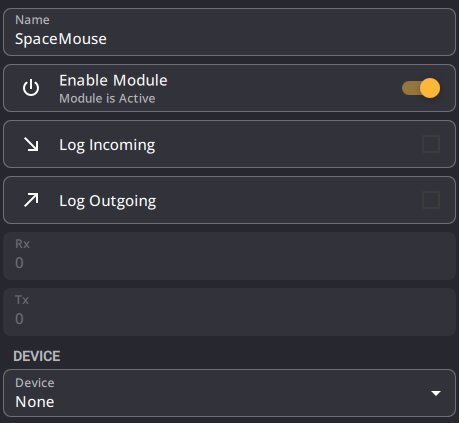
| Device | Select which SpaceMouse device to use. Auto-populated with detected devices. Disabled on platforms without HID support. |
Control
| Name | Description |
|---|---|
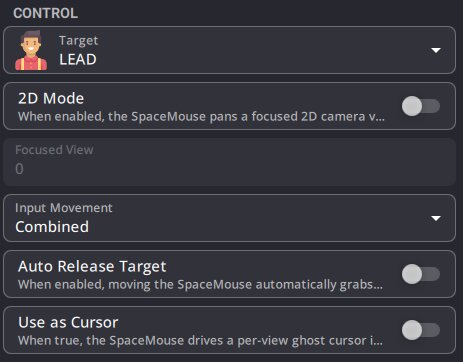
| Target | The Target to control with the SpaceMouse. |
| 2D Mode | When enabled, the SpaceMouse pans the Target within the focused camera view's image plane instead of moving it along the 3D world axes. Useful for Targets in 2D mode. Requires a camera view focused on this module (see Camera view link). |
| Focused View | Read-only in the interface: the id of the camera view this SpaceMouse currently controls in 2D mode (0 = none). It can be written over KratOSC or JavaScript to focus another camera view linked to this SpaceMouse. |
| Input Movement | How input is read from the device: Translation (linear movement), Rotation (tilt/twist), or Combined (picks the strongest signal per axis). Default: Combined. |
| Auto Release Target | When enabled, moving the SpaceMouse automatically switches the Target to manual mode. When disabled (default), the Target must already be in manual mode. Not to be confused with the Auto Release Target on Tracker lost preview, which releases a Target when its Tracker is lost. |
| Use as Cursor | When enabled, the SpaceMouse drives its own cursor on the focused camera view in 2D mode, instead of moving the Target. Press a button set to Quick Assign to assign the Target to the Tracker closest to that cursor. Cannot be used together with Auto Release Target. Quick Assign needs Trackers, so this is only useful in K SYSTEM Sense. |
Tip
Auto Release Target reacts to any input above the deadzones. On stages with vibrations, small unintended movements may grab the Target. Increase the deadzones, or keep Auto Release Target off and assign a button to Release Target.
Axes
| Name | Description |
|---|---|
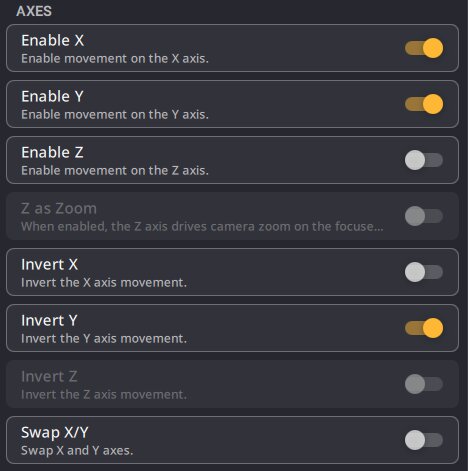
| Enable X / Y / Z | Enable or disable movement on each axis individually. Z is disabled by default for 2D use. |
| Z as Zoom | When enabled, the Z axis zooms the focused camera view, centered on the SpaceMouse Target. When disabled (default), Z moves the Target vertically. |
| Invert X / Y / Z | Invert the movement direction on each axis. Invert Y is enabled by default. |
| Swap X/Y | Swap the X and Y axes. Useful when the SpaceMouse physical orientation doesn't match the camera view. |
Buttons
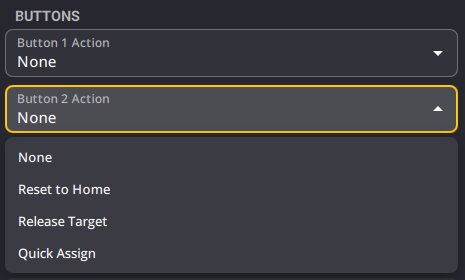
| Name | Description |
|---|---|
| Button 1 Action | Action triggered by pressing button 1 (left). |
| Button 2 Action | Action triggered by pressing button 2 (right). |
Available button actions:
- None : No action (default)
- Reset to Home : Snaps the Target to its Home Position (configured per Target in the Show Explorer)
- Release Target : Captures the current Tracker position and switches the Target to manual mode
- Quick Assign : Hold to preview, release to assign the Target to the Tracker closest to the cursor (the SpaceMouse cursor when Use as Cursor is on). See Quick Assign (K SYSTEM Sense only).
Bounding

| Name | Description |
|---|---|
| Bounding Area | Constrain Target movement to a selected (enabled) action area. When the Target is outside the area, the next SpaceMouse input snaps it to the nearest face. Honors the area's rotation and the per-axis enables. |
Advanced
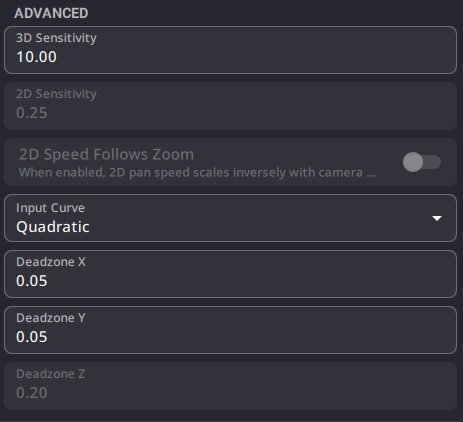
| Name | Description |
|---|---|
| 3D Sensitivity | Movement speed multiplier in meters per second (3D movement). Range: 0.01–100. Default: 10. |
| 2D Sensitivity | Pan speed in 2D Mode, in image widths per second. Range: 0.01–20. Default: 0.25. |
| 2D Speed Follows Zoom | When enabled, the 2D pan speed decreases as you zoom in, so the on-screen speed stays constant. Off by default (the speed is the same at any zoom). |
| Input Curve | How device movement maps to speed: Linear, Quadratic (default), Cubic, or S-Curve. |
| Deadzone X / Y / Z | Minimum input to register movement on each axis (0–0.5). Prevents drift and unwanted movements. |
Camera view link
When a SpaceMouse module exists, a SpaceMouse Module dropdown appears in the Follow section of each camera view's settings panel. Use it to link a SpaceMouse module to that view.
- Selecting a module links the SpaceMouse to the view. Zoom and 2D pan operate on whichever camera is currently displayed.
- Selecting "None" unlinks the module from the view.
- Camera navigation remains fully functional: you can freely switch cameras.
- Each camera view is independent, and the selection is saved with the show.
A linked view shows a SpaceMouse chip in its header. Click the chip to give that view the SpaceMouse focus (the view used by 2D Mode, Z as Zoom and the SpaceMouse cursor). When a Target is selected, the chip shows the Target's avatar, name and color, so you can see at a glance which Target each SpaceMouse controls.

The SpaceMouse needs to be plugged in a USB 3.0 port. Up to 2 SpaceMice can be used on NUK, and 4 on Kore and Kore S.