Floor Meshes
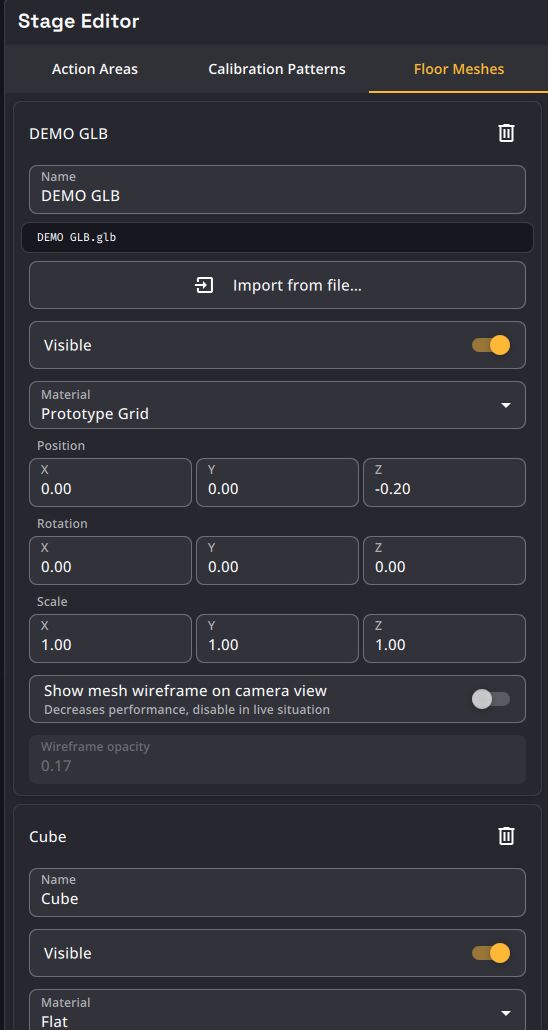
The Floor Meshes tab of the Stage Editor lets you describe the floor geometry of your venue. A show can hold several floor meshes at once.
Floor meshes are used to:
- visualize the stage floor in the 3D Stage view,
- drop world points and targets onto the floor,
- position the target floor markers,
- compute a Target's floor Z automatically during manual tracking (see Compute a Target's floor Z from a floor mesh).
Adding a floor mesh
Use the + button (Add floor mesh) at the bottom of the list:
- Add Mesh… : import a
.gltfor.glbfile. - Add Cube : add a primitive cube floor.
Imported meshes are embedded in the show file.
Importing a file larger than 100 MB asks for confirmation, since the geometry is stored inside the .kratos show file and increases its size.
Floor mesh properties
| Name | Description |
|---|---|
| Name | Rename the floor mesh. |
| Import from file… | (Mesh type only) Import or replace the .gltf/.glb geometry. Shows the current file name, or No mesh imported. |
| Visible | Show or hide the mesh. A hidden mesh is removed from rendering, from picking and from floor raycasts. |
| Material | Flat or Prototype Grid (see note below). |
| Position / Rotation / Scale | The mesh transform (position in meters). |
| Show mesh wireframe on camera view | Overlay the mesh wireframe on the camera image. Decreases performance — disable in live situations. |
| Wireframe opacity | Opacity of the wireframe overlay (only when the overlay is on). |
A trash button on each card deletes the floor mesh (with confirmation).
Editing in 3D
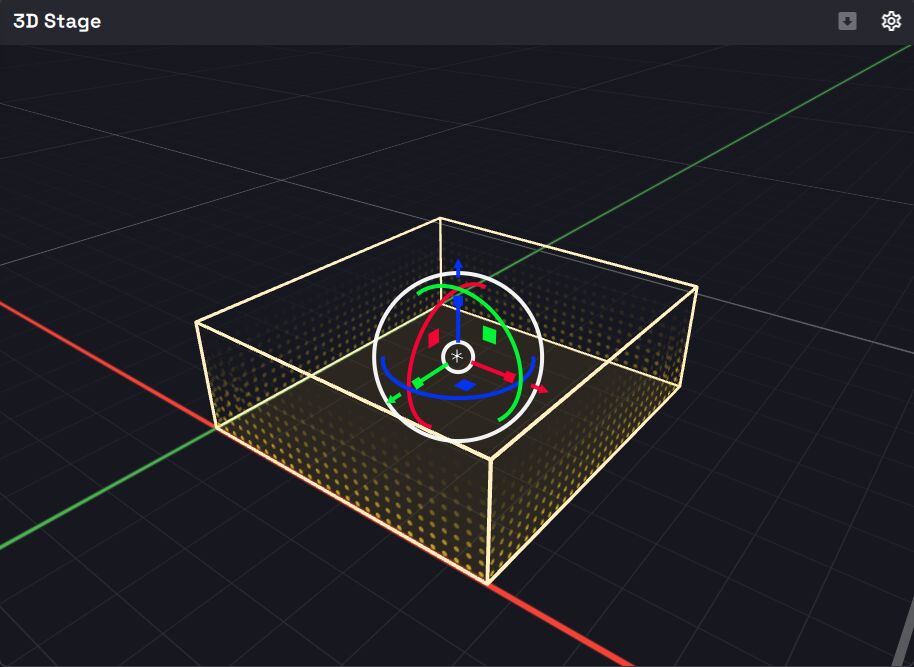
A floor mesh can be translated, rotated and scaled directly in the 3D Stage view using the transform gizmo. Select the mesh's card (or click the mesh in the 3D view) to focus it.
When several meshes are visible, the floor helpers (drop-to-floor, target markers, auto floor Z) use the nearest surface under the point.
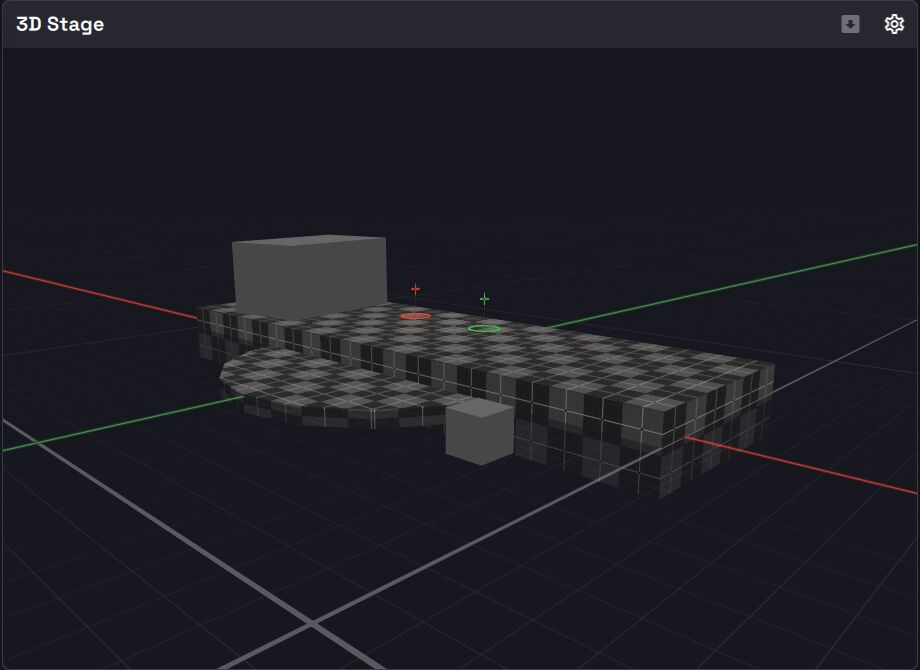
Experimental: Prototype Grid material
The Prototype Grid material is an early preview shader. It may change or be replaced in future releases; use Flat for predictable rendering.